
Tip & Trick
Mastering SharePoint can transform how you collaborate—but beginners often miss the quickest ways to get started. These eight essential tips will help you navigate SharePoint like a pro, from setup to advanced workflows, without overwhelming technical jargon.
Learn SharePoint Navigation Basics First
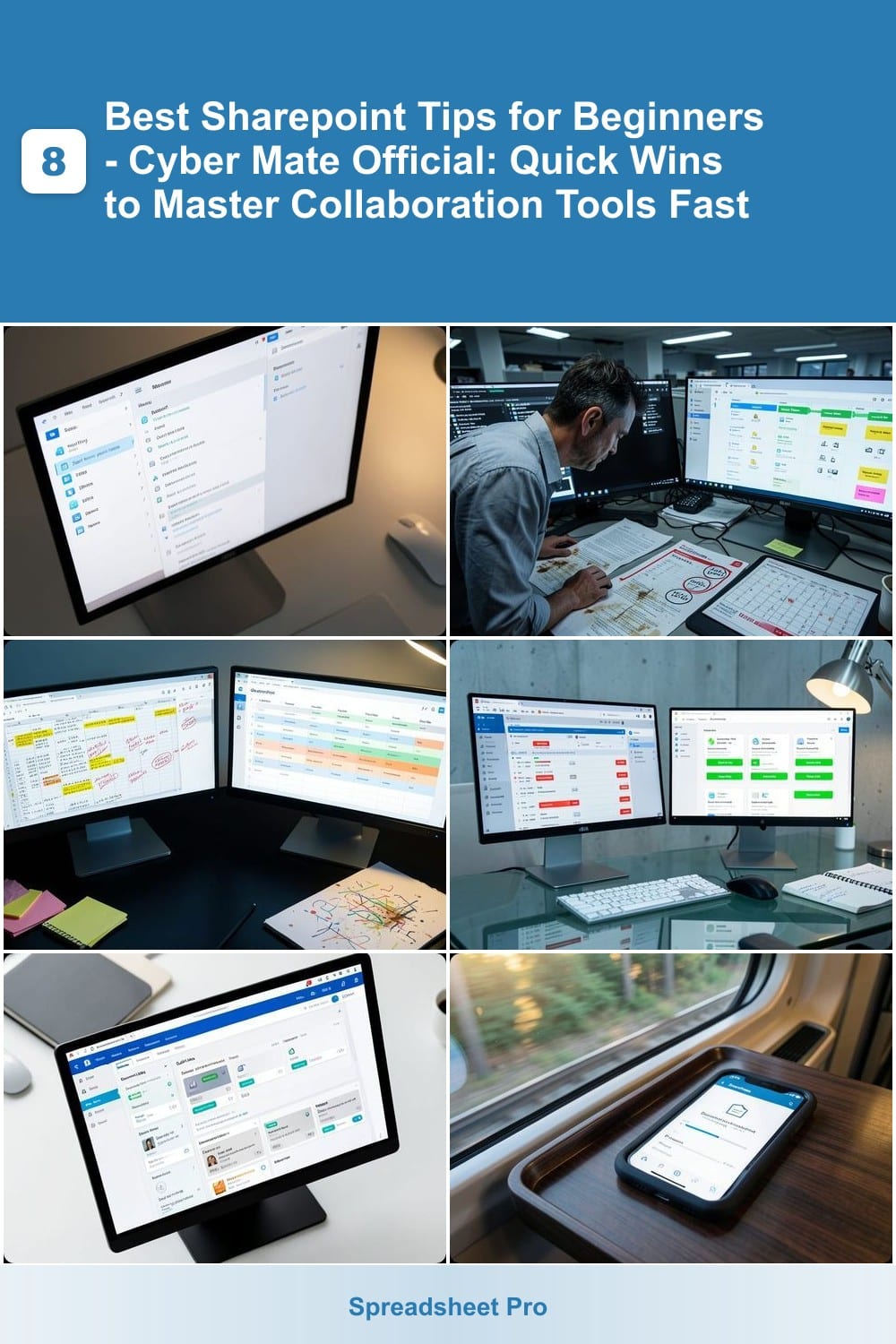
Feeling overwhelmed by SharePoint’s endless menus and hidden features? Start with the navigation pane—your roadmap to everything in SharePoint. This left-hand menu is your gateway to sites, libraries, lists, and news, and mastering it cuts down on wasted clicks and frustration.
Bookmark the “Recent” section to access your most-used files instantly, while the “Sites” tab organizes all your workspaces in one place. Use the search bar (top-right) with filters like “Files” or “People” to pinpoint documents or colleagues without digging through folders. Pro tip: The “…” (More) menu hides advanced options like site settings or permissions, so don’t overlook it!
This is your foundation—ideal for new hires, remote teams, or anyone who’s spent too long hunting for files. Nail this, and the rest of SharePoint becomes intuitive. 💻
Use Modern Document Libraries Effectively

Frustrated by lost files, outdated versions, or team members stepping on each other’s edits? SharePoint’s modern document libraries solve these headaches with built-in tools that turn chaos into control. Unlike traditional folders, these libraries use metadata tags (like "Project," "Status," or "Owner") to categorize files instantly, while version history lets you roll back to previous edits with one click.
Enable co-authoring to let multiple team members edit the same Word or Excel file simultaneously—no more "Save As" conflicts. The preview pane eliminates file downloads, and alerts notify you when documents change. For teams drowning in disorganized files, these features cut search time by 70% and eliminate version control wars. Start by adding custom columns (like "Deadline" or "Priority") to sort files automatically.
This is your secret weapon for marketing teams, legal departments, or any group juggling collaborative documents. Say goodbye to "Finalv3final.docx" and hello to a system that actually works. 💡
Master SharePoint Lists for Data Management

Tired of drowning in spreadsheets or scattered notes? SharePoint lists turn messy data into organized, searchable tables—no coding required. Whether you’re tracking inventory, managing tasks, or storing contact details, lists adapt to your workflow without the complexity of databases.
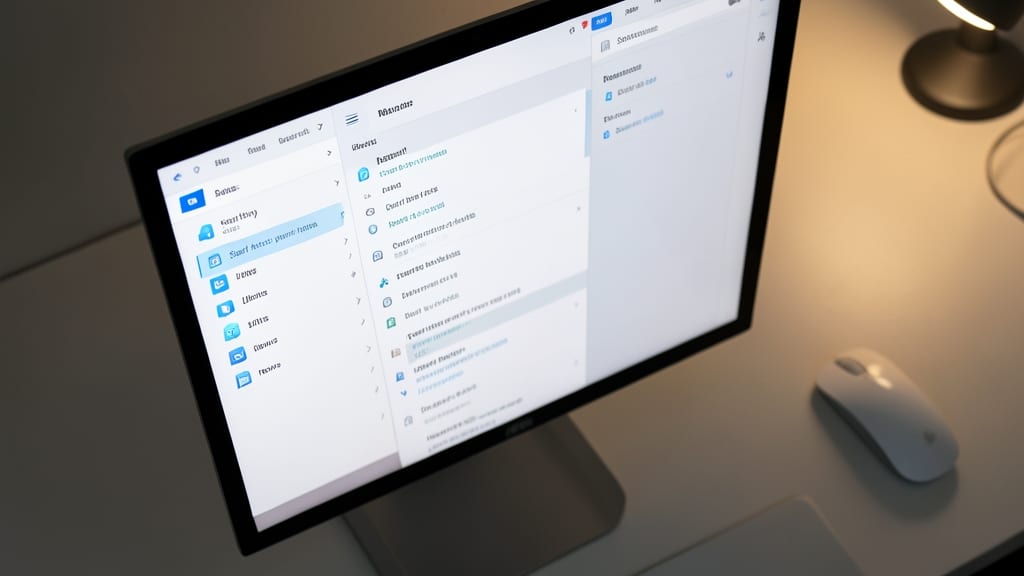
Start with a customizable template (like Tasks or Contacts) or build your own from scratch using drag-and-drop columns. Add filters, views, and conditional formatting to highlight urgent items or overdue deadlines. For example, an inventory list can auto-sort by stock levels, while a project tracker can flag high-priority tasks in red. Mobile access ensures you’re never stuck without updates.
Perfect for small teams, freelancers, or anyone juggling multiple data sources. Ditch the chaos and let SharePoint handle the structure—your future self will thank you. ✨
Automate Workflows with Power Automate
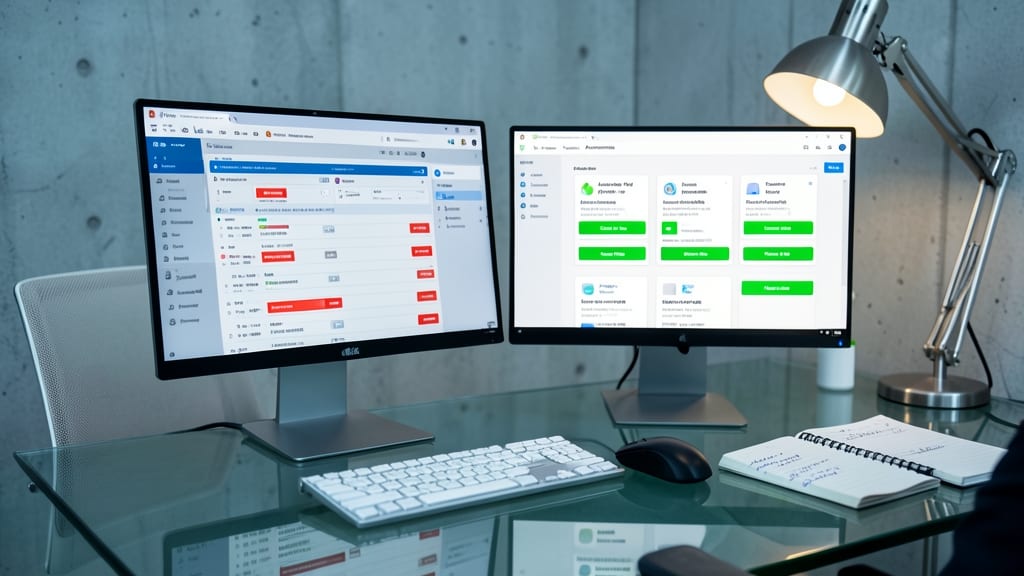
Tired of manually approving requests or chasing down notifications in SharePoint? Power Automate turns repetitive tasks into effortless workflows with just a few clicks—no coding required.
Start with pre-built templates like "Approval for a purchase request" or "Send me an email when a new file is added" to libraries. The drag-and-drop designer connects SharePoint triggers (e.g., new item created) to actions (e.g., send email, update list). For beginners, the "Zero-config" connectors to Outlook, Teams, and OneDrive make integration seamless.
This is perfect for managers drowning in approvals or teams juggling multiple tools—automate the busywork so you focus on what matters. ✨
Customize SharePoint Homepage for Productivity
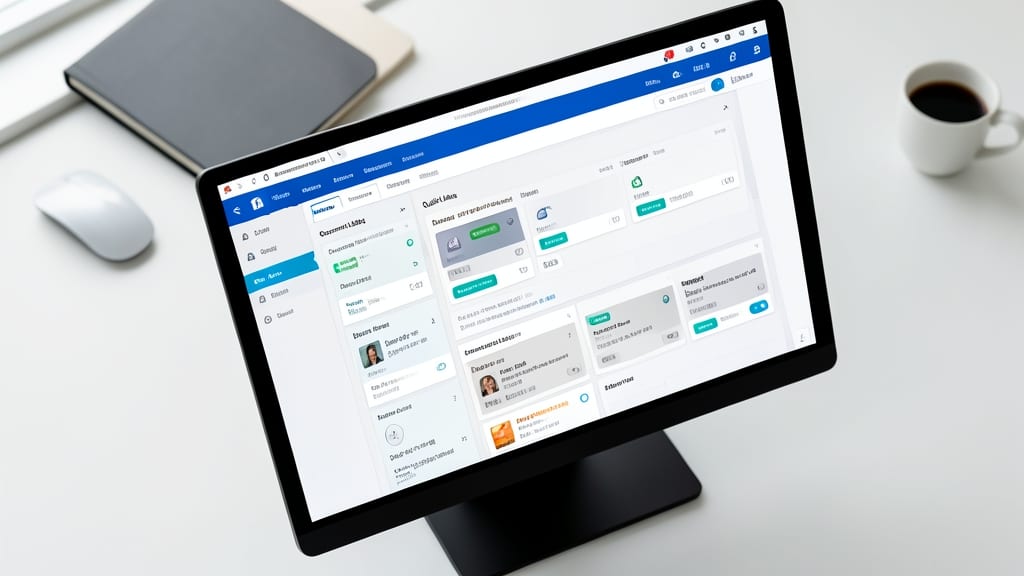
Tired of staring at a generic SharePoint homepage that doesn’t help you work faster? The modern SharePoint homepage lets you turn clutter into a productivity powerhouse—no IT help required. Simply drag-and-drop web parts like news feeds, quick links, and document libraries to create a dashboard that fits your workflow.
Add a news web part to highlight team updates, embed quick links to your most-used sites, and use the weather web part (yes, really!) to keep track of remote team schedules. The search box web part ensures instant access to files, while the documents library web part lets you preview files without leaving your homepage. Best of all, these changes save directly—no publishing approvals needed.
This tip is perfect for individual contributors who want a personalized workspace or team leads managing multiple projects. A well-tailored homepage cuts down on daily clicks and keeps your focus where it belongs. ✨
Leverage SharePoint Mobile App Features

If you’re constantly on the move but still need seamless access to SharePoint, the mobile app’s offline mode is a game-changer. Download files to your device and work without an internet connection, then sync changes automatically when you reconnect—perfect for airplanes, train rides, or areas with spotty Wi-Fi.
The app also delivers real-time notifications for document updates, comments, or approval requests, so you never miss critical team updates. With a clean, intuitive interface, you can browse sites, edit documents, and even capture photos or notes directly in SharePoint—all from your pocket.
This is your lifeline for remote workers, sales teams, or contractors who need reliable access to company resources while away from their desks. ⚡
Secure Your SharePoint Data Properly
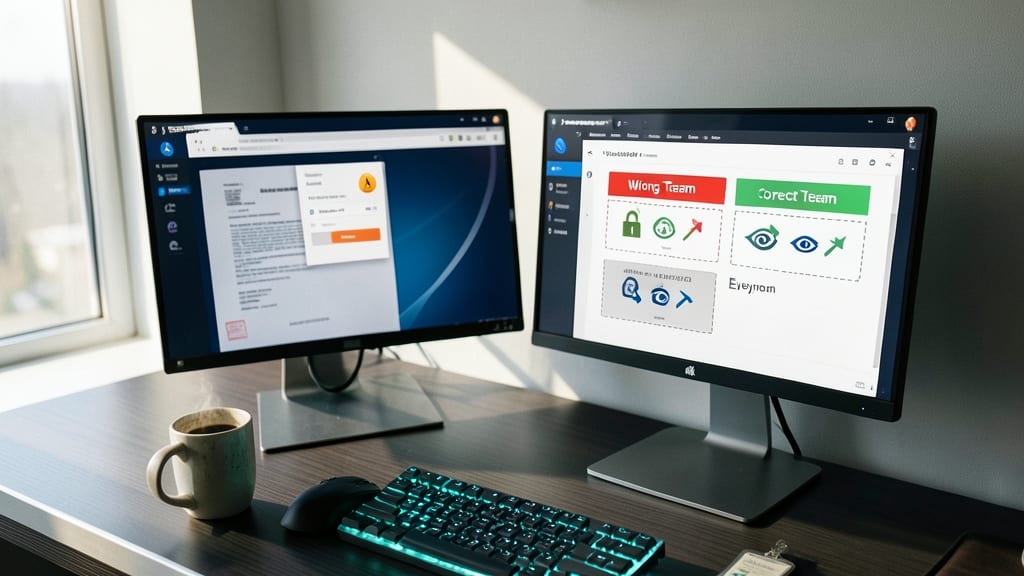
Accidentally sharing sensitive files with the wrong team? SharePoint’s default permissions can turn collaboration into a security risk if left unchecked. The good news? Securing your data only takes a few clicks—and prevents costly mistakes.
Start by setting granular permissions at the library or folder level (e.g., View Only vs. Edit). Use the “Stop Inheriting Permissions” option to override site defaults, then assign roles like “Member” (edit) or “Visitor” (view). For external sharing, enable “Require sign-in” to restrict access to approved users. Microsoft’s built-in audit logs also track who accessed what—just enable them in the site settings.
This tip is a must for project managers or HR teams handling confidential documents. A quick permissions audit could save your team from a data breach. ✨
Explore SharePoint Community Resources
Stuck after the basics? Microsoft’s SharePoint Community Resources are your next level-up—free, expert-backed, and packed with real-world insights. From Microsoft Learn’s SharePoint modules (structured for self-paced learning) to the SharePoint Stack Exchange (where pros solve niche problems daily), these resources bridge the gap between tutorials and advanced mastery.
Dive into Microsoft’s official SharePoint blog for roadmap updates, or join the SharePoint Community forums to ask questions in threads with thousands of replies. Need hands-on practice? Try the SharePoint Challenge on Microsoft Tech Community—designed to test and expand your skills with guided scenarios. These tools turn passive learning into active problem-solving.
Perfect for self-starters who want to go beyond "how-to" videos. Whether you’re troubleshooting a tricky workflow or exploring new features, the community has your back—no IT degree required. ✨