
Software
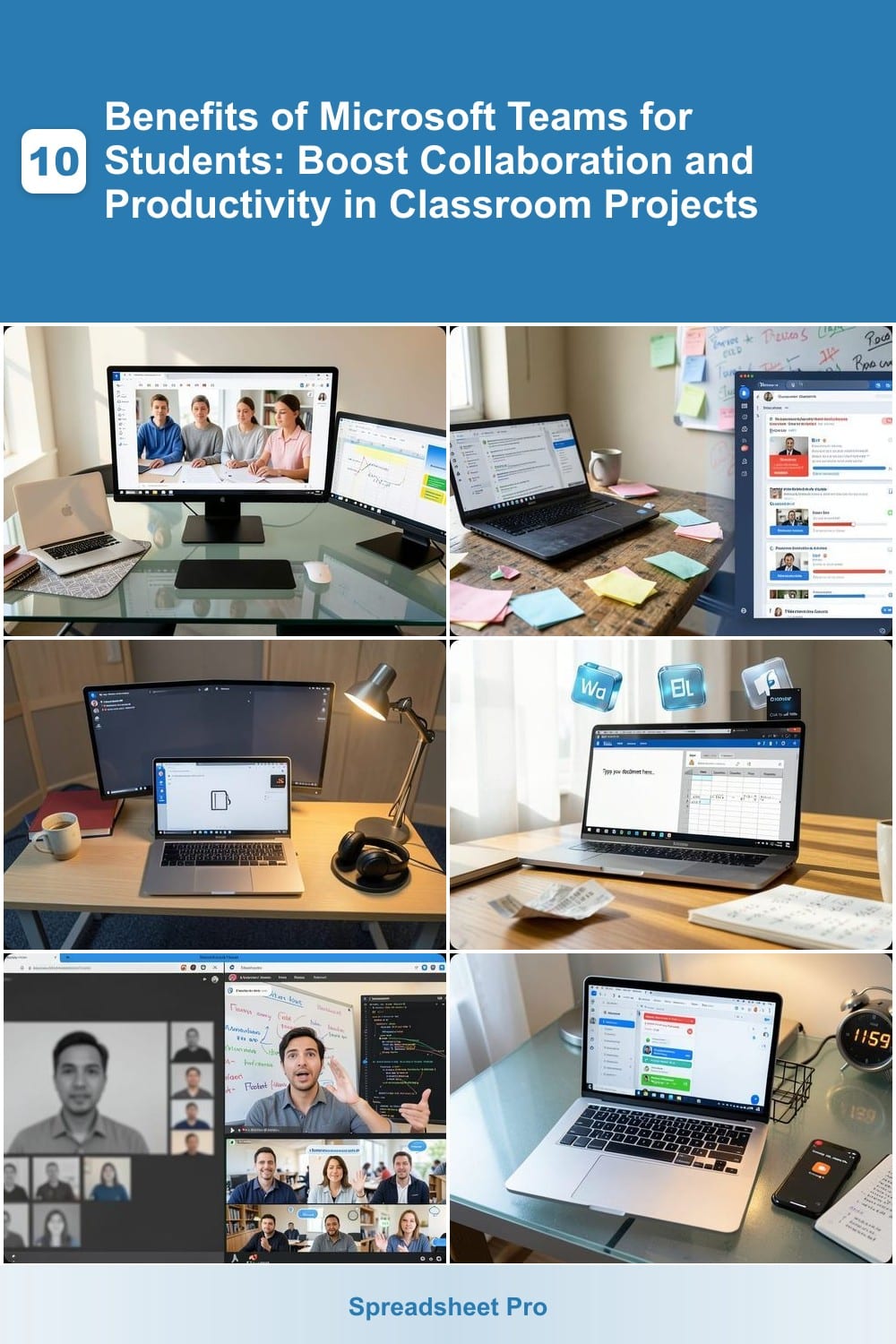
Microsoft Teams isn’t just for businesses—students can leverage its powerful collaboration tools to streamline group projects, improve communication, and stay organized. These 10 benefits show how this free platform can transform your academic workflow and boost productivity.
Seamless Group Project Collaboration Tools
Group projects just got a whole lot easier with Microsoft Teams’ real-time co-authoring feature, where multiple students can edit the same Word document, Excel spreadsheet, or PowerPoint presentation at the same time—no more emailing drafts back and forth or merging conflicting versions. Imagine your team working on a research paper together in one live session, with changes appearing instantly for everyone to see.
The platform supports simultaneous editing in Office apps, so if one teammate adds a chart to the spreadsheet while another updates the budget, both changes sync automatically. Comment threads let you discuss specific sections without cluttering the main document, and the @mention system ensures no one misses a request for feedback. For presentations, the real-time presenter mode lets your group practice slides together, with one person controlling the deck while others review notes.
This is the perfect tool for tight-knit study groups, design teams, or coding projects where multiple contributors need to stay aligned. No more "finalv3final.docx" chaos—just smooth, conflict-free collaboration that keeps everyone on the same page. ✨
Integrated Classroom Assignments Hub
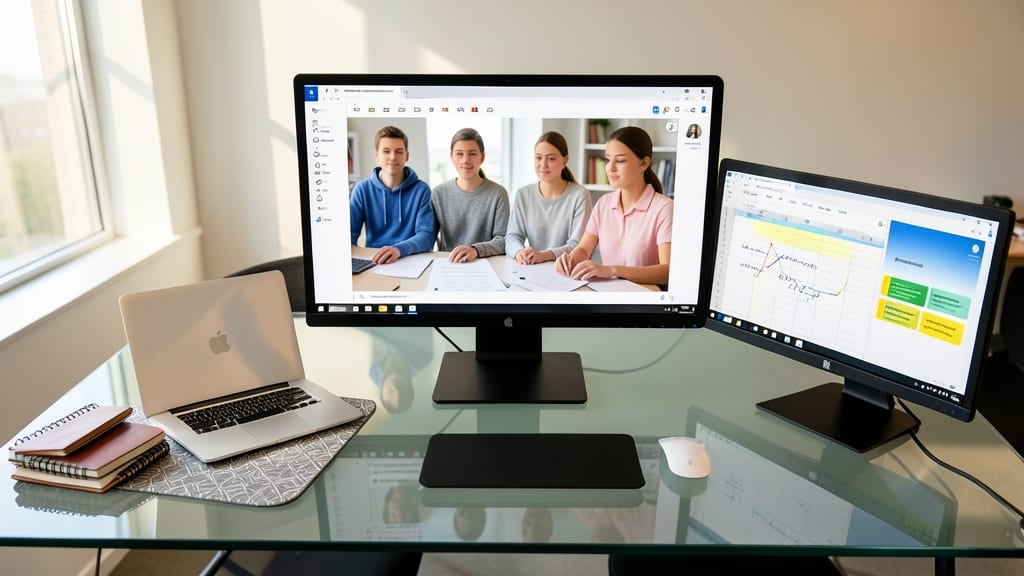
Drowning in assignment emails and scattered deadlines? Microsoft Teams’ Integrated Classroom Assignments Hub turns chaos into clarity with a single, searchable dashboard for all your courses. Professors can post assignments complete with deadlines, file attachments (PDFs, Word docs, or links), and progress trackers—so you’ll never miss a submission or a last-minute revision request.
The real-time updates feature lets you see when a professor marks an assignment as "graded" or when a group member uploads their part. Need to submit late work? The system flags overdue items in red while keeping upcoming tasks front and center. With mobile app support, you can check deadlines on the go, and the integrated calendar syncs with Outlook to avoid scheduling conflicts.
This is the ultimate tool for organization-focused students, procrastinators who need gentle nudges, or anyone juggling multiple classes. Say goodbye to the "I thought it was due Friday" panic—Teams keeps you and your professors on the same page. 💡
Virtual Study Rooms for Focused Work
Need a quiet space to focus without distractions? Microsoft Teams’ virtual study rooms recreate the feel of a library or campus lounge—just with fewer interruptions. These private meeting spaces let you schedule study sessions, mute notifications, and even set a timer to stay on track.
With screen sharing and a built-in whiteboard tool, you can collaborate on notes, diagrams, or brainstorm ideas in real time—whether you’re studying alone or with a group. The background blur feature keeps your workspace tidy, while customizable themes (like "Library" or "Coffee Shop") help set the mood for productivity. Solo users can even join as "guests" to simulate accountability.
Perfect for students balancing multiple deadlines or those who thrive in structured study environments, these rooms turn solo work into a focused, distraction-free experience. ✨
Free Access to Microsoft 365 Apps
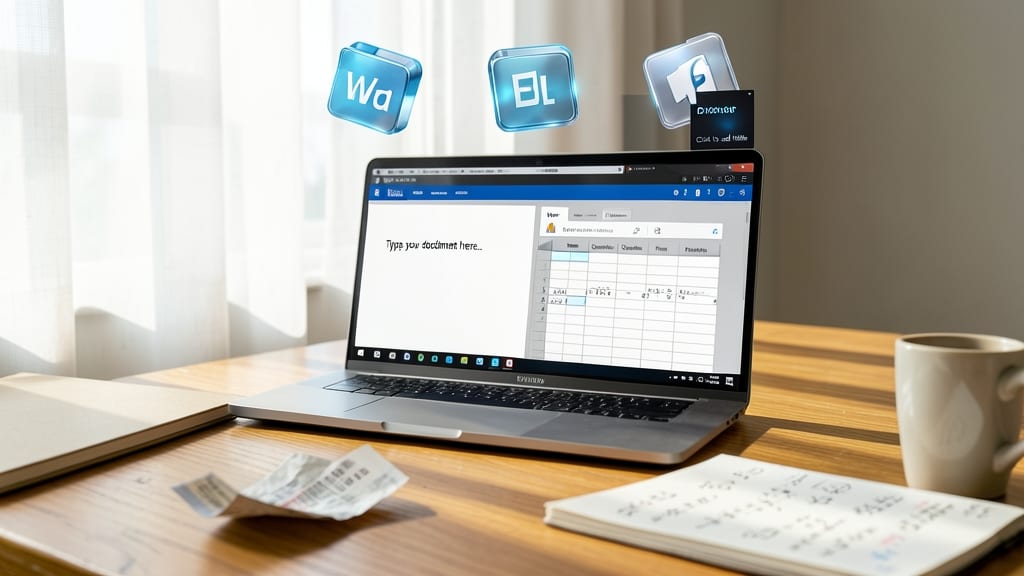
Tired of shelling out for separate subscriptions to Word, Excel, and PowerPoint? Your school email already unlocks Microsoft 365’s full suite—including the latest versions of these apps—at zero cost. No student budget? No problem.
With Teams integration, you can open Word docs or Excel spreadsheets directly from chats, add real-time comments, and track changes—all without leaving the platform. The OneNote app lets you organize research, lectures, and meeting notes in one searchable notebook. Plus, updates sync automatically across devices, so your work stays current whether you're on a laptop or phone.
Perfect for students juggling multiple courses or group projects, this combo cuts software costs while keeping everything collaborative and cloud-backed. 💻
Built-In Video Conferencing for Remote Learning
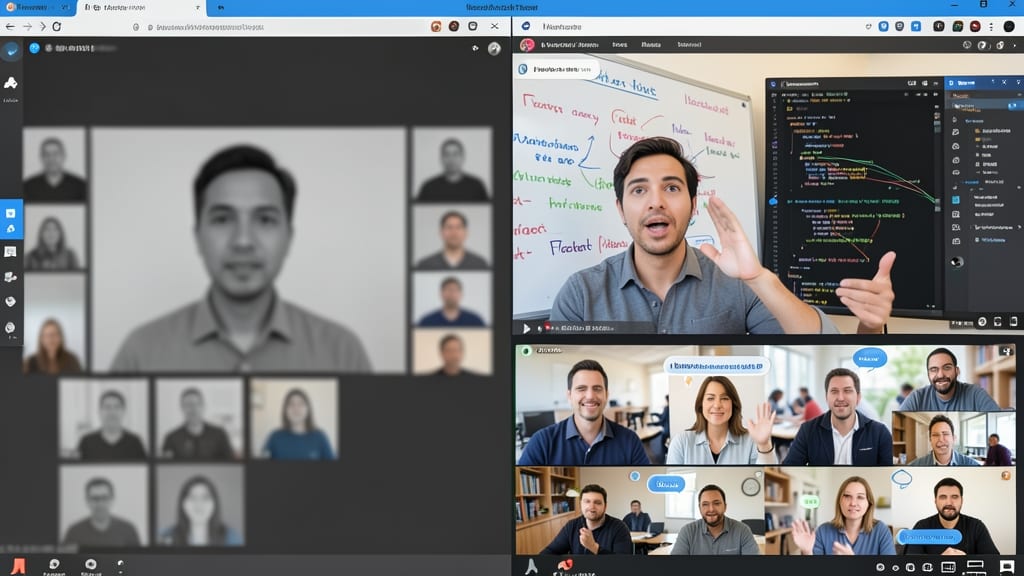
Tired of staring at a static screen during online lectures? Microsoft Teams transforms passive learning into an engaging experience with its built-in video conferencing tools designed specifically for classrooms.
With 1080p HD video quality, screen sharing, and breakout rooms (up to 50 participants), professors can split students into smaller discussion groups—just like in-person breakout sessions. The virtual background feature keeps focus on the lesson, while live captions ensure clarity for all learners. You’ll also appreciate the easy screen sharing for presentations, making it seamless to follow along with slides or projects.
Perfect for online students, hybrid learners, or even in-person classes needing digital support, Teams’ video tools bridge the gap between physical and virtual classrooms. 💻
Customizable Notifications for Deadlines
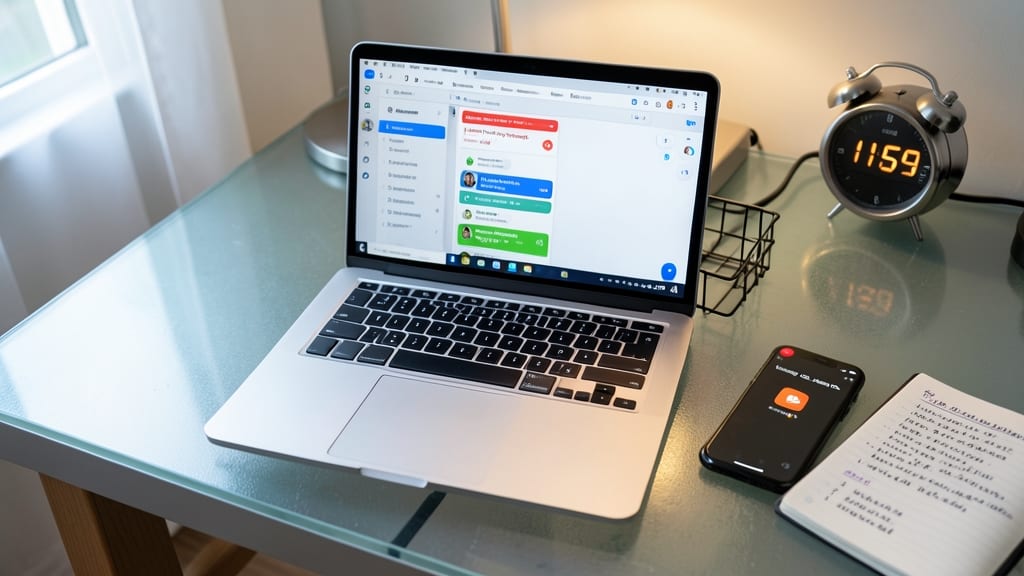
Forget the stress of last-minute assignment panic—Teams’ customizable notifications let you set up alerts for deadlines, file updates, and meetings exactly how you need them. Whether you prefer a gentle desktop pop-up or a loud phone buzz, you control the frequency, timing, and even the type of alert to match your workflow.
Create recurring reminders for weekly group check-ins or one-time alerts for professor feedback deadlines. The system integrates with your school calendar to avoid double notifications, and you can snooze alerts temporarily if you’re in focus mode. For students juggling multiple courses, the ability to prioritize alerts by class or project keeps your inbox from becoming a chaos zone.
This feature is a game-changer for night owls, early risers, or anyone prone to procrastination. No more forgotten submissions—just the right nudge at the right time. ✨
Secure File Sharing and Version Control
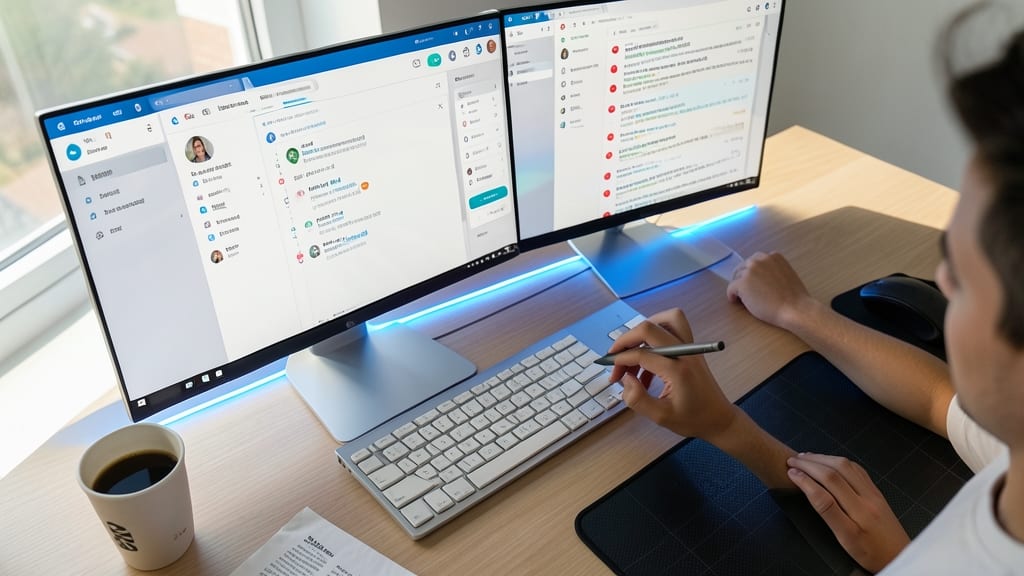
Tired of endless email chains with "finalv3final.docx" attachments? Microsoft Teams’ cloud-based file storage with automatic version control keeps every project file organized and recoverable—no more lost work.
Every file saved in Teams automatically creates a version history, letting you restore previous edits with one click. The 10GB team file storage (or more with school accounts) means no more "my drive is full" panic before deadlines. Permissions controls ensure only approved team members access files, while real-time syncing guarantees everyone works from the latest version.
Perfect for group projects where multiple hands contribute—whether it’s a 10-page research paper or a coding assignment, Teams keeps your work safe and streamlined. 💻
Accessibility Features for All Learners
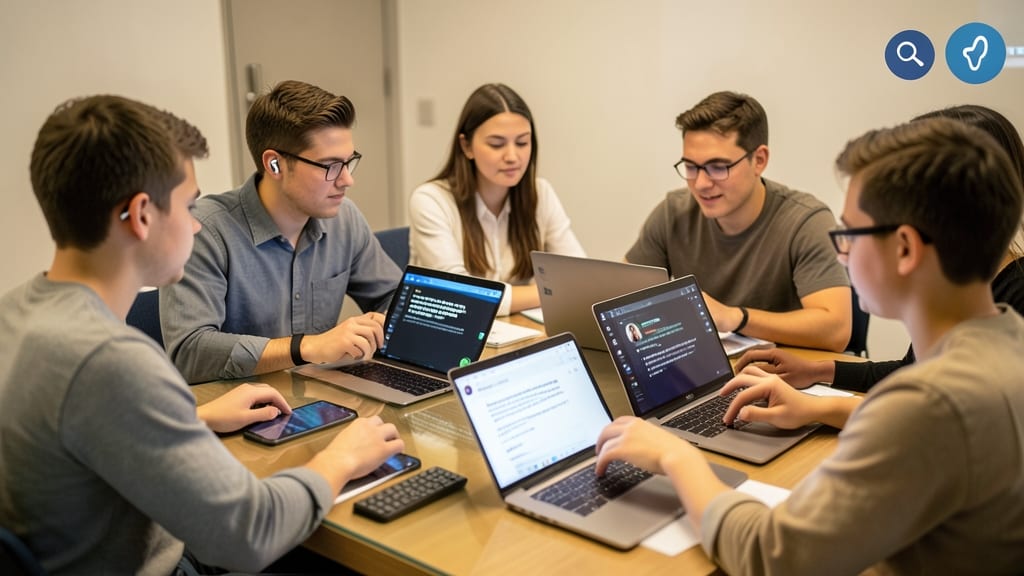
Every student deserves tools that adapt to their learning style—not just fit a one-size-fits-all approach. Microsoft Teams includes built-in accessibility features designed to remove barriers, ensuring no one gets left behind during lectures, group work, or presentations.
Turn on live captions during video calls to follow discussions in real-time, even in noisy environments. The Immersive Reader simplifies complex text with adjustable fonts, line focus, and dictionary lookups, while screen reader support (like JAWS or NVDA) makes the platform fully navigable for visually impaired users. These tools work seamlessly with Windows, Mac, iOS, and Android, so accessibility follows you across devices.
Perfect for students with hearing impairments, dyslexia, or visual challenges, these features also help neurodivergent learners or those who simply process information differently. No extra apps or plugins needed—just toggle them on in Teams and focus on what matters. ✨
One-Stop Platform for All Academic Tools
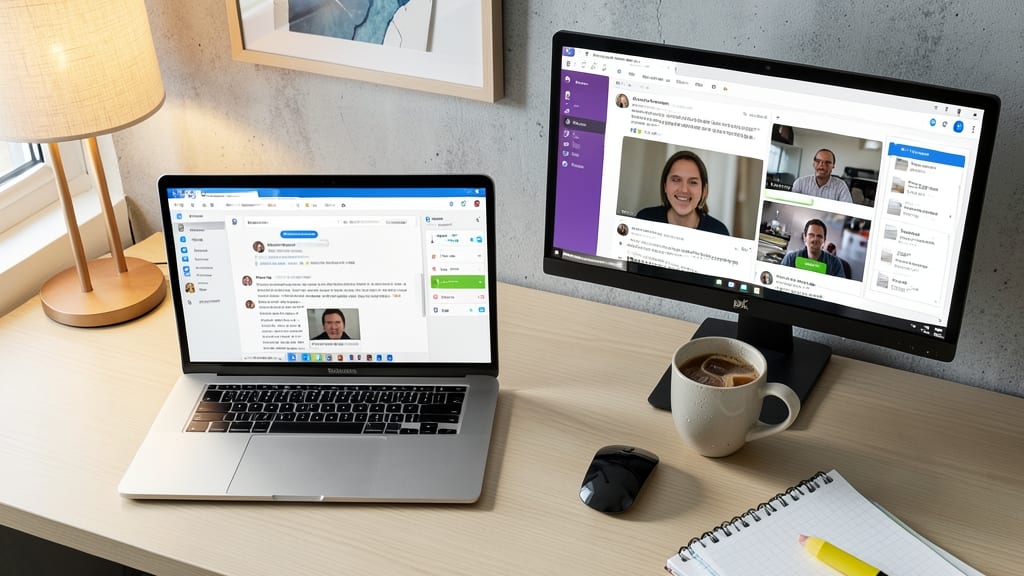
Tired of juggling Slack for chats, Zoom for meetings, and Google Drive for files? Microsoft Teams consolidates everything into one seamless hub, so you can focus on schoolwork—not app-switching.
The platform integrates chat, video calls, file storage, and apps like Word, Excel, and Planner—all in a single dashboard. Need to discuss a project? Start a chat. Share files? Drag and drop them directly. Host a study session? Launch a video call without leaving the app. The deep Microsoft 365 integration means no more copying files between apps or losing track of updates.
This is perfect for students managing group projects, online classes, or even solo work—especially those who hate cluttered desktops or forgotten passwords. 💻
Preparation for Future Workplace Skills
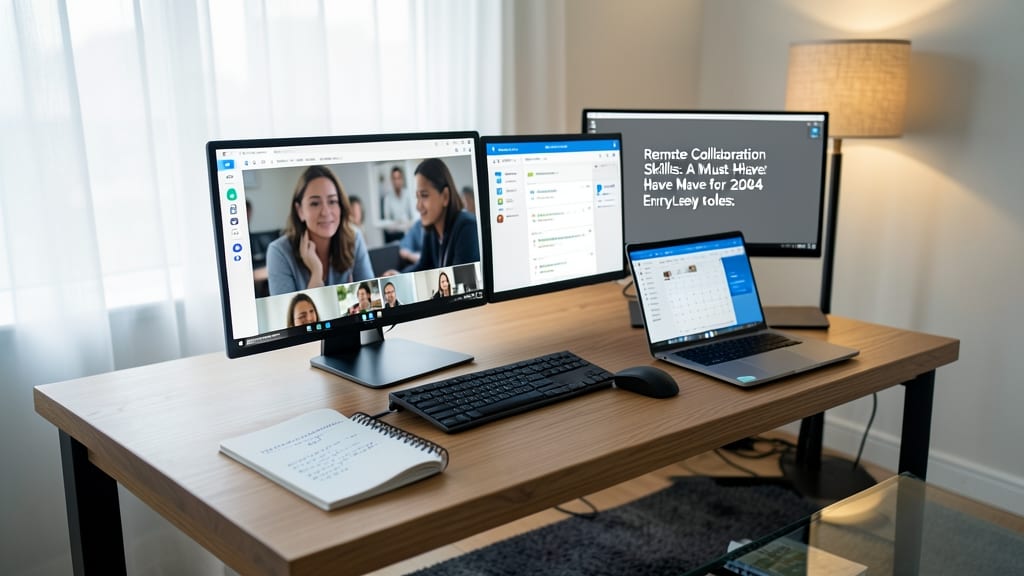
The job market is evolving fast—remote work and digital collaboration are now the norm, not the exception. By mastering Microsoft Teams today, you’re not just acing group projects; you’re building skills that employers actively seek in entry-level hires.
Teams teaches you to navigate real-world workplace tools like channel-based communication, structured file organization, and professional meeting etiquette. Features like @mentions for quick feedback and customizable status updates mirror how modern teams operate—preparing you for internships or first jobs where these skills are assumed, not taught. Plus, the free Microsoft 365 integration lets you practice with the same tools used in corporate environments.
This is your chance to stand out: graduates who can hit the ground running with collaboration platforms get noticed. Start now, and you’ll walk into interviews with hands-on experience that many peers lack. 💪