
Software
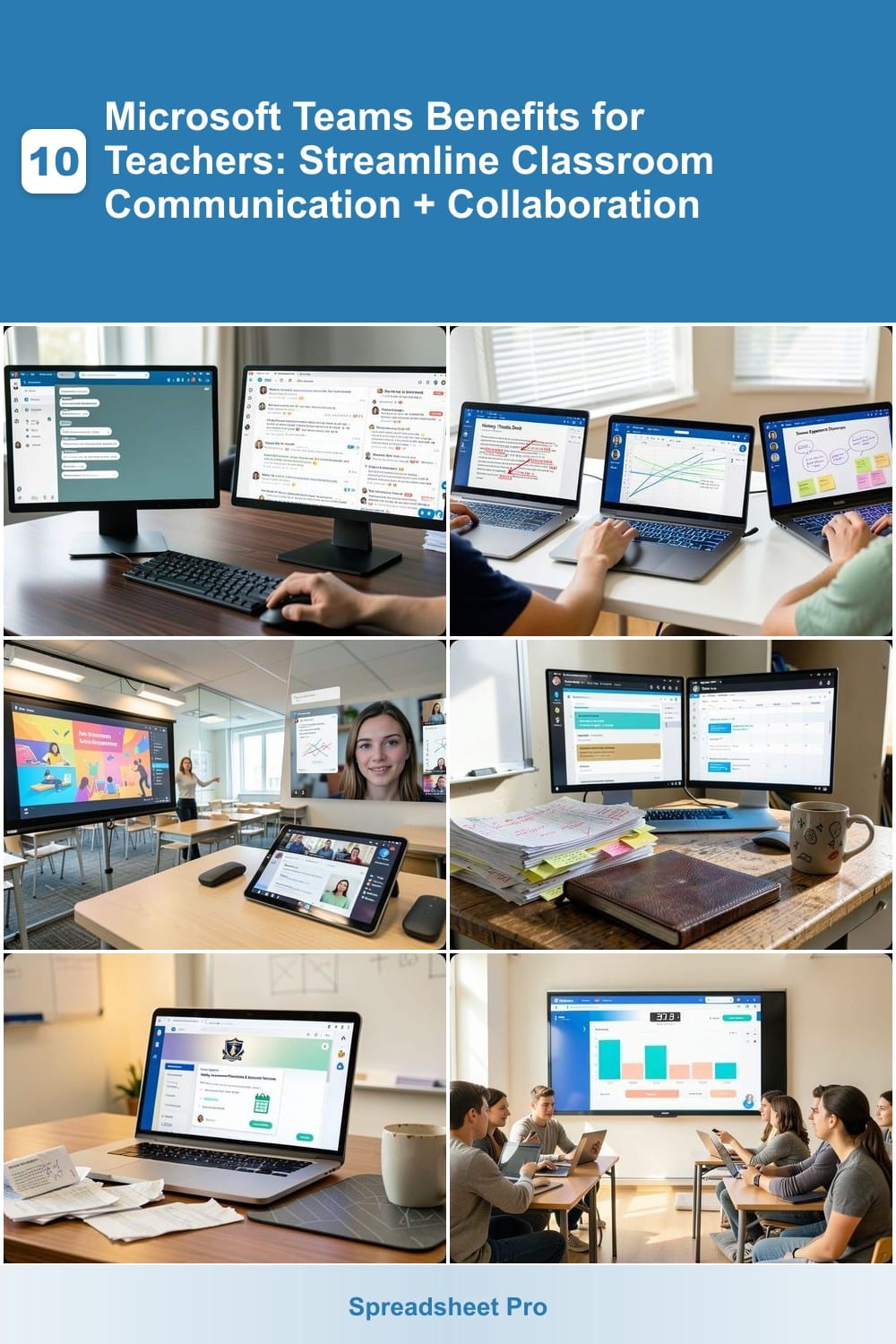
Microsoft Teams is revolutionizing modern classrooms by transforming how teachers communicate, collaborate, and manage workflows. These 10 benefits show how this powerful tool can save time, enhance engagement, and simplify administrative tasks—all while keeping students connected.
Seamless Classroom Communication Hub

Say goodbye to the chaos of lost emails and fragmented conversations—Microsoft Teams transforms classroom communication with its dedicated chat threads that keep announcements, reminders, and discussions in one searchable, organized hub. No more digging through cluttered inboxes or missing critical updates buried in email chains.
Create class-specific channels where you can pin important notices, share files, and host threaded discussions—all while maintaining a clean, chronological record. The @mention feature ensures students and parents never miss urgent messages, while searchable history lets you quickly revisit past conversations. With mobile notifications, you’ll stay connected even when you’re not at your desk, reducing the risk of miscommunication.
This is ideal for busy teachers juggling multiple classes or subject-specific teams needing a centralized space for collaboration. Whether it’s sharing last-minute test reminders or organizing project discussions, Teams keeps everyone on the same page—without the email overload. 💡
Real-Time Classroom Collaboration Tools
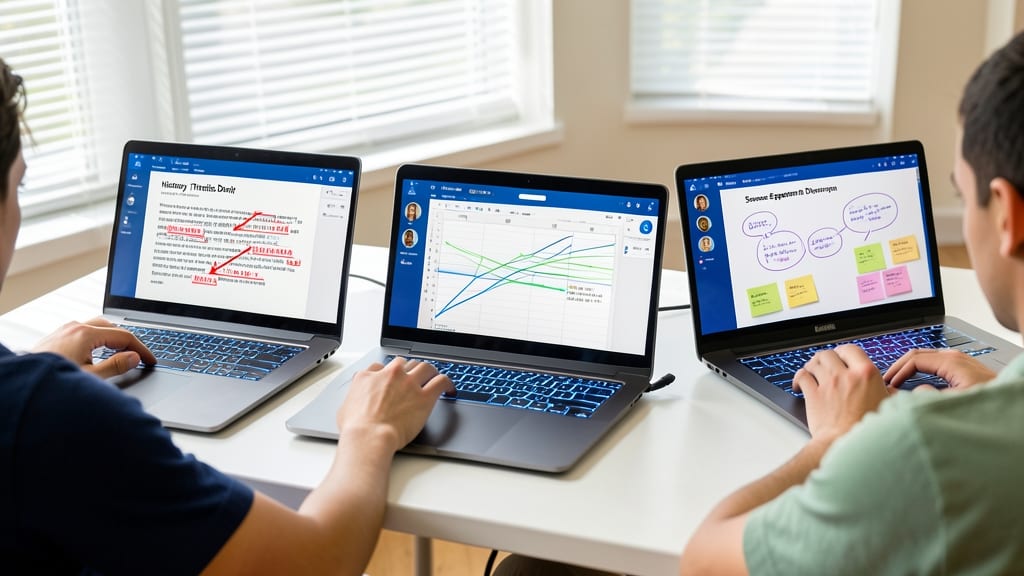
Group projects just got easier with Microsoft Teams’ real-time co-authoring tools, where students can edit Word, Excel, and PowerPoint files simultaneously—no more emailing drafts or merging conflicting versions. Imagine a history class debating thesis statements in a shared document, or a science team analyzing data in Excel while you provide live feedback.
This feature works seamlessly with Office 365 integration, so changes update instantly across devices. Need to track contributions? The version history keeps a log of edits, while comment threads let you guide discussions without cluttering the main document. For peer reviews, students can annotate classmates’ work directly in PowerPoint—no lost USB drives or misplaced files.
Perfect for project-based learning or writing workshops, this tool turns collaboration into a frictionless experience—ideal for teachers who want to foster teamwork while cutting down on version control chaos. 💻
Virtual Classroom Integration
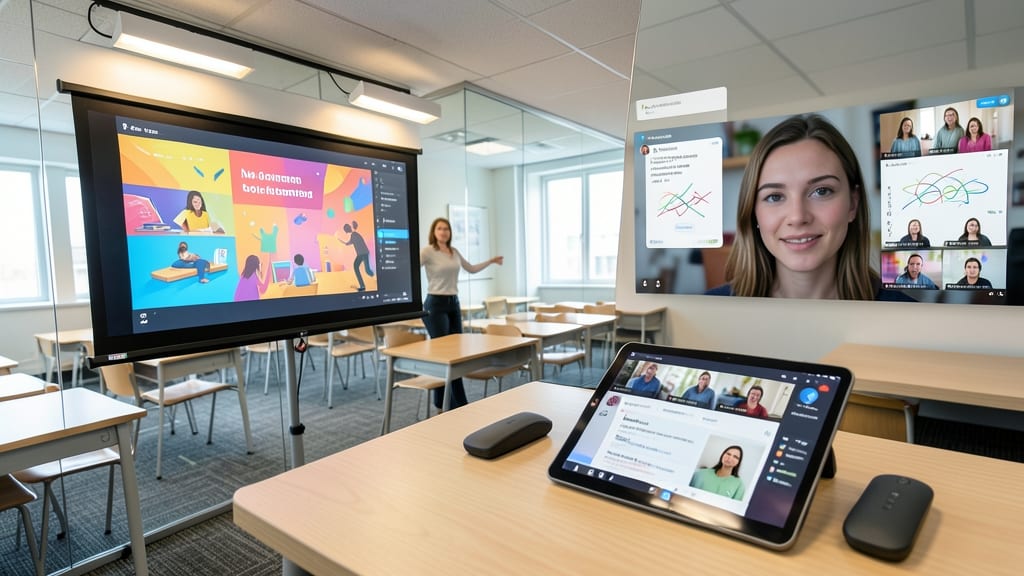
Hybrid classrooms don’t mean sacrificing engagement—Microsoft Teams brings the classroom experience online with its built-in virtual classroom tools. No need for third-party platforms; everything you need for seamless remote or hybrid teaching lives right inside Teams.
Host live lessons with 4K video quality, share your screen instantly, and use the interactive whiteboard to annotate lessons in real time. The breakout rooms feature lets you split students into small groups for discussions, while live polls and quizzes keep them engaged—just like in-person. Plus, recordings auto-save to the cloud for absent students.
Perfect for teachers balancing in-person and virtual students, this tool ensures every learner feels connected—no tech headaches required. ✨
Automated Grade and Assignment Tracking
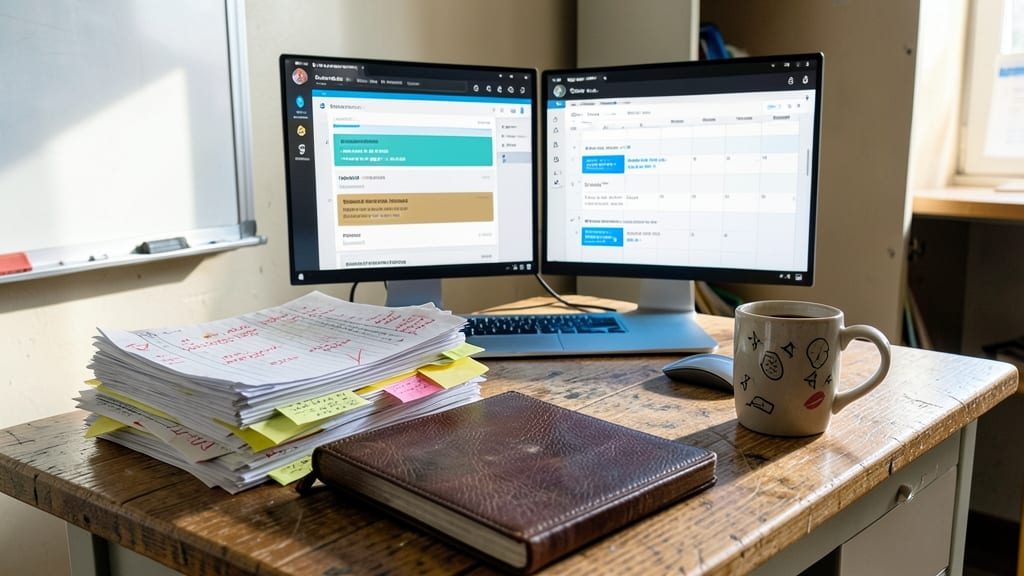
Tired of drowning in paper stacks and endless grading sessions? Microsoft Teams’ automated assignment tracking turns chaos into clarity by digitizing every step—from submission to feedback—all within OneNote and Office 365. No more lost papers or forgotten deadlines; everything syncs in real time, so you can focus on teaching, not paperwork.
Create digital assignment folders where students submit work directly, and teachers can grade, annotate, and return feedback—all in one place. The integration with OneNote lets you embed voice notes or handwritten comments (via a digital pen), while Office 365 ensures compatibility with Word, Excel, and PowerPoint files. Plus, automated reminders keep students on track, reducing last-minute submissions. With version history and cloud backups, you’ll never lose a single assignment again.
This feature is a game-changer for high-school teachers juggling multiple classes or college professors grading research papers. Say goodbye to weekend grading marathons—Teams handles the heavy lifting so you can reclaim your time. ✨
Parent-Teacher Communication Bridge
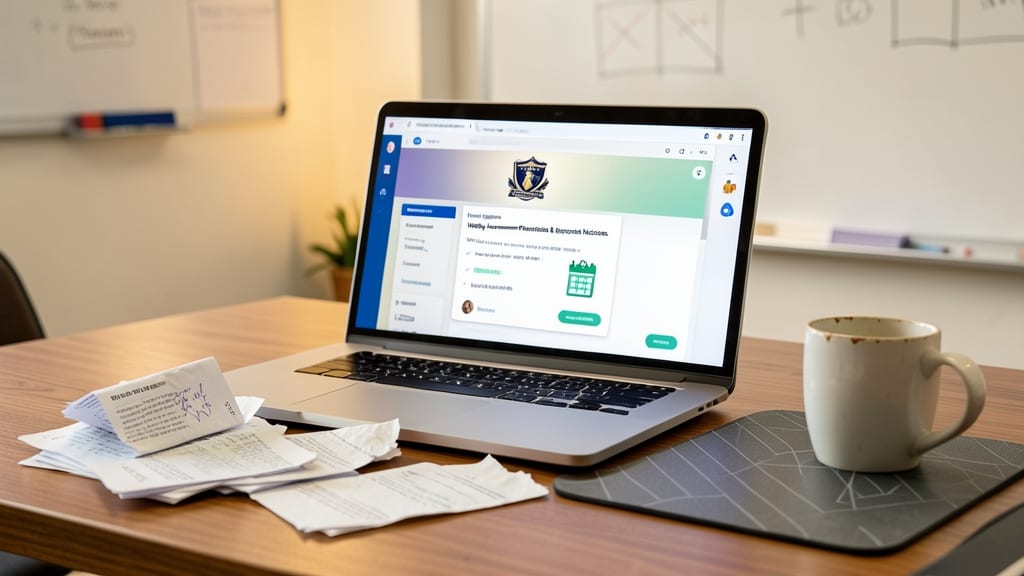
Tired of parent emails getting lost in your inbox? Microsoft Teams creates dedicated parent channels where you can share updates, homework reminders, and important notices—all in one organized space.
With customizable channels for each class or grade level, you can send announcements that parents receive instantly via push notifications. The @mention feature ensures critical messages stand out, while file-sharing lets you attach syllabi, permission slips, or event flyers—no more printing or physical copies. Plus, two-way communication lets guardians ask questions directly in the channel, keeping everyone on the same page.
This is perfect for teachers who want to reduce email clutter while keeping parents engaged and informed—without the hassle of juggling multiple platforms. ✨
Built-In Classroom Polls and Quizzes
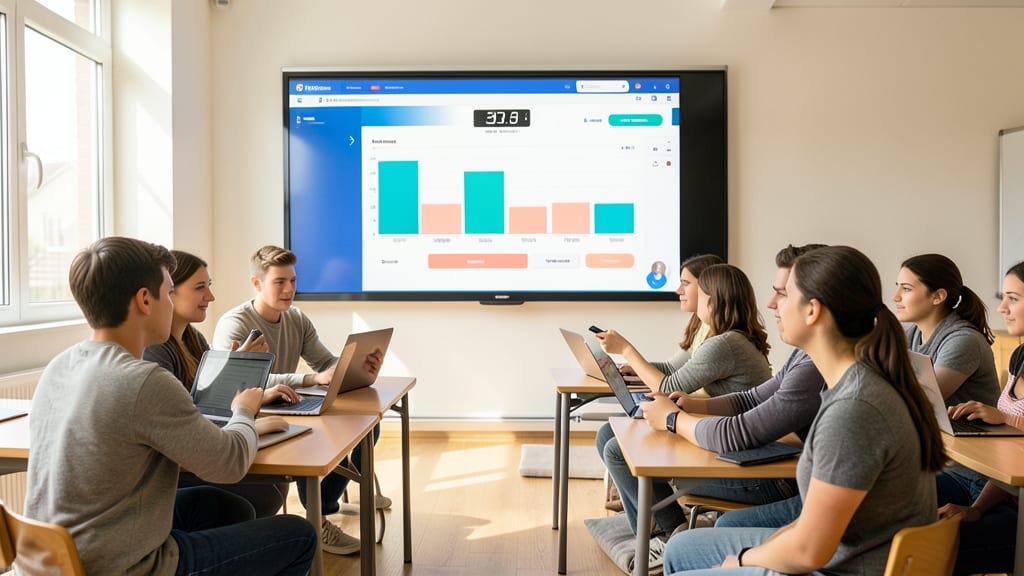
Turn passive learning into interactive discussions with Microsoft Teams' built-in polls and quizzes, designed to keep students engaged in real time. Whether you're checking prior knowledge, gauging understanding, or wrapping up a lesson with exit tickets, these tools provide immediate feedback—no third-party apps required.
Create multiple-choice, true/false, or text-based questions in seconds, then display live results on-screen to spark class discussions. The anonymous response option encourages shy students to participate, while the results dashboard helps identify common misconceptions. For flipped classrooms, assign pre-class quizzes to assess readiness before diving into new material.
Perfect for teachers using hybrid or remote models, these tools work seamlessly across devices—no extra training needed. Try them for instant engagement and data-driven instruction. ✨
Secure File Sharing and Storage
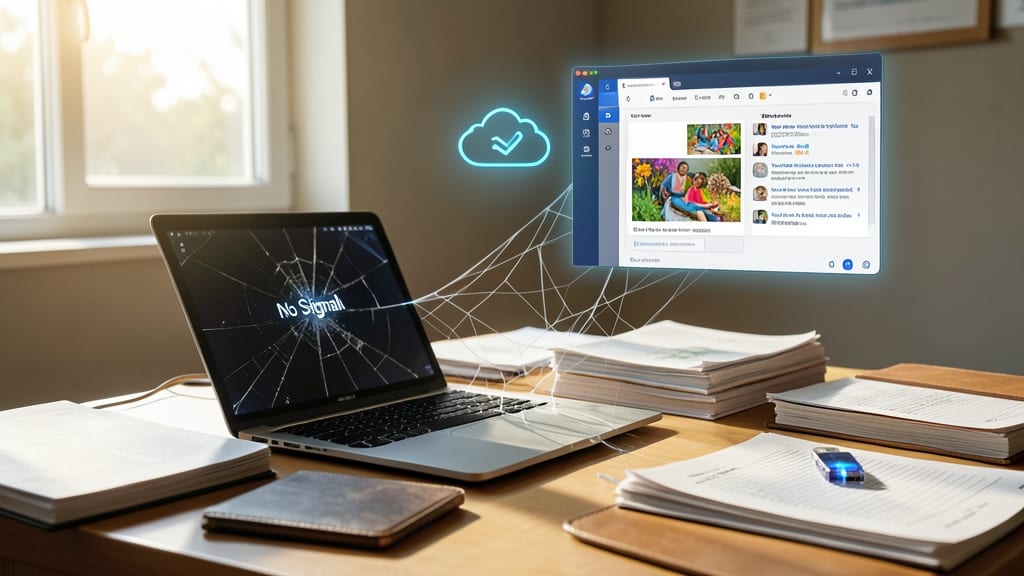
Losing lesson plans or student work to a crashed laptop or deleted USB drive? Microsoft Teams’ cloud-based storage with automatic version control acts like a digital safety net for educators. Every file—from rubrics to creative projects—gets securely backed up in real-time, so you’re never scrambling to recover lost work.
The OneDrive integration gives you 1TB of cloud storage per user (scalable for schools), while version history lets you restore previous drafts with a single click. Share folders with permission controls (view-only, edit, or comment) to keep student work organized and secure—no more chaotic email attachments or misplaced USB drives. Files sync across devices, so your tablet, laptop, and even phone stay in sync.
This is a game-changer for teachers juggling grading, lesson planning, and admin tasks. Whether you’re grading papers at home or accessing resources during a sub day, your files are always available and protected. ✨
Professional Development Communities
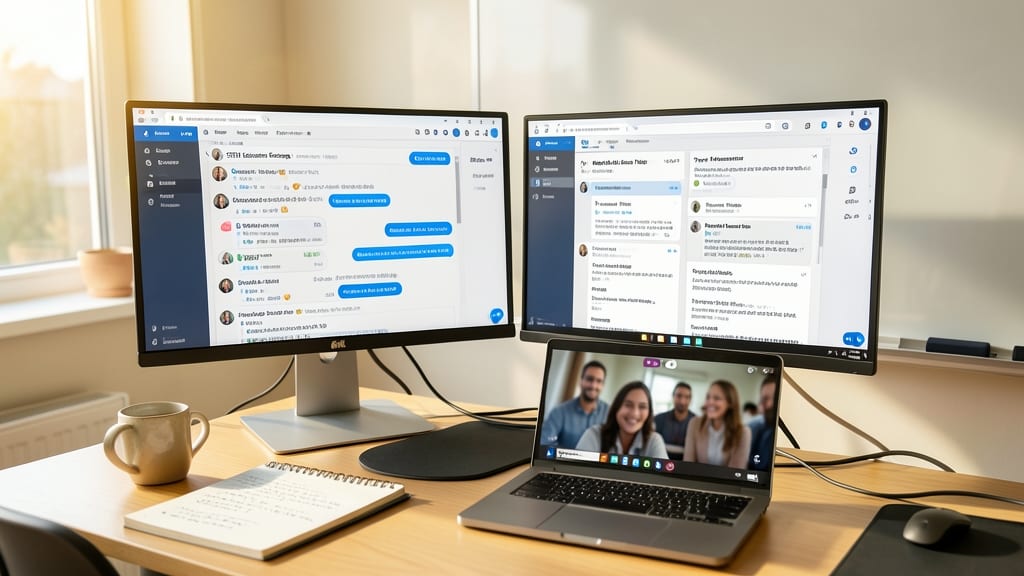
Feeling isolated in your teaching journey? Microsoft Teams’ professional development communities break down those silos by connecting educators in subject-specific channels—whether it’s STEM, ELA, or special education.
Create private channels for peer mentorship, share pre-made lesson templates, or join district-wide discussions on emerging ed-tech tools. The platform’s integrated file sharing lets you upload and annotate resources in real time, while @mentions ensure targeted feedback from colleagues. With Microsoft’s education-focused security, your collaborative work stays protected while remaining accessible across devices.
Perfect for new teachers building their PLN or veterans refining their craft—this is where innovation thrives without leaving your desk. ✨
Integration with Office 365 Education
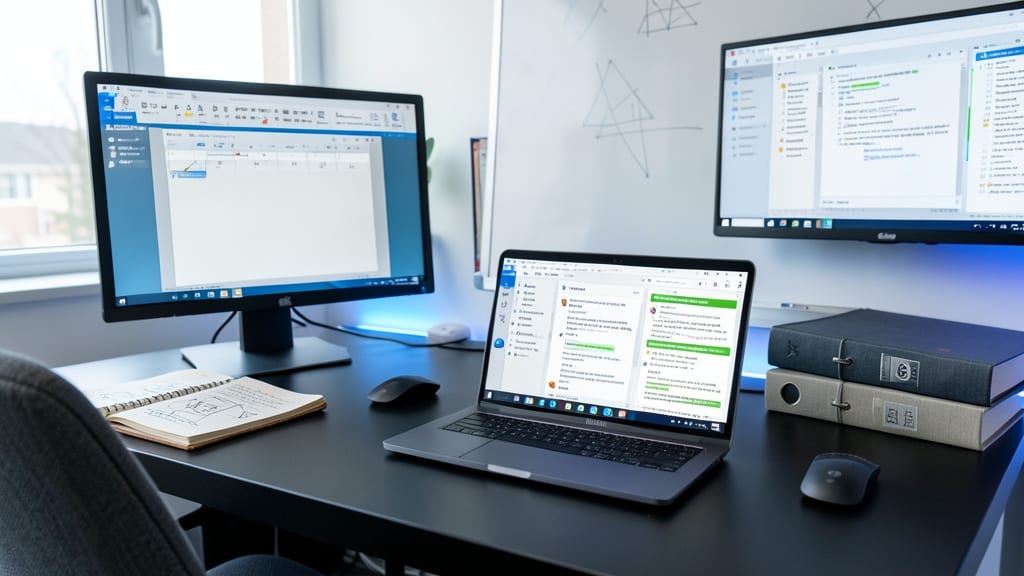
Tired of juggling between apps to manage lesson plans, student work, and class discussions? Microsoft Teams’ deep integration with Office 365 Education eliminates that chaos by merging your entire teaching workflow into one seamless ecosystem.
With a single click, you can open Word documents, grade Excel spreadsheets, review PowerPoint presentations, or annotate OneNote pages—all while keeping the conversation thread alive in Teams. Need to reference a student’s submission from last week’s math worksheet? Just open the shared folder in Teams and pull it up in Excel without leaving your chat. The real-time co-authoring feature lets students edit documents simultaneously, so group projects stay organized and feedback flows instantly.
This is a game-changer for teachers who want to reduce tab-switching and keep all their materials—lesson plans, student work, and classroom discussions—in one secure, cloud-based hub. Perfect for educators who thrive in organized digital workspaces! ✨
Accessibility Features for Inclusive Learning
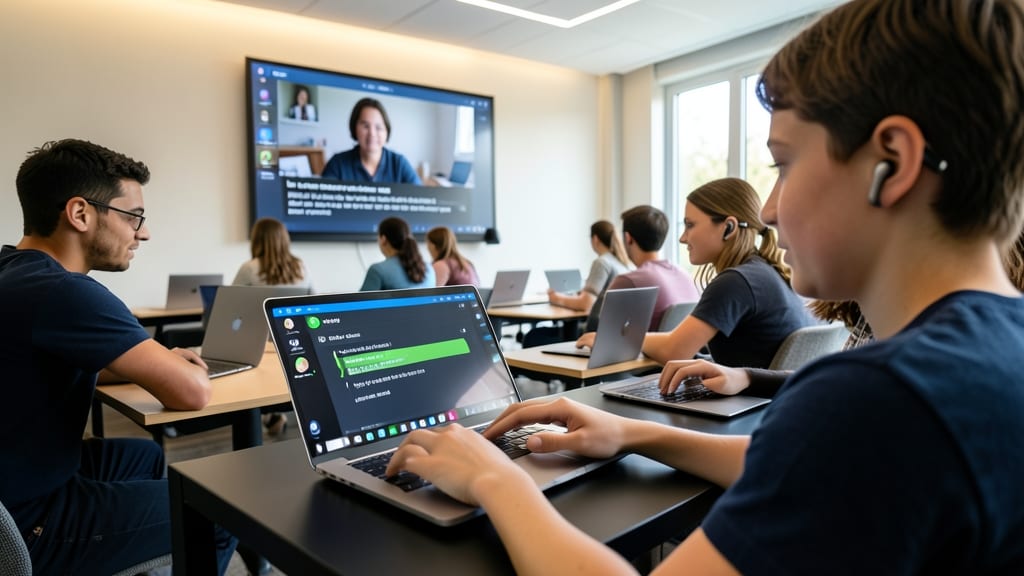
Every student deserves to fully engage with digital lessons—Microsoft Teams makes that possible with its built-in accessibility tools designed to remove barriers. From real-time live captions for hard-of-hearing students to screen readers that narrate on-screen content, these features ensure no learner gets left behind during virtual or hybrid instruction.
Adjust text sizes and contrast with one click to support students with visual impairments, while immersive reader mode simplifies complex documents by reading them aloud. The platform also integrates with Windows Eye Control for hands-free navigation, making it adaptable for students with motor challenges. These tools require zero extra software—just toggle them on during meetings or assignments.
Perfect for special education teachers, ESL instructors, and general educators aiming for truly inclusive classrooms, these features turn Microsoft Teams into a one-stop solution for accessibility without complicating workflows. ✨