
Tip & Trick
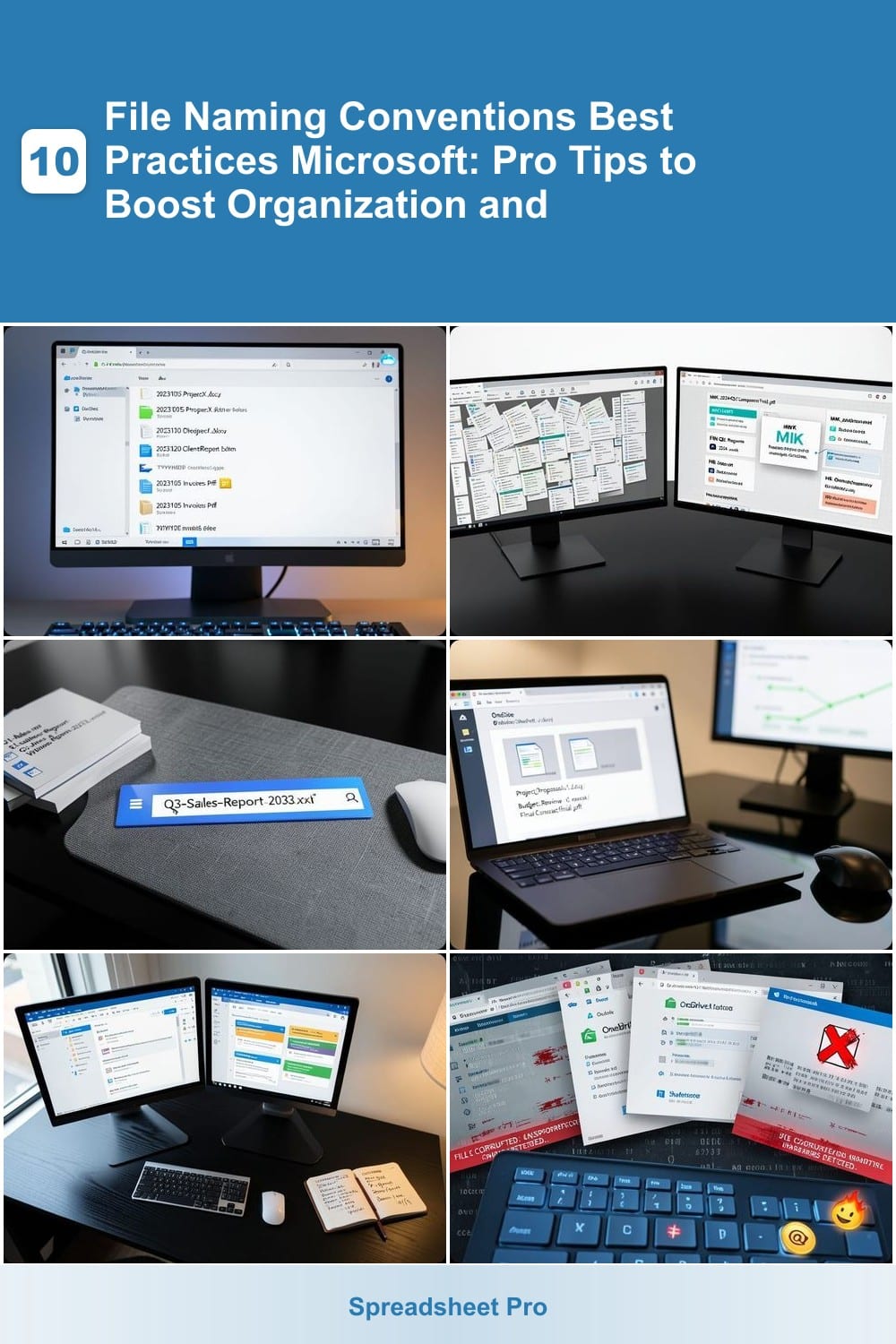
Struggling to find files in your Microsoft ecosystem? Proper file naming conventions save time, improve collaboration, and make search functions work smarter. These seven best practices will transform your digital organization—whether you use Windows, Office 365, or OneDrive.
Date-Based Prefix Format for All Files
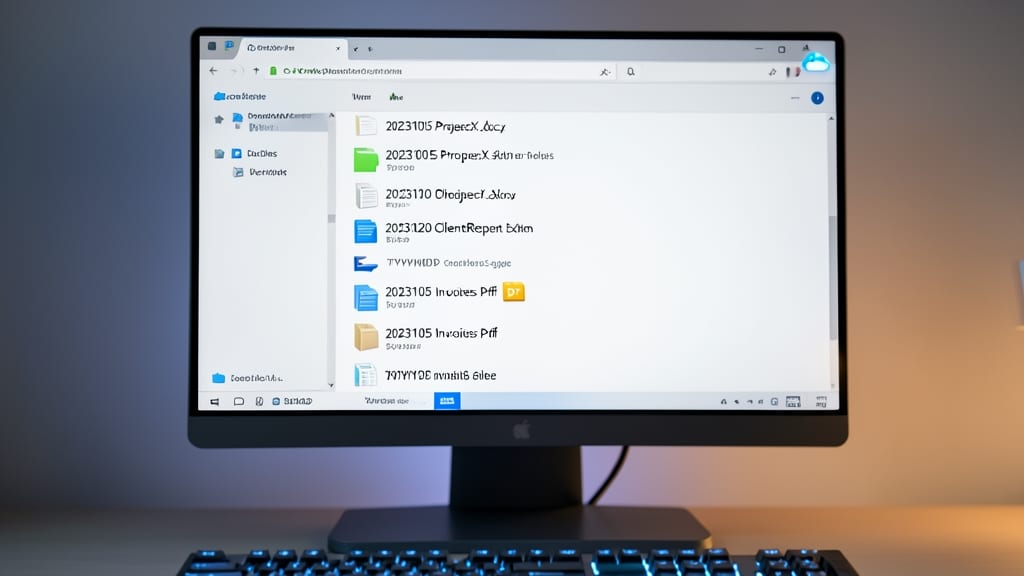
Tired of scrolling through files that refuse to sort chronologically? A date-based prefix format like YYYYMMDD (e.g., 20231015ProjectX.docx) ensures files appear in perfect order in Windows Explorer and Office applications—no manual rearranging needed.
This method works seamlessly across OneDrive, SharePoint, and local drives, and the numeric prefix guarantees alphabetical sorting matches chronological order. For example, 20231015 comes before 20231102_ automatically. Plus, it integrates flawlessly with Microsoft’s search functions, making time-sensitive files instantly findable.
Perfect for project managers, marketers, and creatives juggling deadlines—this system keeps your workflows organized without sacrificing compatibility. ✨
Department-Specific Code System for Teams
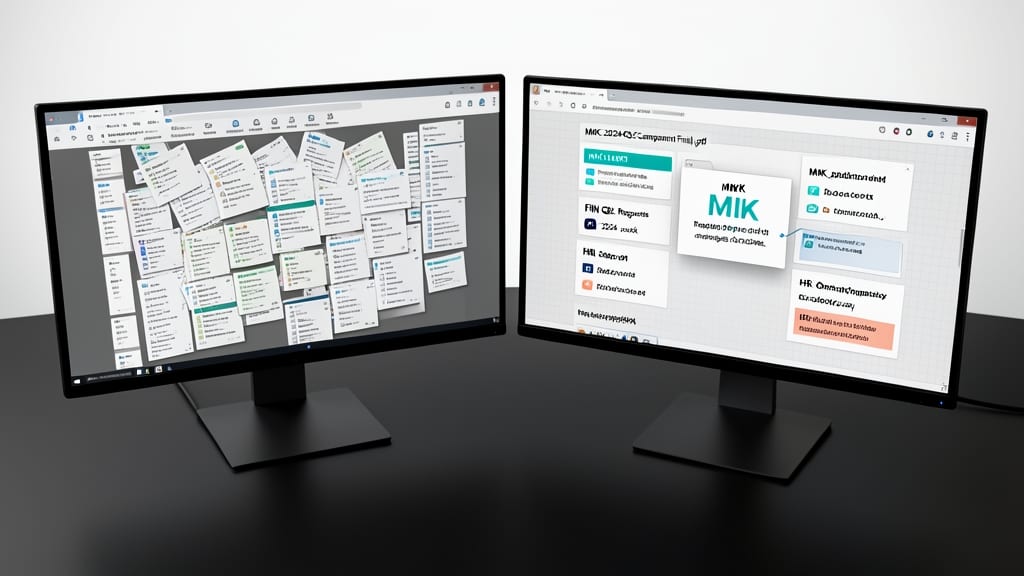
Tired of digging through shared drives to find the right file? A department-specific code system turns chaos into instant organization by tagging files with prefixes like MKT, FIN, or HR—so everyone knows exactly where they belong.
This system works seamlessly in SharePoint libraries and OneDrive, where you can filter files by department with a single click. For example, HREmployeeHandbook2024.pdf and FINQ3Report.xlsx automatically group together, making collaboration effortless. The two-character prefix (like MKT) ensures consistency across teams, while keeping filenames clean and searchable.
Perfect for enterprises with cross-department projects, this method cuts down on misplaced files and speeds up approvals. Give it a try in your next team folder! 💻
Hyphenated Descriptive Names Over Spaces

Tired of files vanishing into alphabetical chaos when you search for them in Windows Explorer? Hyphenated filenames like Q3-Sales-Report-2023.xlsx solve this by eliminating the sorting quirks that spaces create—Microsoft applications handle hyphens predictably, unlike spaces that often get treated as wildcards.
Windows Search, SharePoint, and even Outlook attachments process hyphenated names consistently, making them easier to filter and sort. For example, 2023-Q4-Budgetv2.docx appears in the exact order you’d expect, while 2023 Q4 Budgetv2.docx might jumble due to space-based indexing. This approach also streamlines OneDrive syncing and Office app searches, where spaces can break expected behavior.
Perfect for teams managing shared drives or freelancers juggling client projects, this method ensures files stay organized even when names get long. ⚡
Version Control with Suffix Numbers
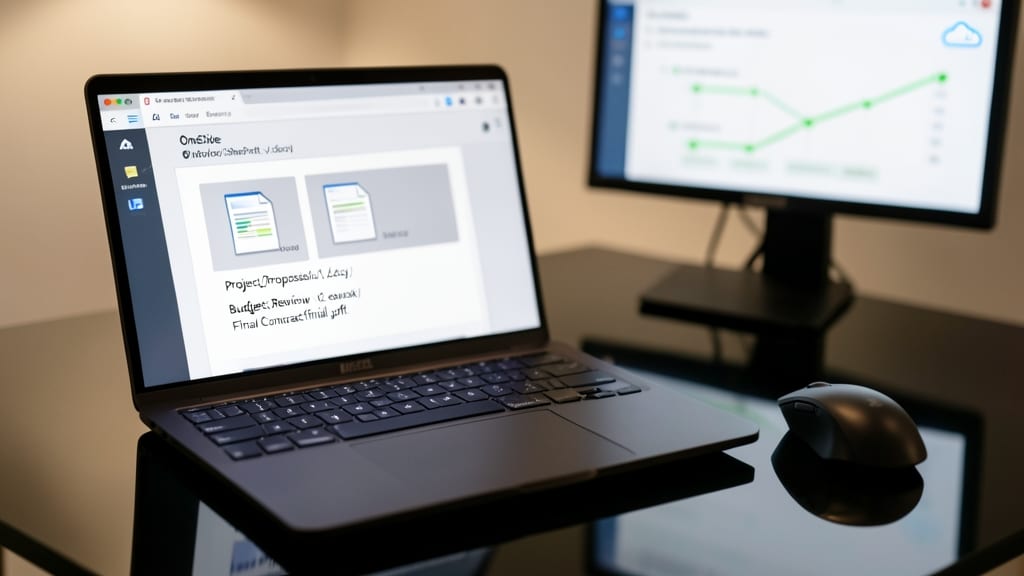
Tired of losing track of document revisions buried in folders? Suffix numbers like 'v2' or 'final' solve this by keeping iterations organized in a single file—no more cluttered duplicates in OneDrive or SharePoint.
Microsoft’s cloud services automatically track versions, but adding 'v1', 'revised', or 'final' suffixes makes it crystal clear which file is current. This works seamlessly with version history features, letting you revert to earlier drafts with one click. For example, 'Proposalv1.docx' and 'Proposalfinal.docx' coexist cleanly in the same folder.
Perfect for teams working on contracts, reports, or creative assets—this method keeps filenames short while preserving revision history. No more "FinalFinal_V3.docx" chaos! ✨
Client-Centric Naming for Consultants
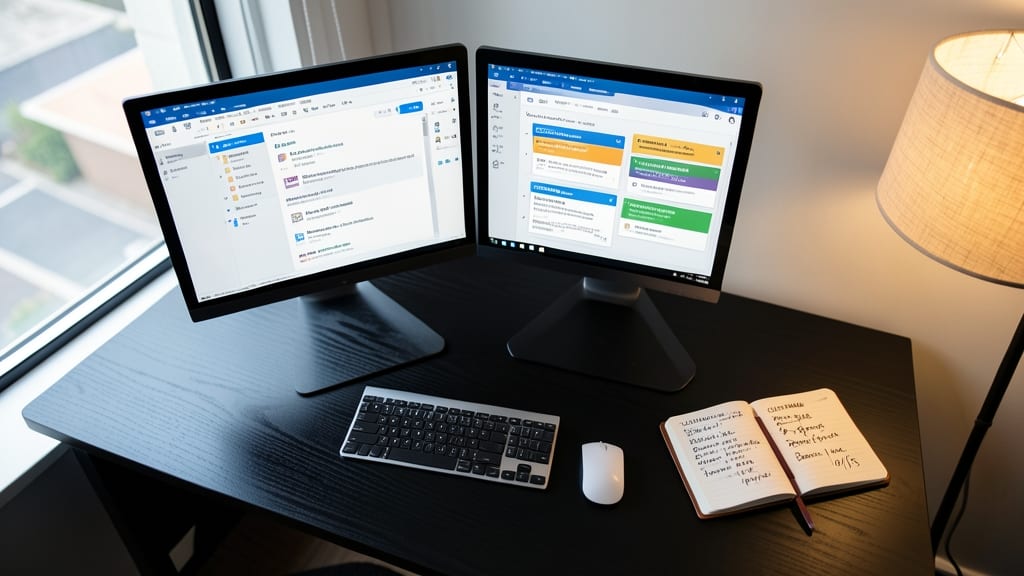
Juggling multiple client projects? A client-centric naming system keeps your files organized while making collaboration seamless. By prefixing files with CLIENTNAMEProject, you instantly filter attachments in Outlook or group tasks in Microsoft Planner—no more digging through generic folders.
Use underscores (not spaces) to separate client names from project details (e.g., ACMEBrandGuide_v2.docx). This format syncs perfectly with Microsoft Planner’s task lists and Outlook’s search function, ensuring you locate files in seconds. Plus, it’s easy to share with clients—just replace the prefix with their name.
Freelancers and agencies will love this—it’s the zero-config way to keep client work tidy while maintaining professionalism. ✨
Avoid Special Characters and Emojis

Ever hit "Save" only to find your file won’t open in Outlook, OneDrive, or SharePoint? Special characters and emojis are the silent saboteurs of Microsoft compatibility. A single @, #, or 🔥 can corrupt filenames, trigger errors, or even render files unreadable across devices.
Stick to A-Z, 0-9, hyphens (-), and underscores ()—this alphanumeric-only rule ensures seamless sharing in Office 365, OneDrive, and SharePoint. For example, use "Q3Report_2023.docx" instead of "Q3 Report @2023!.pdf" to avoid hidden headaches. Even cloud services like Teams and Outlook handle these names flawlessly.
This rule is non-negotiable for teams collaborating across platforms. Freelancers and enterprises alike benefit from zero compatibility issues when files stay clean and predictable. ⚡
Metadata Tags Over Filename Clutter
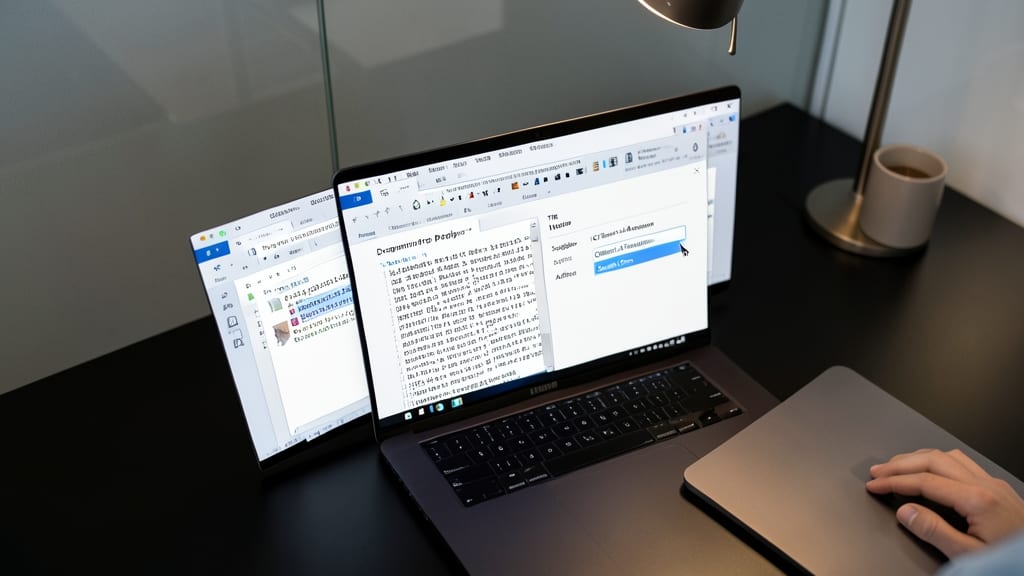
Tired of filenames that look like a jumbled mess of dates, versions, and client names? Microsoft’s built-in document properties offer a cleaner solution—Title, Subject, and Author fields let you add layers of context without cluttering the filename itself.
Open any Office app (Word, Excel, PowerPoint), press Ctrl+D (or right-click → Properties), and fill in the Title (e.g., "Q3 Financial Review"), Subject (e.g., "Finance Team"), and Author fields. These tags sync with Windows Search, SharePoint, and OneDrive, making files instantly filterable by project, owner, or department. No more bloated names like "FINALClientXProjectY2023v3.docx"—just a clean filename with all details tucked neatly in metadata.
This trick is a game-changer for teams collaborating on complex projects or freelancers juggling multiple clients. It keeps filenames short and scannable while ensuring critical details stay searchable. ✨