
PowerPoint
PowerPoint transitions can transform a boring presentation into a polished, professional experience—but choosing the right ones makes all the difference. These seven transition effects will elevate your slideshow flow, keep your audience engaged, and help you avoid common pitfalls like overuse or distracting visuals.
Fade Transition for Smooth Professionalism
Need a transition that screams "professional" without screaming "distraction"? The Fade effect is your go-to for corporate slideshows—it’s the safest choice for boardrooms and client meetings alike.
This classic transition smoothly dissolves one slide into the next, creating a seamless flow that keeps focus on your content. Unlike flashy animations, Fade works universally across PowerPoint versions (2016, 365, and Online) and pairs effortlessly with any design aesthetic. It’s also the default for a reason: zero learning curve and universal approval from audiences who prefer subtlety over spectacle.
Perfect for finance reports, executive summaries, or any presentation where polished simplicity matters most. 💡
Slide Morph for Dynamic Data Visualization
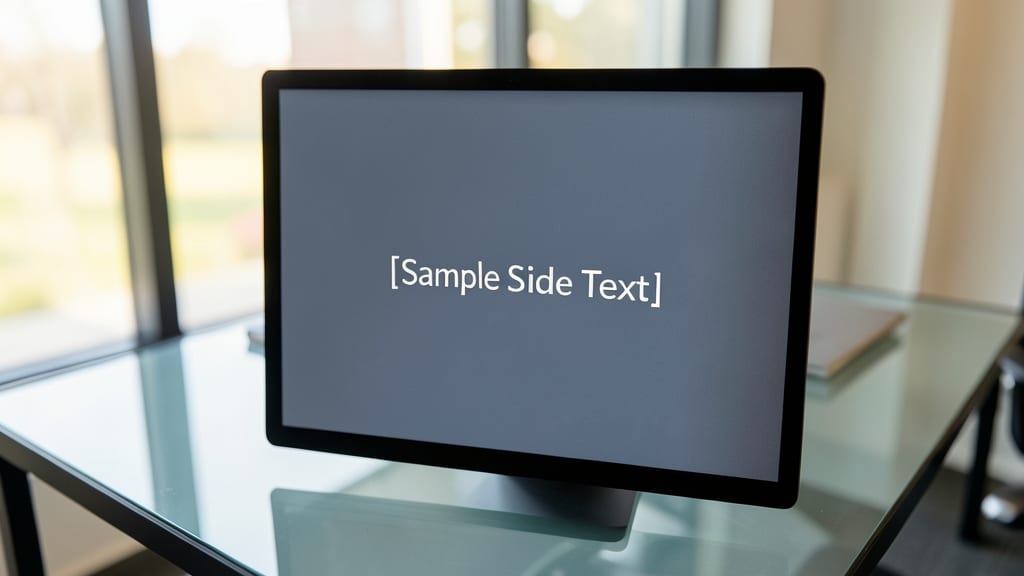
When your slideshow hinges on data—think comparing quarterly sales charts or contrasting survey results—Slide Morph is your secret weapon. Unlike generic transitions, it intelligently animates changes between slides, ensuring your audience stays locked on the numbers, not the flash.
Available in PowerPoint 2016 and later, this transition works best with similar slide layouts (e.g., bar charts → pie charts) and supports smooth color blending for visual continuity. It’s especially powerful when paired with data-heavy templates, as it preserves readability while adding a polished touch.
Perfect for analysts, educators, or marketers presenting metrics—just avoid overusing it with wildly different slide designs. Your data deserves this level of clarity! ✨
Push Transition for Storytelling Flow
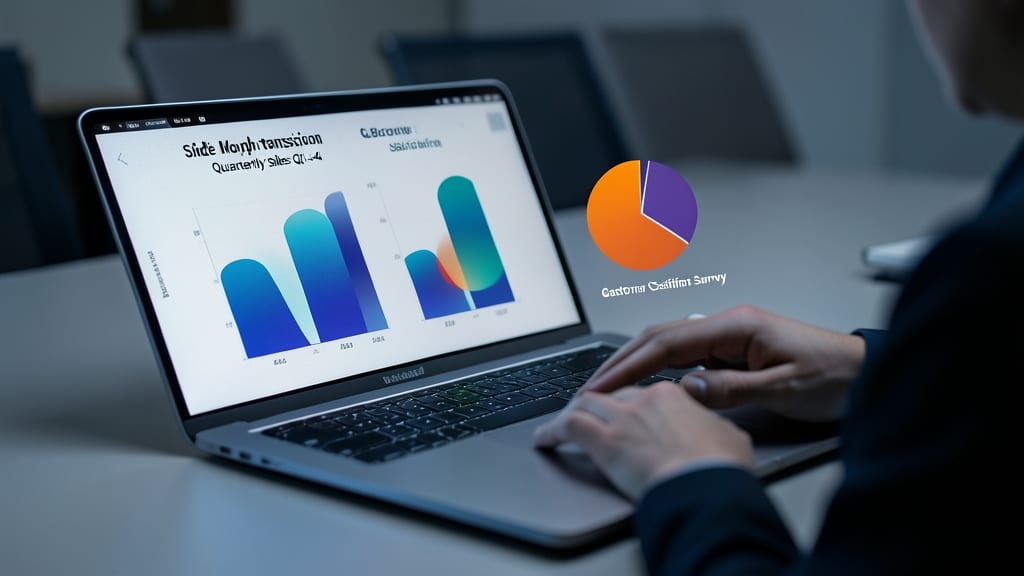
Want to turn your presentation into an immersive narrative experience? The Push transition mimics the natural flow of storytelling by sliding slides horizontally—like turning pages in a book. It’s subtle yet dynamic, guiding your audience’s focus from one idea to the next without overwhelming them.
Available in PowerPoint 2013 and later, this transition works best with a left-to-right or right-to-left direction to match reading habits. Pair it with minimal animations to keep the emphasis on your content, and use it sparingly to avoid distracting from key messages. The effect is especially powerful for keynotes, creative workshops, or TED-style talks where pacing matters.
Storytellers, educators, and marketers will love how this transition reinforces sequential flow—perfect for sequential storytelling or step-by-step explanations. Just don’t overuse it, or you’ll risk losing the cinematic magic. ✨
Zoom Transition for Highlighting Key Slides
Need to make your opening slide or key takeaways impossible to miss? The Zoom transition delivers a cinematic effect by smoothly zooming in from a blurred distance, instantly drawing eyes to your content. Unlike subtle fades or morphs, this transition creates a deliberate focal point—perfect for emphasizing milestones in training sessions or product demos.
PowerPoint’s built-in Zoom transition offers customizable speed and direction (inward/outward), letting you control the dramatic effect. Pair it with a high-contrast background (like dark gradients) to maximize impact. Pro tip: Limit use to 3-5 slides max—overuse risks distracting rather than engaging.
Trainers, sales teams, and product launch presenters will love this for highlighting critical slides without sacrificing professionalism. Just don’t overdo it—less is more! ✨
Wipe Transition for Creative Segmentation
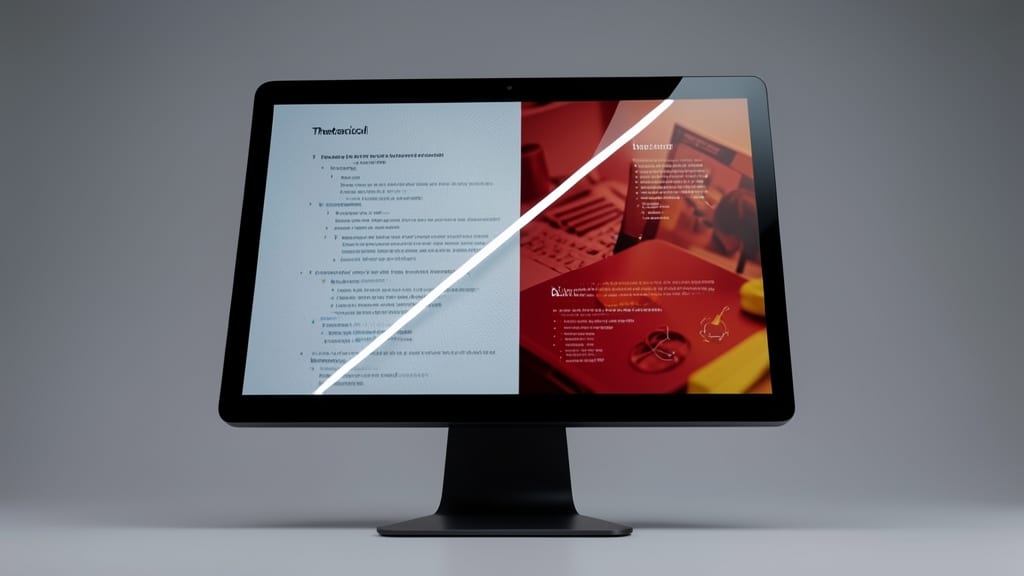
When you need to signal a shift in topics—like moving from theory to practice or one chapter to another—the Wipe Transition delivers a crisp, intentional break. Unlike gradual fades or morphs, this effect uses a clean line (horizontal, vertical, or diagonal) to "wipe" the previous slide away, creating a theatrical yet professional separation that keeps audiences oriented.
PowerPoint offers five wipe variations: left, right, up, down, and cross (diagonal). The speed is fully customizable, letting you control how abrupt or smooth the transition feels. This makes it ideal for educational content, creative pitches, or any presentation where you want to visually reinforce section changes without overwhelming the audience.
Teachers, trainers, and designers swear by this transition for its ability to segment content clearly while adding subtle visual interest. Use it sparingly—once per section—to maintain impact. ✨
3D Rotate Transition for Interactive Demos
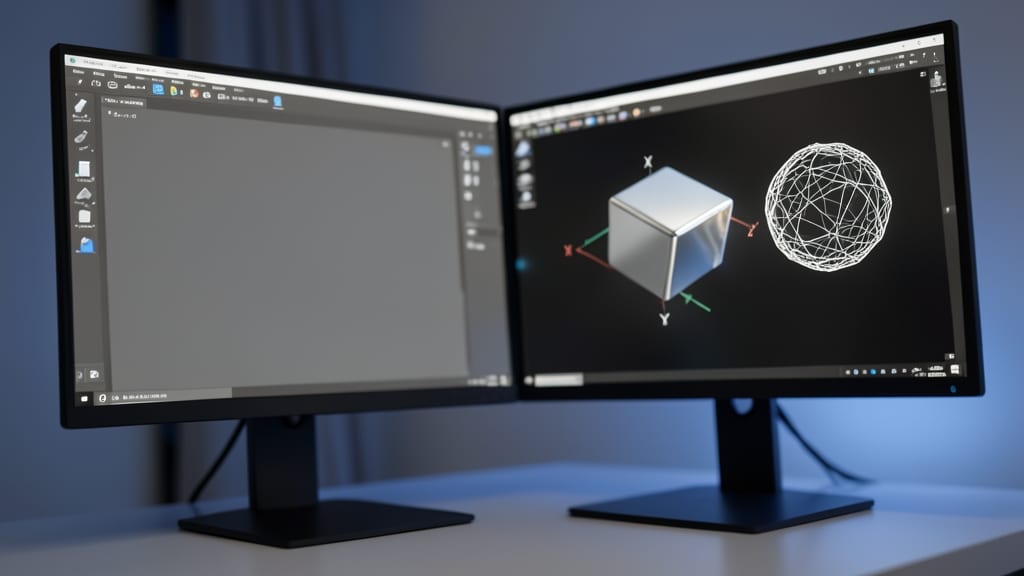
When you need to showcase before-and-after states—like comparing software versions or rotating 3D models—PowerPoint’s 3D Rotate Transition adds a dynamic layer of interactivity. Unlike static transitions, this effect spins slides along the X, Y, or Z axis, giving your demo a tactile, three-dimensional feel that’s perfect for technical audiences.
The transition works best with high-contrast visuals (e.g., product mockups, architectural renders, or data visualizations) and supports customizable rotation angles (90°, 180°, or 360°). Just ensure your content isn’t too complex—this effect shines when paired with minimal text and strong visuals to avoid overwhelming viewers.
Ideal for product demos, engineering presentations, or creative portfolios, this transition turns passive slides into an engaging experience—just don’t overuse it in formal settings where simplicity matters more. ✨
Custom Path Transition for Unique Branding
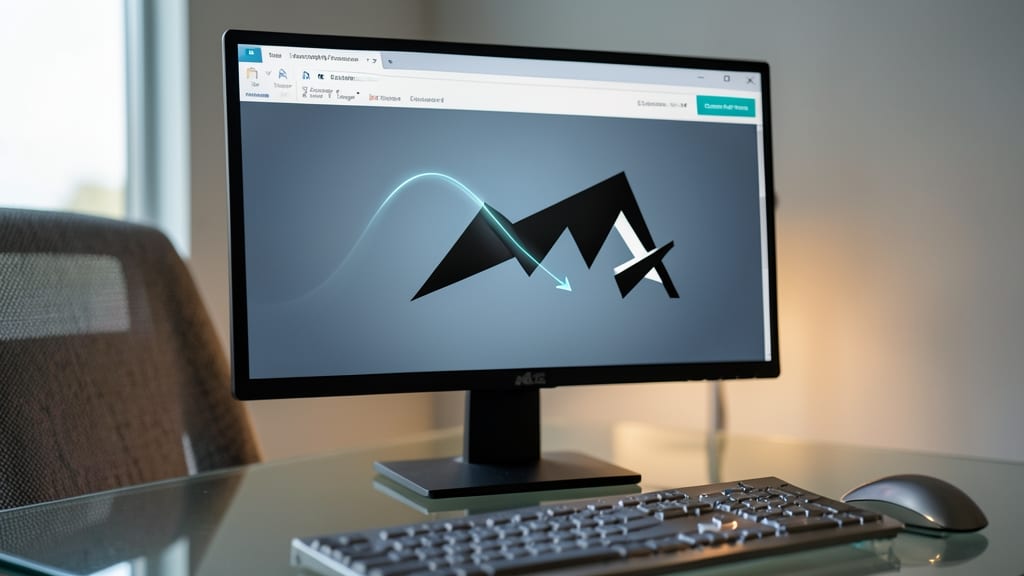
When your brand demands more than standard transitions, PowerPoint’s Custom Path Transition lets you draw your own movement path—curves, zigzags, or even logos—to create a signature visual rhythm. Unlike pre-set effects, this tool gives you full creative control, letting your transitions mirror your company’s design language or thematic flow.
To use it, simply select Animation > Custom Path, then sketch your route using the mouse or pen tool. You can adjust speed, direction, and even add morphing effects along the path for dynamic storytelling. This works best in PowerPoint 2016+ and Microsoft 365, where the feature is fully supported for both desktop and online versions.
Perfect for agencies, designers, or brands launching campaigns—where every visual detail reinforces identity. Just remember: less is more, so use this sparingly for maximum impact. ✨