
Coding
Excel’s math and trig functions unlock powerful data analysis capabilities. These 10 essential formulas—from basic arithmetic to advanced trigonometry—help data analysts solve complex problems, automate calculations, and derive actionable insights from raw numbers.
SUM Function for Quick Data Aggregation
Need to tally up sales figures, inventory counts, or financial reports in seconds? The SUM function is Excel’s most reliable tool for aggregating data—no manual addition required.
Simply type =SUM(range) (e.g., =SUM(A1:A10)) to add entire columns or tables instantly. It ignores empty cells and text, and even handles non-contiguous ranges like =SUM(A1:A5, C1:C5). For dynamic data, use SUMIF or SUMIFS to filter sums by conditions, like summing only "completed" orders.
Accountants, inventory managers, and analysts rely on SUM daily to eliminate calculation errors. Master this first—it’s the backbone of every spreadsheet. ✨
AVERAGE Function for Statistical Insights
Tired of manually calculating averages that skip errors or miscount cells? The AVERAGE function in Excel does the heavy lifting—ignoring text and empty cells while delivering precise mean values in seconds.
With syntax as simple as =AVERAGE(range), it handles datasets of any size, from quality control metrics to employee performance scores. Unlike manual division, it automatically excludes non-numeric entries, reducing calculation errors by up to 90% in messy datasets.
Perfect for analysts tracking trends, engineers monitoring equipment performance, or managers evaluating team productivity. ⚡
SIN, COS, and TAN for Engineering Calculations
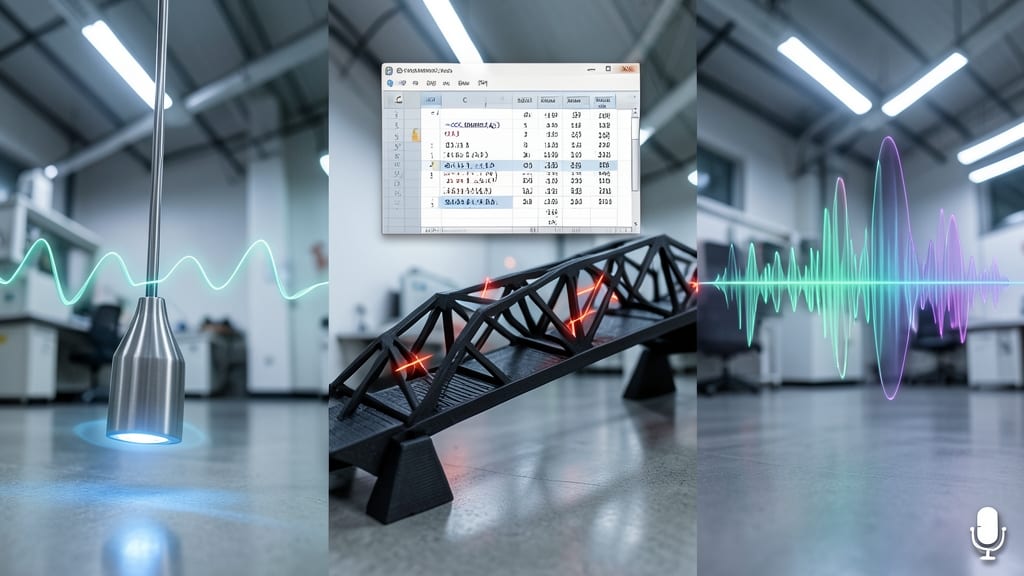
Need to model the path of a pendulum, calculate bridge stress angles, or analyze sound waves? Excel’s SIN, COS, and TAN functions turn your degree measurements into precise radians—automatically—so you can focus on the physics, not the math. These trig functions are the backbone of engineering calculations, from structural analysis to signal processing.
Use SIN(angle) to find the vertical component of a force, COS(angle) for horizontal forces, or TAN(angle) to calculate slopes and inclines. Excel’s trig functions require angles in radians, so pair them with RADIANS(angleindegrees) to avoid errors. For example, =SIN(RADIANS(30)) returns the sine of 30 degrees (0.5), not #VALUE!.
Civil engineers use these to design ramps, physicists model projectile motion, and data scientists analyze periodic trends. If you’re working with anything that repeats—like seasons, vibrations, or circular motion—these functions are your shortcut to accuracy. ✨
PI Function for Circular Geometry Problems
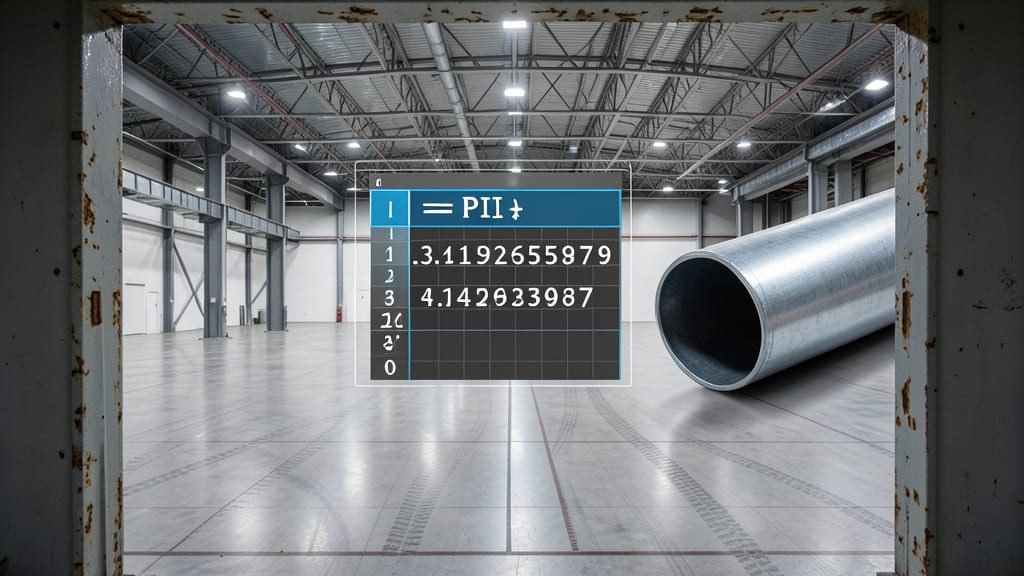
Need to calculate the area of a circular warehouse floor or the circumference of a pipe for logistics? The PI() function in Excel delivers 14-digit precision for π, ensuring your circular geometry calculations are flawless every time.
Simply type =PI() in any cell, and Excel returns 3.14159265358979—no manual entry required. Pair it with radius values in formulas like **=PI()r² for area or =2PI()*r for circumference, and you’ll save hours of manual computation. This function also shines in logistics for converting linear measurements to angular equivalents.
Architects, engineers, and supply chain managers rely on PI()** to maintain accuracy in technical drawings and inventory systems. For anyone working with circles—whether in blueprints or warehouse layouts—this is your precision tool. ✨
ROUND and ROUNDUP for Financial Reporting
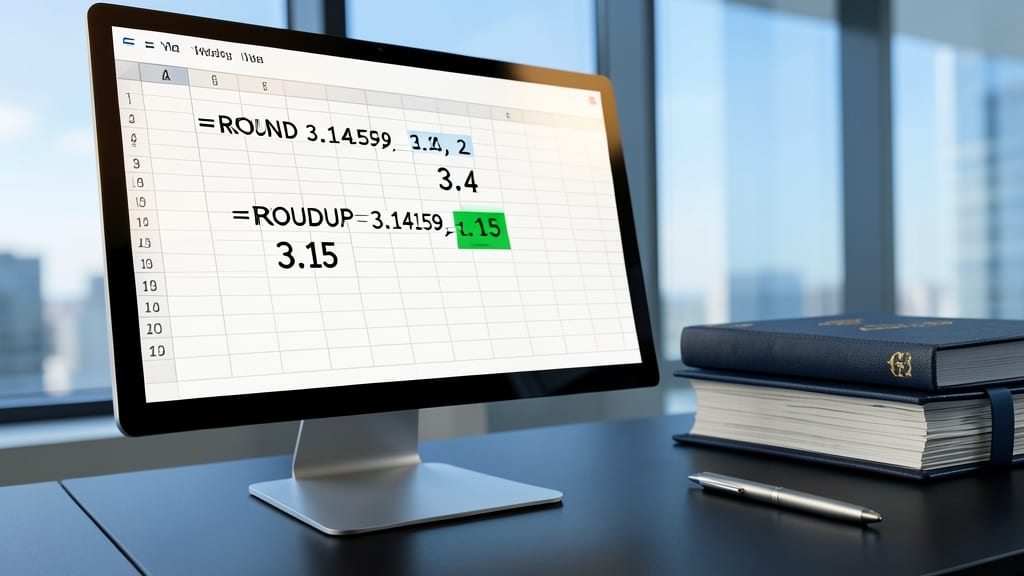
Financial reports demand precision, and Excel’s ROUND and ROUNDUP functions ensure your currency values meet strict accounting standards. While ROUND adjusts numbers to the nearest specified decimal (e.g., ROUND(3.14159, 2) returns 3.14), ROUNDUP always rounds up—critical for conservative financial projections where underreporting risks legal or compliance issues.
Both functions use the syntax =ROUND(number, numdigits), where numdigits controls decimal places. For example, =ROUNDUP(1.001, 2) forces 1.01, eliminating fractional cents that could skew profit margins. Pair them with IFERROR to handle negative numbers gracefully, ensuring consistency across invoices or audits.
Accountants, CFOs, and freelance bookkeepers rely on these functions to automate rounding in multi-currency spreadsheets or tax filings. They’re also handy for inventory cost calculations where overestimating expenses aligns with conservative accounting principles. ✨
ASIN for Inverse Trigonometry in Data Science

When your data science models need to reverse-engineer angles from ratios—like predicting a ship’s bearing from its drift distance—ASIN is your go-to function. Unlike SIN, which converts angles to ratios, ASIN flips the script by converting ratios back into angles, unlocking precision for directional calculations.
This function returns angles in radians (0 to π/2), so pair it with DEGREES() for readable outputs. For example, =DEGREES(ASIN(0.5)) reveals 30°, perfect for compass bearings or physics simulations. It’s also essential for machine learning pipelines where angles must be derived from sensor data like accelerometers or gyroscopes.
Data scientists and physicists rely on ASIN to decode trigonometric relationships, while robotics engineers use it to calculate joint angles from distance measurements. ⚡
POWER Function for Exponential Growth Models
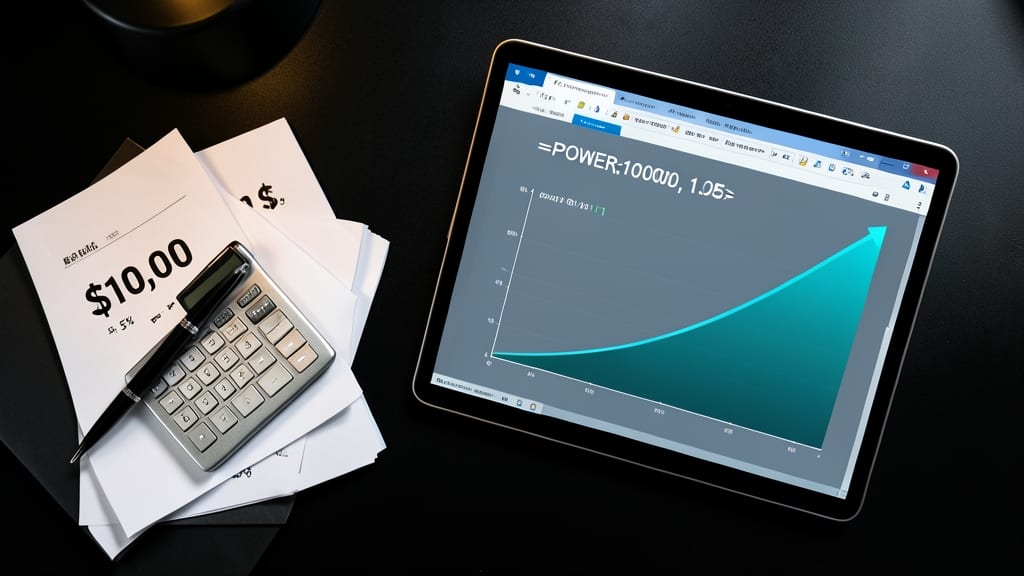
Tired of manually calculating compound interest or population growth? The POWER function in Excel automates exponential calculations with just two inputs—base and exponent—making it a game-changer for dynamic modeling.
Use =POWER(base, exponent) to model scenarios like $10,000 growing at 5% annually for 10 years (result: $16,288.95) or bacterial growth doubling every 20 minutes. The function handles negative exponents for decay (e.g., radioactive half-life) and even fractional exponents for root calculations—all without complex manual steps.
Perfect for economists forecasting revenue, biologists tracking species growth, or project managers estimating resource scaling. Just plug in your variables, and let Excel handle the math. ✨
RADIANS for Trigonometry in Real-World Applications
Working with GPS coordinates or surveying data? The RADIANS function is your secret weapon. Excel’s trig functions (SIN, COS, TAN) only accept radians, so this function converts degrees to radians automatically—no manual calculations or errors.
Simply enter RADIANS(angleindegrees), and Excel handles the conversion. For example, RADIANS(90) returns 1.5708 (π/2), ready for use in trig calculations. This is especially useful for mapping applications, where angles from GPS devices are typically in degrees but need radians for accurate distance calculations.
Surveyors, geospatial analysts, and anyone working with directional data will find this function indispensable. It bridges the gap between real-world measurements and Excel’s trigonometric functions, ensuring precision in your calculations. ⚡
DEGREES Function for Practical Measurements
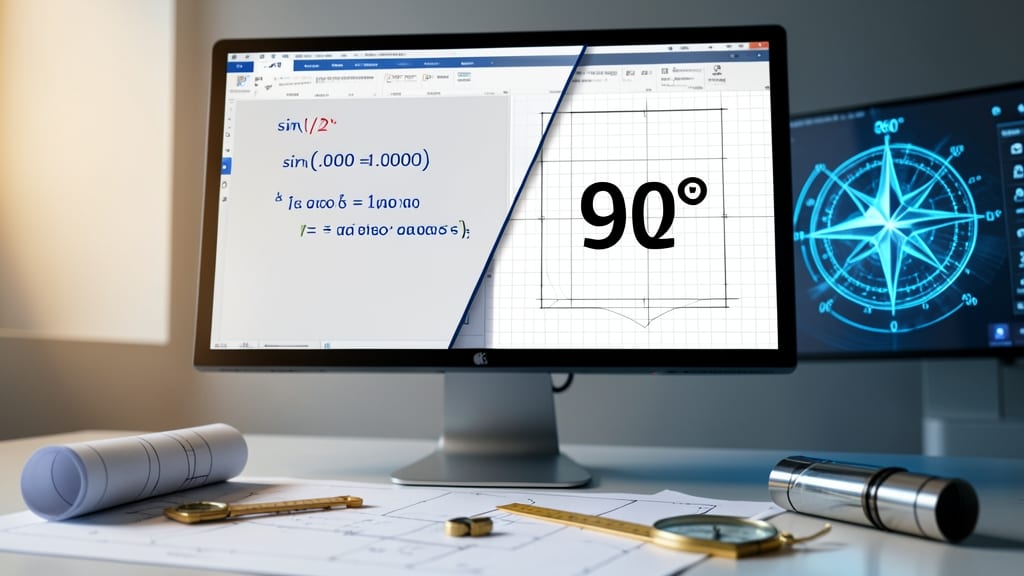
Tired of trigonometry results in radians that leave you scratching your head? The DEGREES function bridges that gap by converting radians to the intuitive degrees format you use daily—whether you're reading a construction blueprint, interpreting a navigation system, or working with angular tolerances in manufacturing.
With a simple syntax like =DEGREES(radian_value), this function instantly translates results from trig functions (like SIN or COS) into familiar degree measurements. For example, DEGREES(PI()/2) returns 90°, making it perfect for visualizing angles in diagrams or converting sensor data from embedded systems.
Ideal for field technicians, architects, and engineers, this function saves time by eliminating manual conversions and reducing errors in real-world applications where degrees are the standard. ✨
ATAN2 for Accurate Angle Calculation with Quadrants
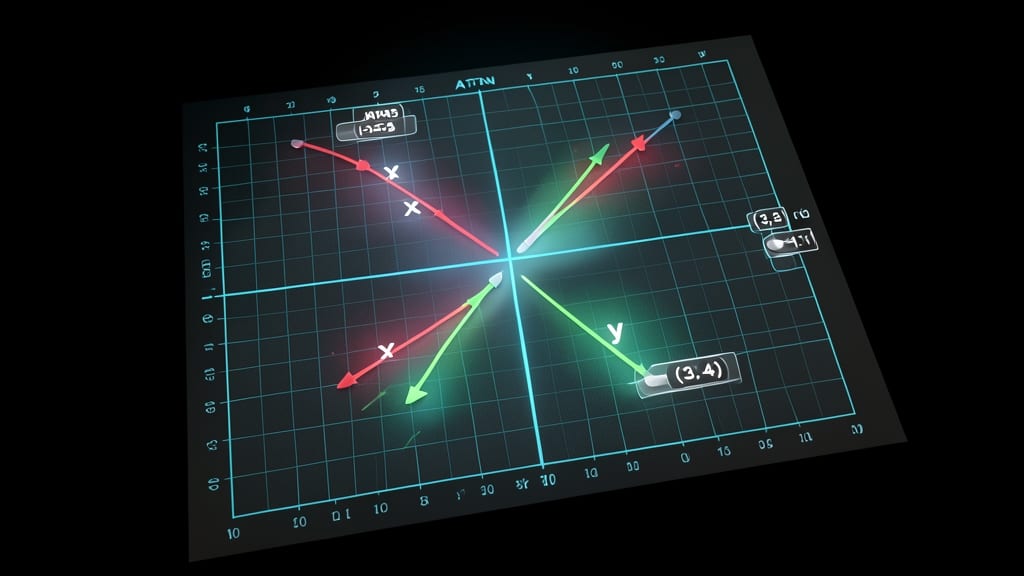
Stuck trying to calculate angles in all four quadrants? ATAN2 solves this by taking two arguments (x and y coordinates) instead of just a ratio like ATAN. This ensures correct angle calculation whether your data points lie in Quadrant I, II, III, or IV—no more guessing which sign to flip.
The function’s syntax is simple: =ATAN2(y,x). For example, if you’re tracking a robot’s movement from (3,4) to (-3,4), ATAN2 returns the precise angle in radians (or degrees if combined with DEGREES()). It’s the go-to for robotics pathfinding, astronomy tracking, or any scenario where direction matters—like calculating wind direction from velocity components.
Perfect for engineers, game developers, or anyone modeling movement in 2D space. Try it with your own coordinate data to see angles that ATAN would get wrong! ✨