
Tip & Trick
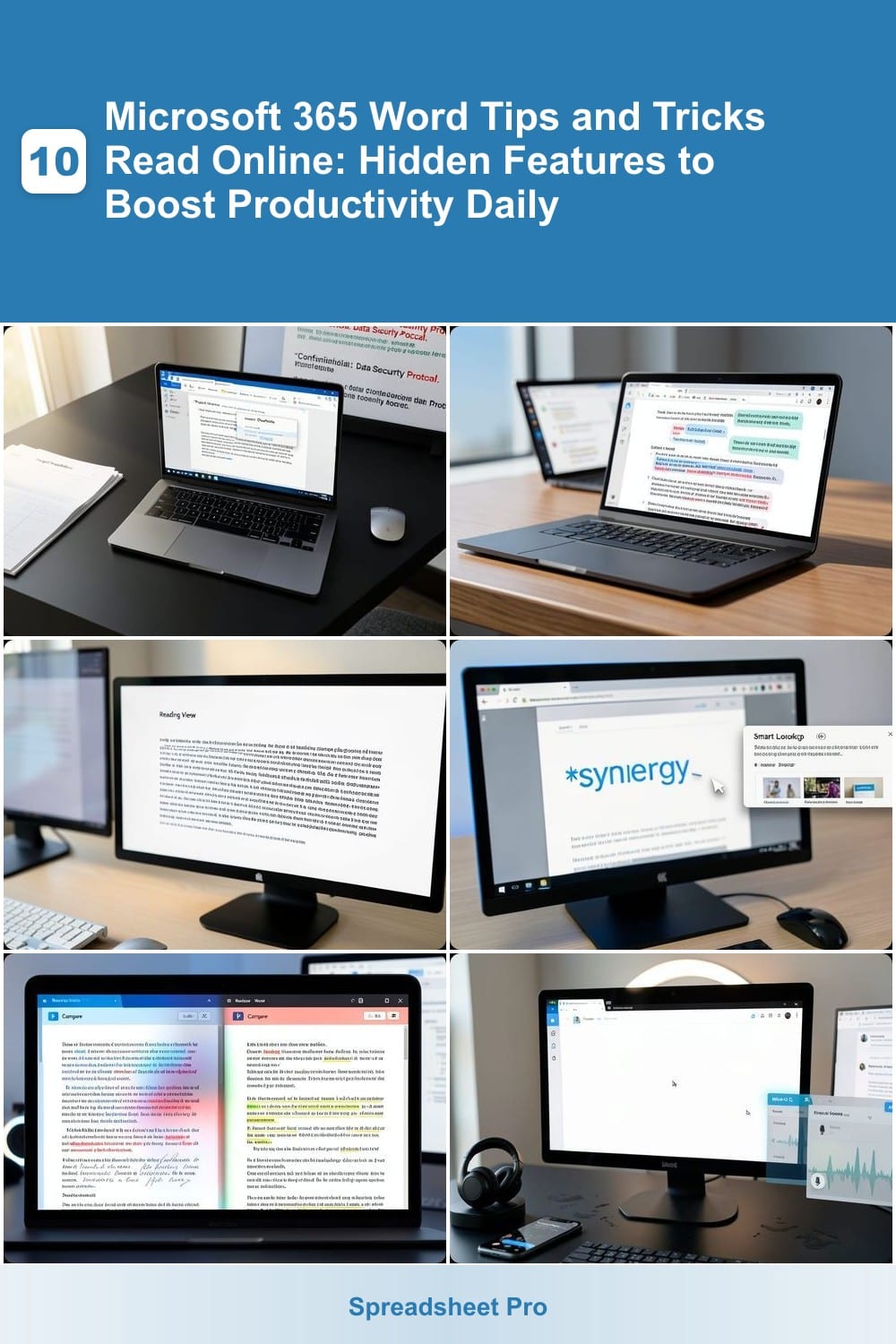
Microsoft Word is packed with hidden features that can save you hours weekly. These seven underused Microsoft 365 Word tips will transform the way you write, format, and collaborate—no advanced training required.
Quick Parts Gallery for Repeated Text
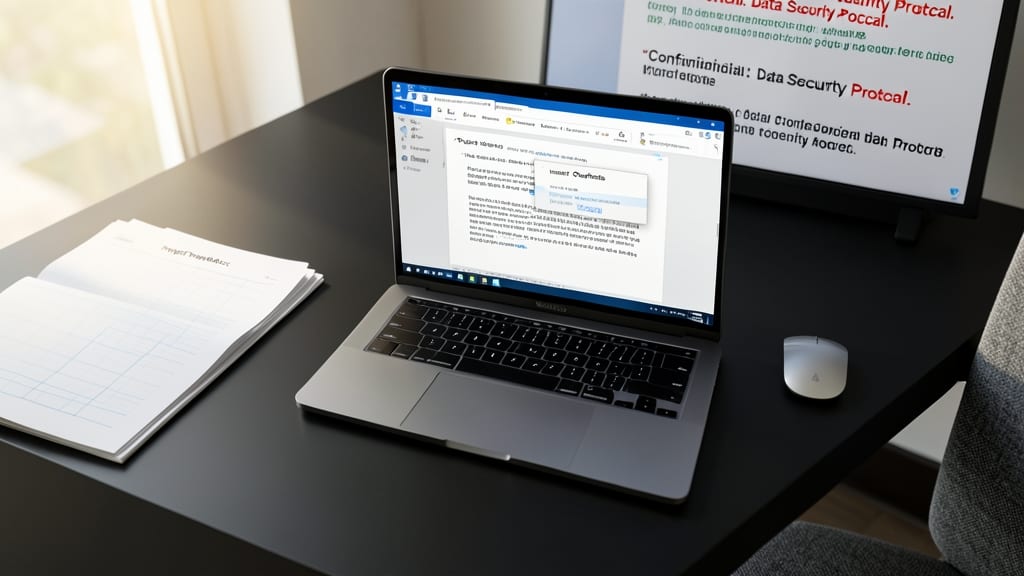
Tired of wasting time hunting through old emails or documents for that one repeated phrase? The Quick Parts Gallery in Microsoft 365 Word lets you save frequently used text—like signatures, legal clauses, or project templates—as reusable snippets. Just highlight the text, click Insert > Quick Parts > Save Selection to Quick Parts Gallery, and give it a name.
Once saved, your snippets appear in the Quick Parts dropdown (accessible via Insert > Quick Parts), ready to insert with a single click. Need to update a snippet later? Edit it once in the gallery, and all instances in your document auto-update. The feature even supports fields and placeholders, so you can create dynamic templates with auto-filled dates or client names.
Perfect for HR teams drafting onboarding documents, legal professionals inserting standard clauses, or marketers reusing boilerplate text. Eliminate copy-paste errors and save hours of manual work with this underrated powerhouse. ⚡
Track Changes with Comments for Feedback
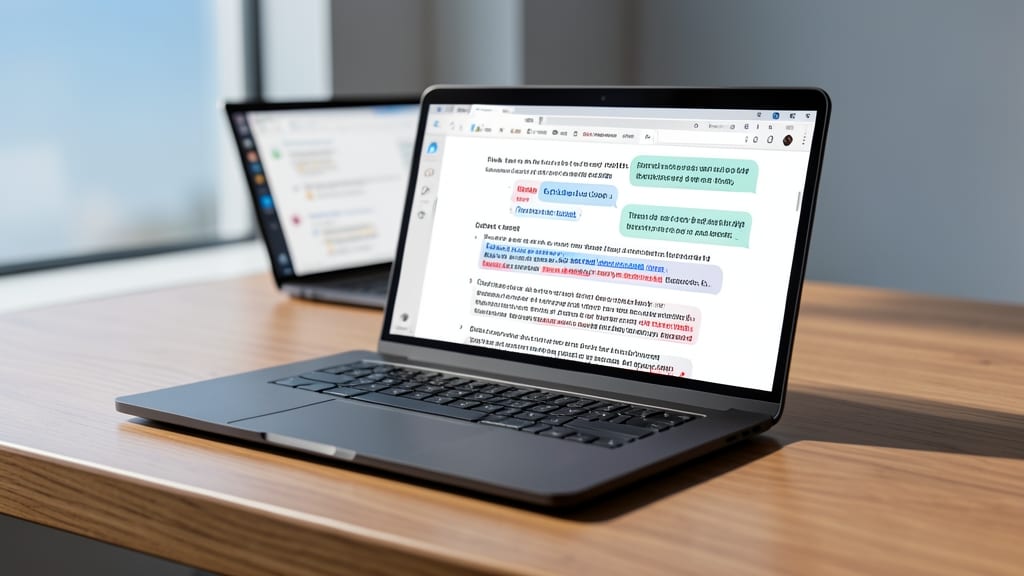
Collaborating on documents doesn’t have to mean endless email chains or confusing version control. Microsoft Word’s Track Changes with Comments feature lets you mark edits and add threaded feedback—all in one place. This powerful combo highlights revisions in real-time while keeping discussions tied directly to the text they reference.
Enable it via Review > Track Changes, then use New Comment (Ctrl+Alt+M) to pinpoint specific lines for discussion. The comment balloon stays visible until resolved, and replies create nested threads—just like a digital sticky note system. Best of all, it syncs with OneDrive/SharePoint, so remote teams stay aligned without losing context.
Perfect for legal teams reviewing contracts, editors polishing manuscripts, or project managers aligning on proposals. No more scattered feedback—just a clean, organized workflow that keeps everyone on the same page. 💡
Reading View for Distraction-Free Writing
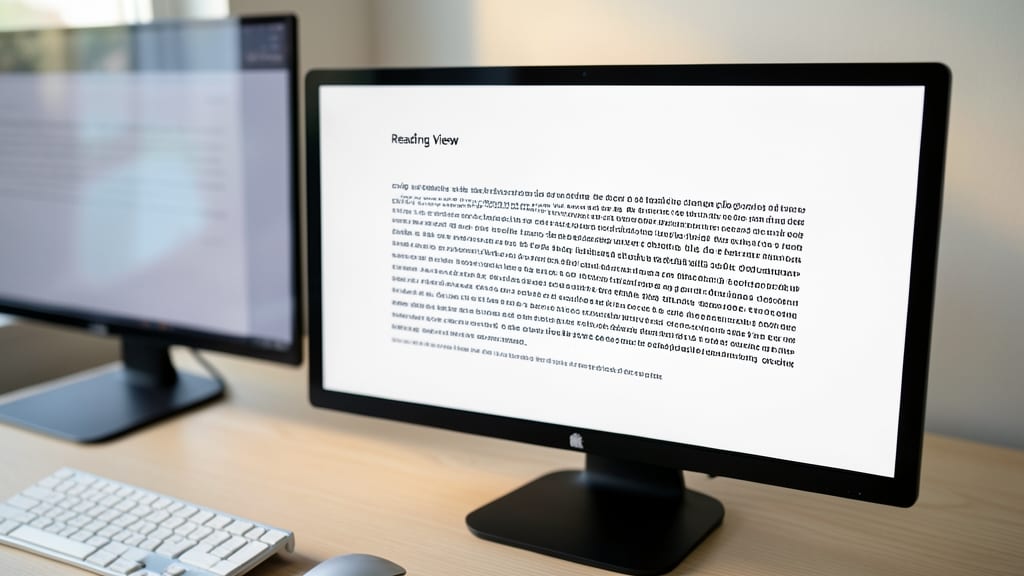
Tired of tabs, toolbars, and formatting distractions stealing your focus? Reading View in Microsoft 365 Word strips everything away—leaving only your text in a clean, full-screen display. This hidden gem is perfect for deep work sessions where every extra pixel counts.
Just press Ctrl+Shift+N (Windows) or Cmd+Shift+N (Mac) to toggle it on instantly. The view adjusts font size automatically for readability, and you can even highlight text to annotate ideas without leaving the mode. No more jumping between windows or getting sidetracked by formatting—just pure content.
Writers, students, and professionals who juggle multiple documents will love this. It’s the digital equivalent of a blank page—ideal for brainstorming, editing, or reading long documents without eye strain. ✨
Smart Lookup for Instant Dictionary Definitions
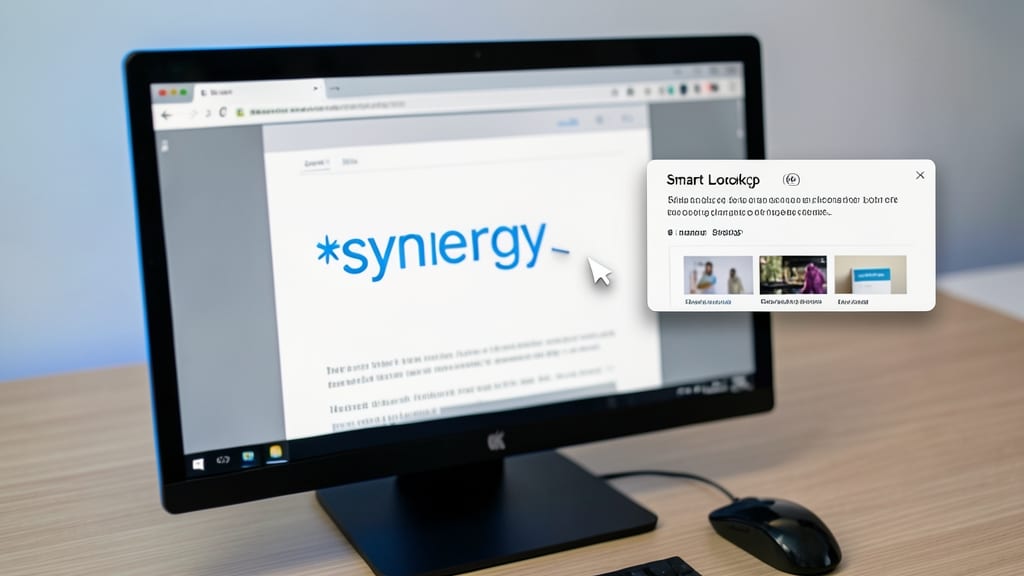
Tired of switching between Word and a separate browser to look up definitions? Smart Lookup integrates a built-in dictionary directly into your workflow. With a simple right-click, you’ll instantly see definitions, synonyms, and even web results—all without leaving your document.
This feature supports 10+ languages and pulls data from trusted sources like Bing and Wikipedia. The synonym suggestions help refine your writing on the fly, while the web preview lets you verify context without opening new tabs. It’s especially useful for academic papers, legal docs, or multilingual content.
Researchers and non-native English speakers will love how it eliminates interruptions. Just right-click any word—no extra tools needed! ✨
Compare Documents Side-by-Side
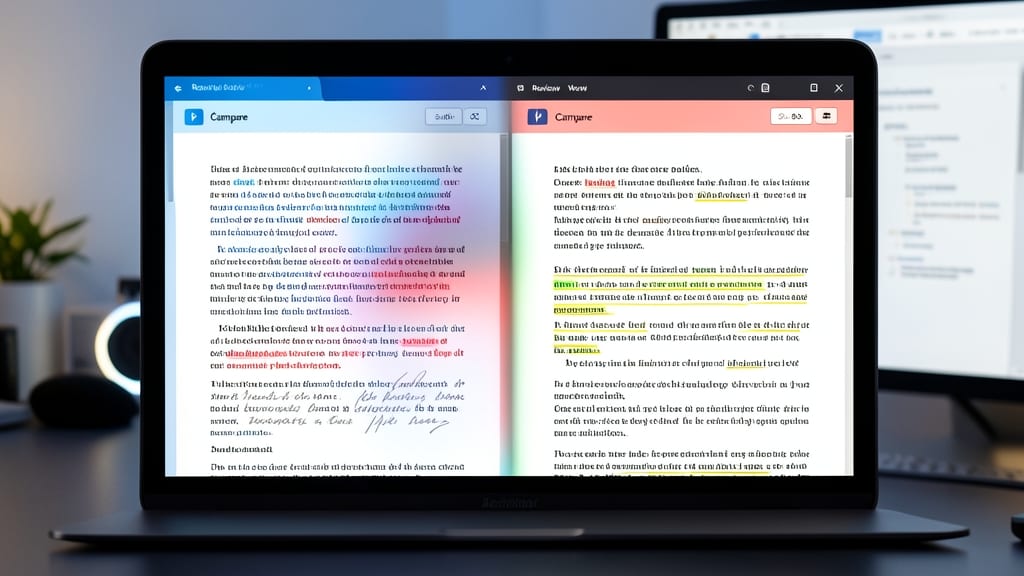
Ever struggled to reconcile two versions of the same document—whether it’s a legal contract, a revised manuscript, or a client proposal? Microsoft Word’s side-by-side comparison tool lets you merge and analyze differences in real time, with just a few clicks.
Simply go to Review > Compare > Compare and select your original and revised files. Word highlights insertions, deletions, and formatting changes in distinct colors, while the vertical scrollbar syncs both documents so you can cross-reference line by line. Need to accept or reject changes? The Compare toolbar makes it effortless—no more squinting at PDFs or manual annotations.
This feature is a lifesaver for legal teams reconciling amendments, editors polishing manuscripts, or anyone managing iterative drafts. It’s the digital equivalent of a highlighter and magnifying glass—precision meets productivity. ✨
Dictation Tool for Hands-Free Writing
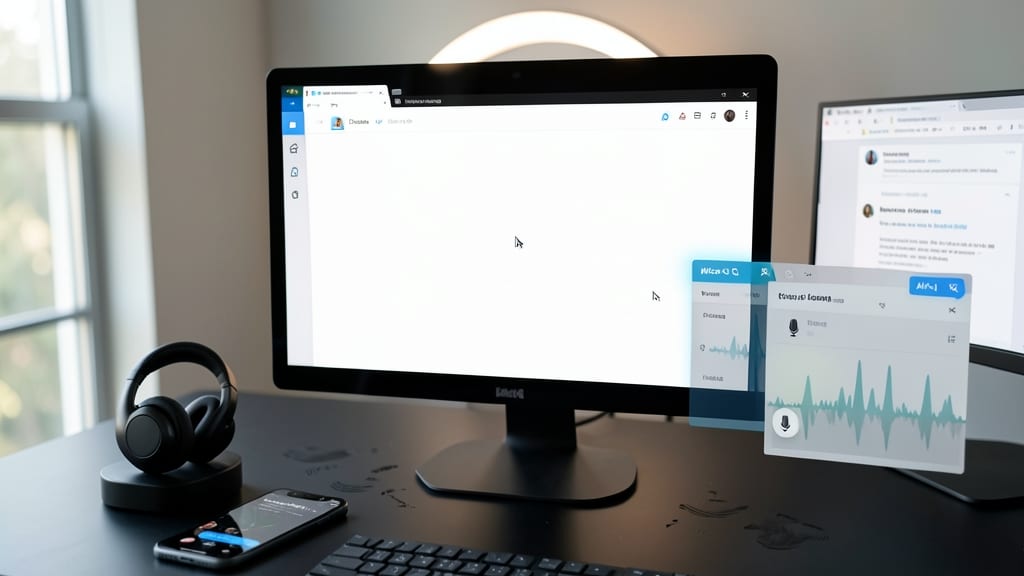
Tired of typing while juggling calls, emails, or accessibility challenges? Microsoft Word’s built-in dictation tool lets you speak your document aloud with 98% accuracy—no third-party software needed. Simply enable it via the Home tab (Dictate command) or press Alt + Q to start transcribing.
This feature supports punctuation commands ("comma," "period," "new paragraph") and even formatting ("bold," "italic"). Works offline and syncs with your Microsoft account for seamless transitions across devices. Perfect for drafting emails, reports, or notes while commuting or during hands-busy tasks.
Ideal for executives on the go, individuals with mobility limitations, or anyone who prefers speaking over typing. Give it a try—your wrists will thank you! ✨
Document Themes for Consistent Branding
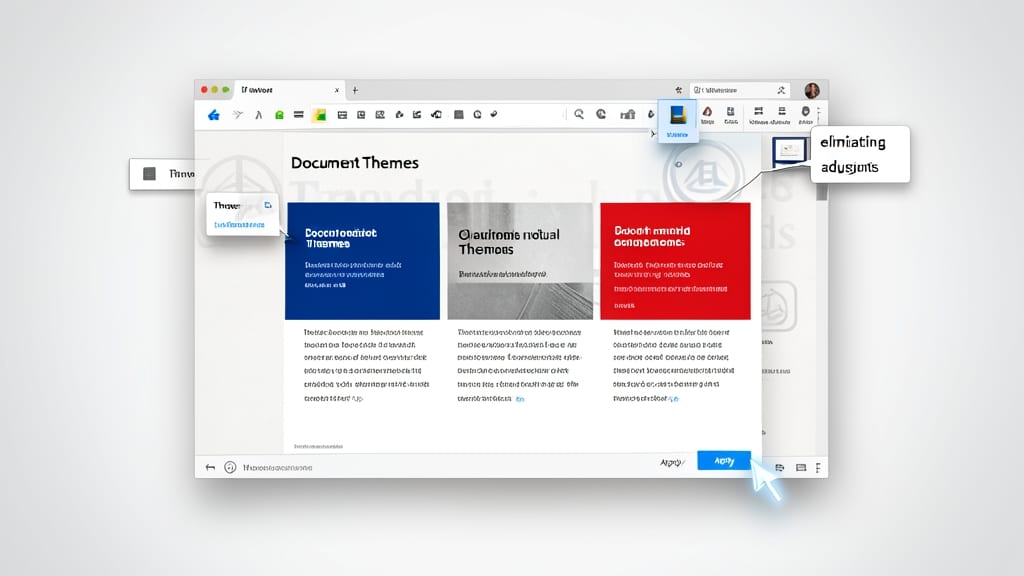
Tired of manually adjusting fonts and colors to match your brand guidelines every time you create a document? Document Themes in Microsoft 365 Word let you apply cohesive color schemes, fonts, and effects with just a few clicks—ensuring your reports, proposals, and presentations always look polished and professional.
Simply navigate to the Design tab, where you’ll find pre-built themes like "Elegant," "Modern," or "Vibrant." Each theme includes coordinated colors, font pairings, and line effects that automatically update across your document. You can also customize themes by tweaking the color palette or font styles to match your exact brand requirements. For extra flair, add background styles or text effects that align with your theme.
This feature is a lifesaver for designers, marketers, and brand managers who need to maintain consistency across multiple documents. Whether you're drafting a client proposal or updating internal reports, Document Themes ensure your content reflects your brand identity effortlessly. ✨