
Software
Microsoft Edge offers powerful features most users overlook. These seven pro-level tips will transform your browsing experience—boosting speed, security, and productivity without sacrificing simplicity.
Enable Immersive Reader for distraction-free focus
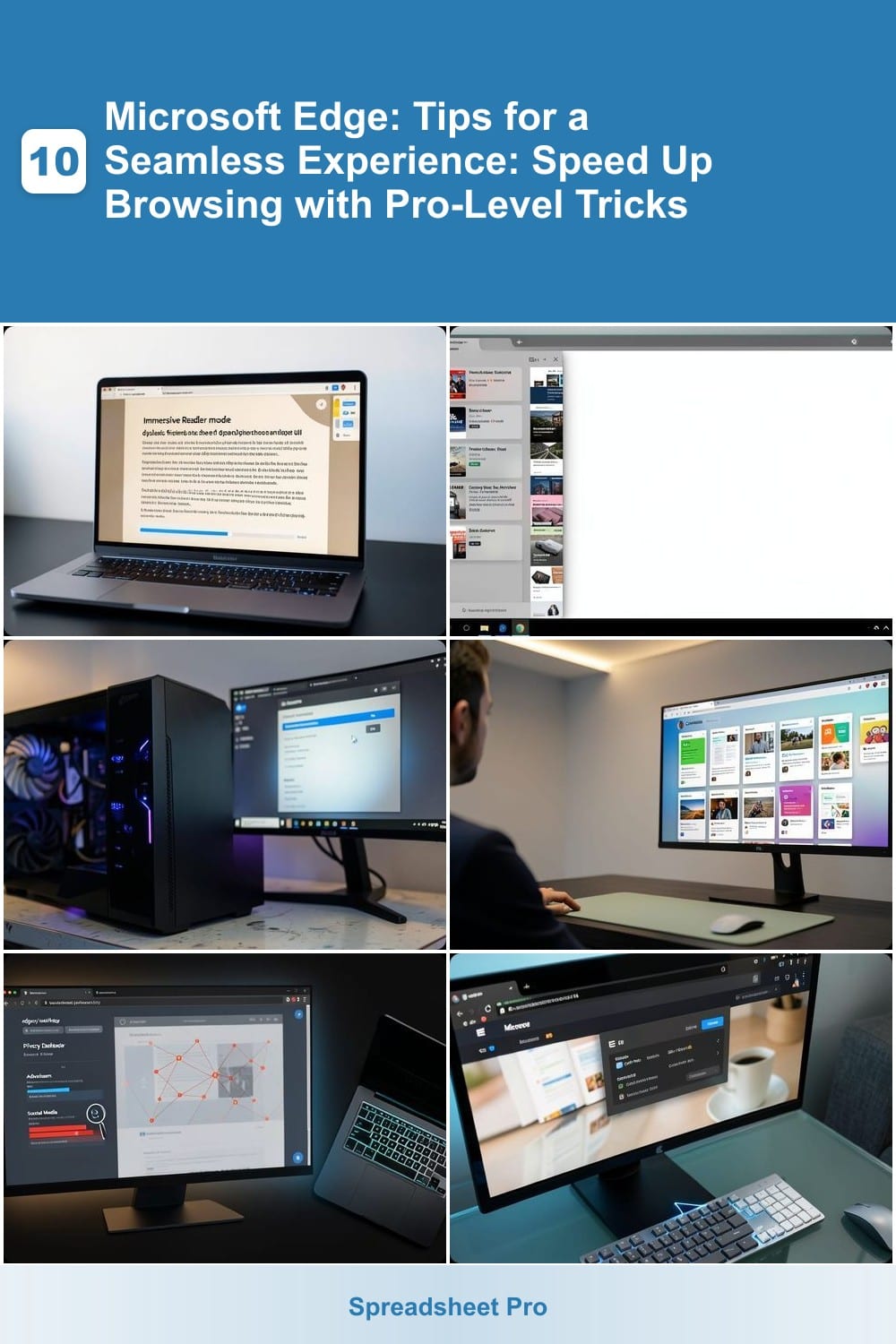
Struggling to focus while reading long articles or documents? Microsoft Edge’s Immersive Reader transforms your screen into a distraction-free zone with just one click. This built-in tool strips away clutter, offering dyslexia-friendly fonts, customizable themes, and even text-to-speech to help you absorb content more efficiently.
Activate it by selecting text in a webpage or document, then clicking the Immersive Reader icon in the toolbar. Choose from OpenDyslexic, Dyslexia-friendly, or standard fonts, adjust line spacing, and toggle dark mode to reduce eye strain. The text-to-speech feature reads aloud at a natural pace, letting you follow along while multitasking.
Students, researchers, and writers will love how Immersive Reader simplifies complex texts—ideal for essays, coding tutorials, or lengthy reports. Give it a try for a smoother, more engaging reading experience. ✨
Use Vertical Tabs to maximize workspace
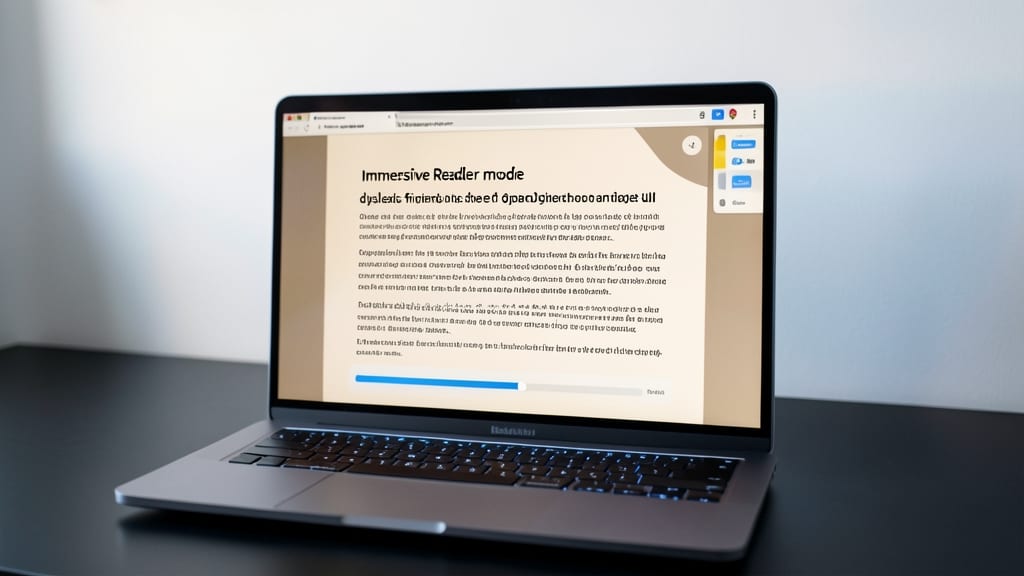
Tired of scrolling through endless horizontal tabs? Microsoft Edge’s vertical tabs feature transforms your workflow by stacking tabs neatly in a sidebar, freeing up precious screen real estate while keeping everything just a click away.
Enable it in Settings > Appearance (Windows) or Edge > Settings > Appearance (macOS), then toggle "Show tabs in a sidebar." This layout works perfectly with multiple monitors or when juggling 10+ tabs—no more accidental closes or lost research threads. The compact icons also make it easier to spot specific sites at a glance.
Researchers, developers, and content creators will love this space-saving trick. It’s especially useful when comparing documents, tracking references, or managing project-related resources without the clutter. ⚡
Enable Hardware Acceleration for smoother performance
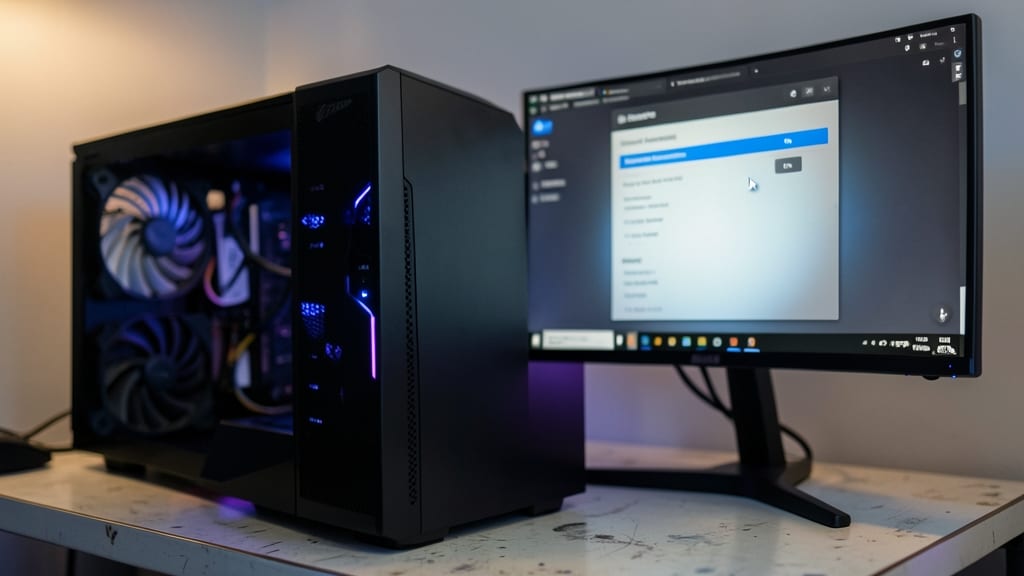
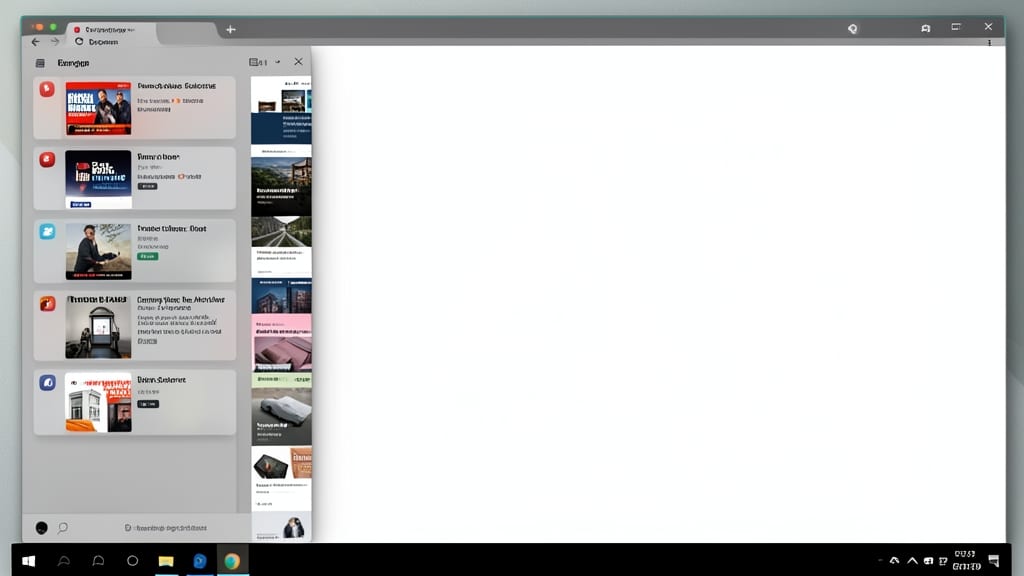
If your older PC struggles with laggy video or slow web apps, hardware acceleration in Microsoft Edge could be the game-changer you’ve been missing. This setting offloads rendering tasks to your GPU, transforming choppy playback into smooth performance—even on mid-range hardware.
To enable it, navigate to Settings > System > Performance and toggle Hardware Acceleration to On. You’ll notice immediate improvements in 4K video playback, complex web apps (like Figma or Canva), and even gaming streaming sites. For users with integrated graphics, this can double rendering speeds in some cases.
This tweak is especially valuable for streamers, developers testing responsive designs, or anyone juggling multiple high-demand tabs. Just ensure your GPU drivers are updated first—outdated drivers can negate the benefits. ⚡
Customize Start Page with Collections
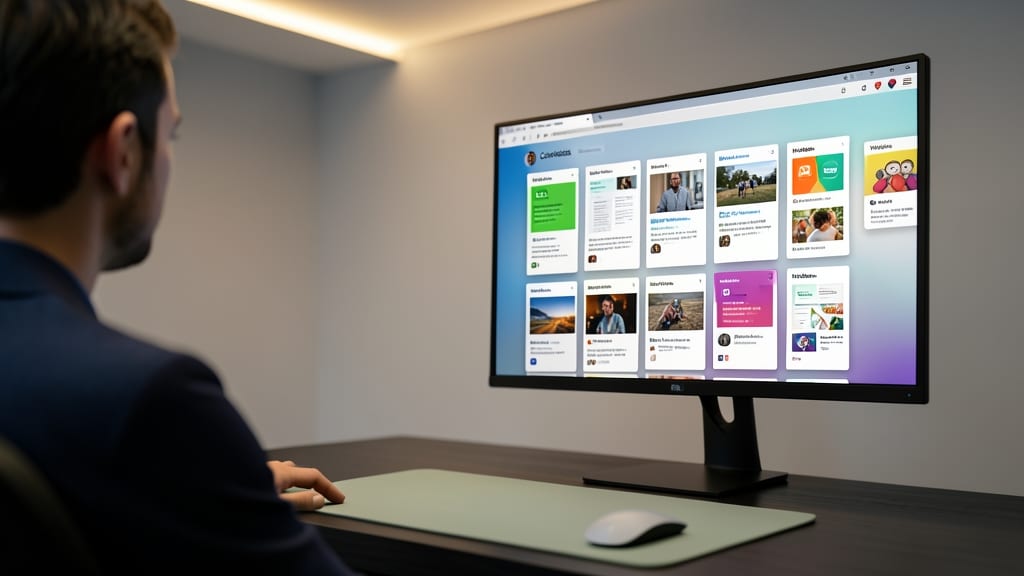
Tired of digging through endless bookmarks? Microsoft Edge’s Collections feature turns your start page into a productivity powerhouse by letting you organize links into visual boards—think Pinterest meets project management.
Create custom collections for work projects, research topics, or hobbies, then pin them to your start page for instant access. Drag-and-drop websites into color-coded boards, add notes, and even share collections with teammates. The zero-config sync ensures your boards stay updated across devices, while the drag-to-reorder feature keeps your workflow intuitive. Perfect for researchers, developers, or anyone juggling multiple tasks daily.
This feature transforms chaos into clarity—ideal for professionals who spend hours switching between tabs. Give it a try and reclaim your browsing sanity! ✨
Block Trackers with Privacy Dashboard
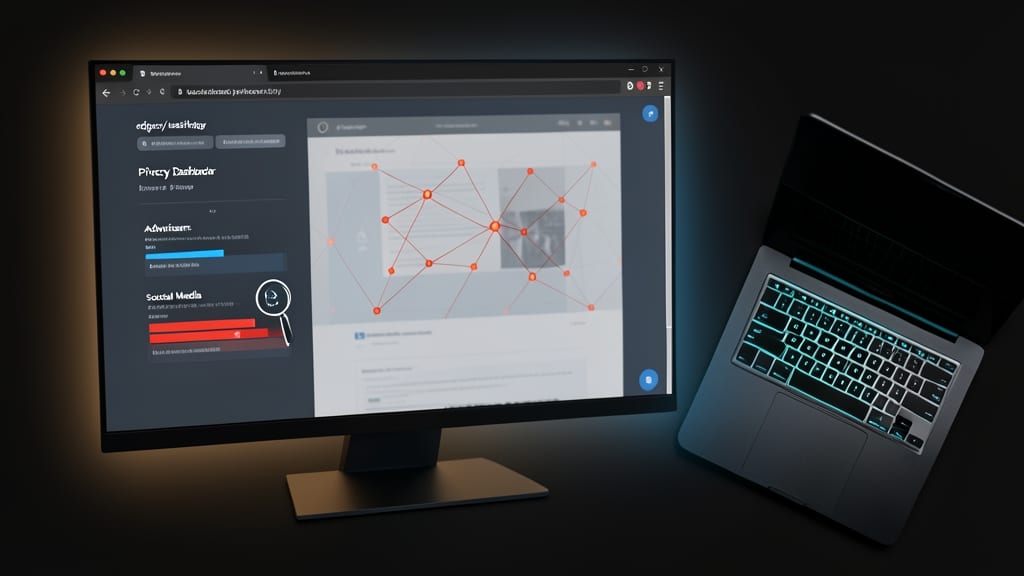
Worried about hidden trackers silently collecting your data while browsing? Microsoft Edge’s Privacy Dashboard puts you in control with real-time tracker detection and blocking—no third-party extensions required.
Access it via edge://settings/privacy to see a detailed breakdown of trackers on any site, complete with a privacy score (0-100) and the ability to block them instantly. The dashboard highlights cross-site tracking cookies, ads, and analytics scripts, giving you full transparency before you even visit a page. For extra security, enable Strict Tracking Prevention to block all known trackers by default.
This feature is a must for journalists, researchers, or anyone handling sensitive information. With just a few clicks, you can browse with confidence, knowing Edge is actively shielding your data. 💻
Use Edge Shortcuts for keyboard efficiency
Tired of reaching for your mouse every time you switch tabs or open a new window? Microsoft Edge’s built-in keyboard shortcuts let you navigate like a pro—no mouse required. With over 20 customizable commands, you can open incognito windows, cycle through tabs, or even search the web faster than ever.
Start with Ctrl+Shift+N for an incognito window, Ctrl+Tab to cycle forward, or Ctrl+Shift+Tab to go backward. Need more? Edge lets you remap shortcuts in Settings > Keyboard shortcuts to fit your workflow. Developers and researchers will love Ctrl+Shift+I for DevTools, while Ctrl+Shift+P opens the command palette for instant access to hidden features.
This is a game-changer for power users—whether you’re coding, researching, or multitasking across multiple sites. Ditch the mouse and browse at lightning speed. ⚡
Enable Dark Mode for reduced eye strain
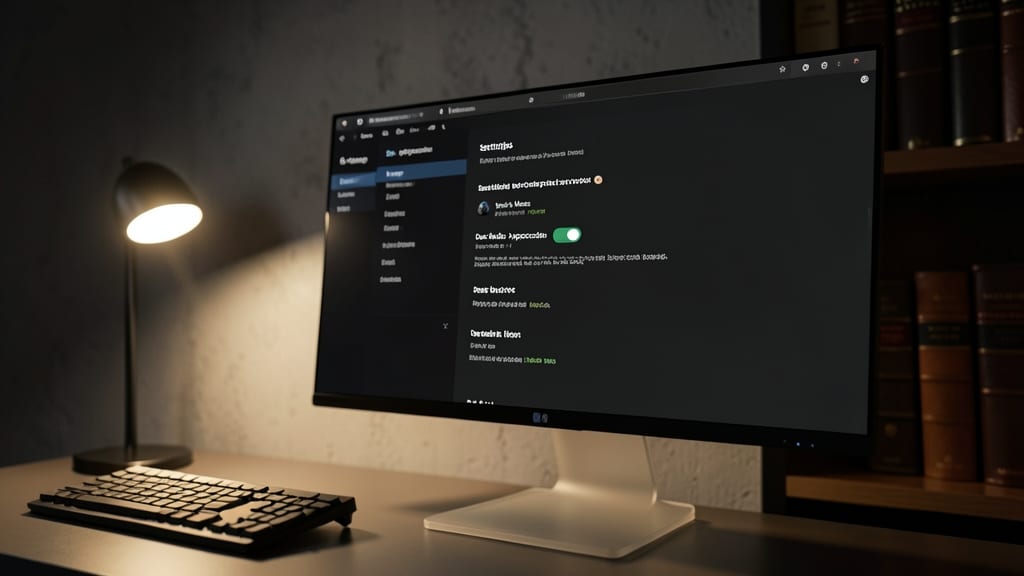
Late-night browsing shouldn’t leave your eyes feeling like you just ran a marathon. Microsoft Edge’s Dark Mode cuts blue light emissions by 30% while keeping text crisp and readable—ideal for night owls or anyone sensitive to glare.
Enable it in Settings > Appearance with a single toggle, and watch your screen shift to a soothing dark theme that adapts to low-light conditions. The high-contrast design ensures readability without squinting, and it even syncs across devices if you’re signed into your Microsoft account.
Perfect for developers coding late, students cramming for exams, or anyone who prefers a cozy, eye-friendly workspace. Give your eyes a break—your future self will thank you. ✨