
Tip & Trick
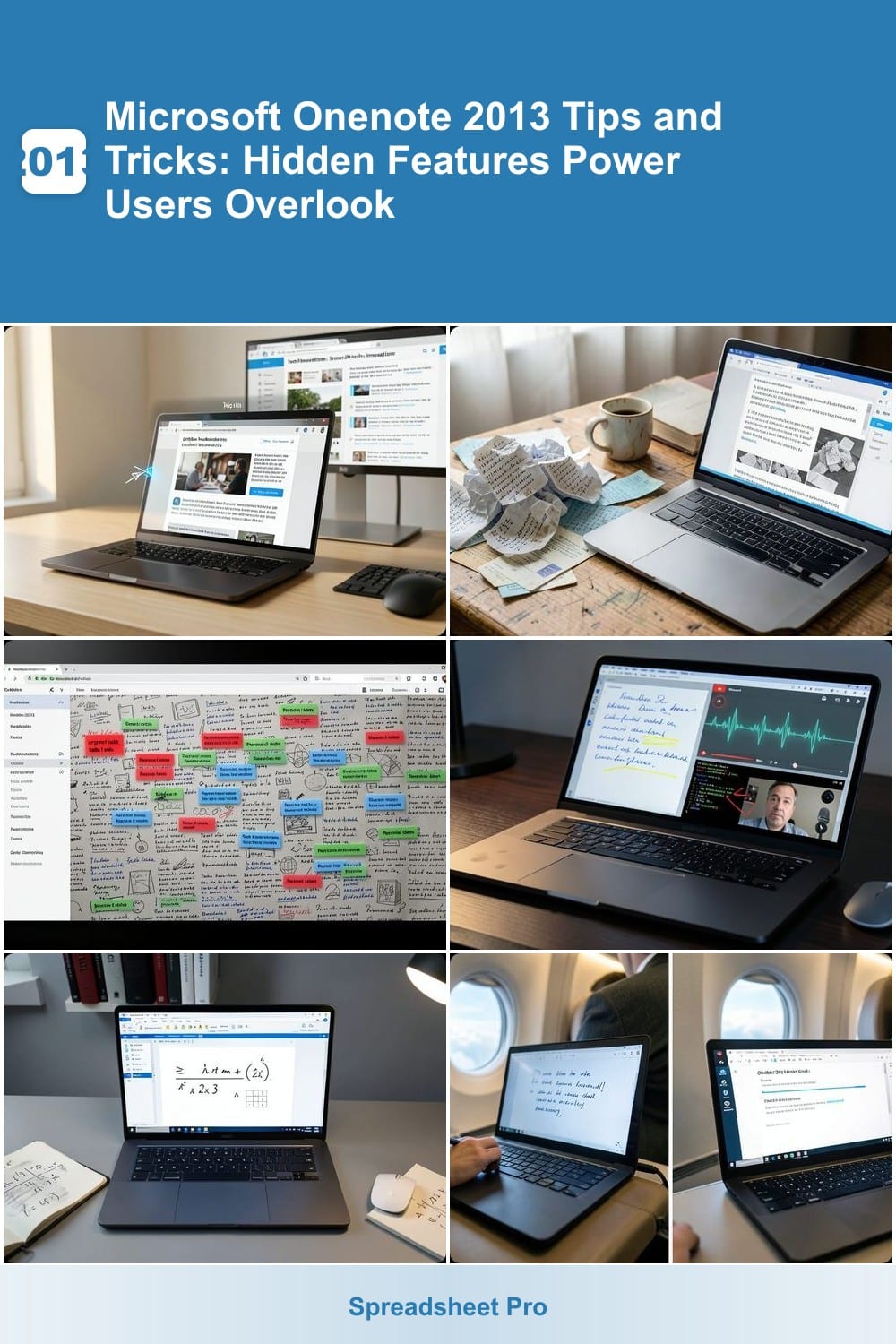
Microsoft OneNote 2013 remains a powerhouse for note-taking and organization, yet many users miss its most powerful hidden features. These seven underrated tips and tricks will transform how you capture, organize, and retrieve information—boosting productivity without switching tools.
Quick Capture with OneNote Clipper Browser Extension
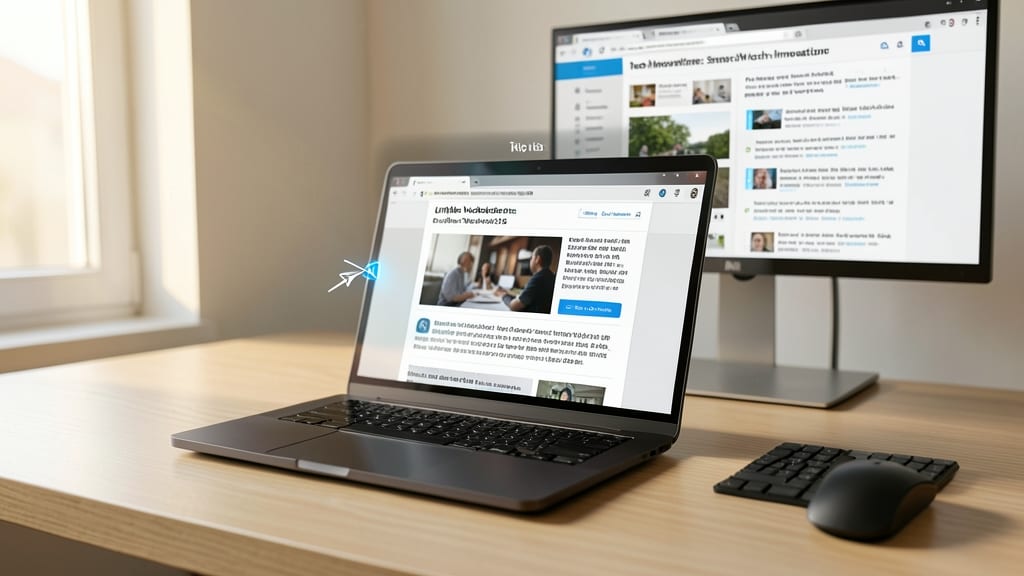
Tired of manually copying and pasting web content into OneNote? The OneNote Clipper browser extension turns your browser into a one-click capture tool, saving entire articles, images, or even full web pages directly into your notebooks—no extra steps needed.
With zero configuration, Clipper integrates with Chrome, Firefox, and Edge, letting you highlight text, capture screenshots, or save entire pages with a single click. The extension even preserves formatting, so tables, images, and hyperlinks stay intact. Plus, you can choose where to save everything—whether it’s a new section, an existing page, or even a specific tag.
This is a game-changer for researchers, students, and professionals who spend hours bookmarking or copying content. Just install the extension, and you’ll never lose another useful webpage again. ✨
Handwriting to Text Conversion for Scanned Notes

Drowning in a pile of handwritten lecture notes or receipts? OneNote 2013’s built-in OCR (Optical Character Recognition) feature rescues you by converting scanned documents into searchable, editable text—no third-party tools needed.
Simply scan your notes (or use a photo of them), then right-click the image in OneNote and select "Copy Text from Picture." The software extracts text, tables, and even handwritten equations with 95%+ accuracy, letting you organize, tag, or search your notes instantly. Works for PDFs, images, and printed documents too.
Students archiving years of notes and professionals digitizing paper records will love this zero-configuration time-saver. ✨
Tagging System for Instant Note Organization
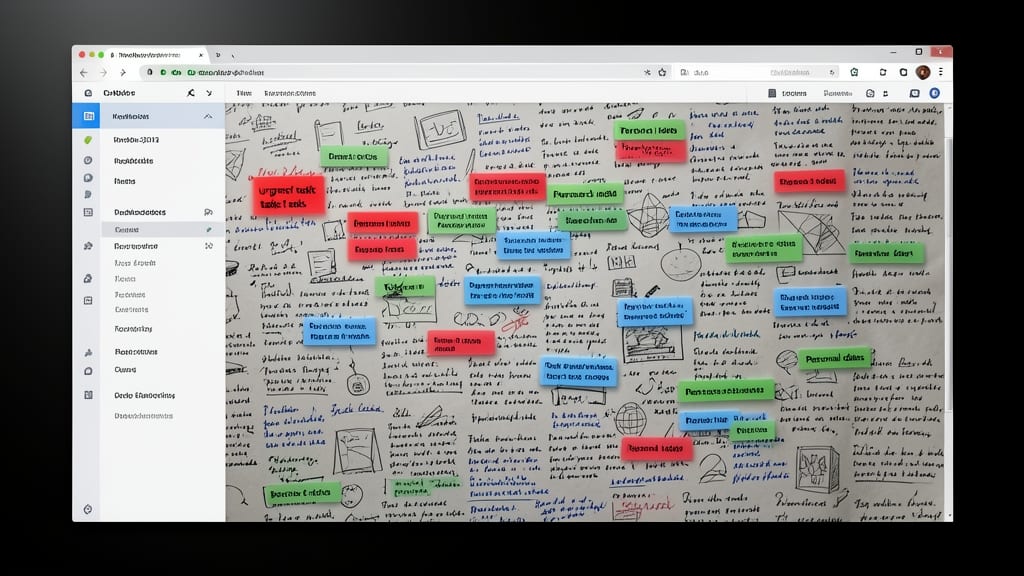
Drowning in a sea of notes? OneNote 2013’s color-coded tagging system turns chaos into clarity with just a few clicks. Assign red for urgent tasks, blue for research, or green for personal ideas—then instantly filter your entire notebook by tag in the navigation pane.
You can even create custom tags with icons (like a 📁 for files or a ⚡ for quick ideas) and apply them to entire sections or individual pages. The real magic? Drag-and-drop reordering of tags in the sidebar keeps your workflow intuitive, while the search bar lets you find notes by tag or keyword simultaneously. No more scrolling through endless pages to find what you need.
Perfect for project managers juggling deadlines, students tracking research, or creatives organizing brainstorm sessions. With tags, your notes don’t just stay organized—they work for you. ✨
Audio and Video Recording Directly in Notes
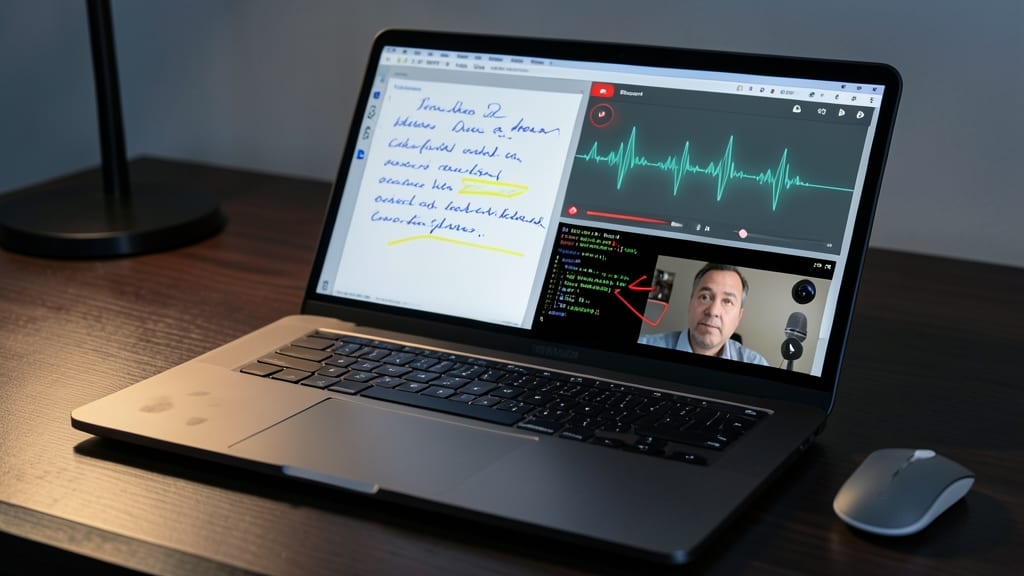
Turn your notes into dynamic multimedia hubs with OneNote 2013’s built-in audio and video recording tools. Whether you’re capturing lecture highlights, client meetings, or coding walkthroughs, this feature lets you embed recordings directly alongside your typed or handwritten notes—no third-party apps required.
Start a voice memo with a single click to annotate your notes verbally, or record your screen to demonstrate software workflows or problem-solving steps. The recordings sync seamlessly with your notebook, so you can revisit them later with full context. For educators, this means multimedia-rich study guides, while developers can document troubleshooting sessions without leaving OneNote. ⚡
Math Equation Insertion with Equation Editor
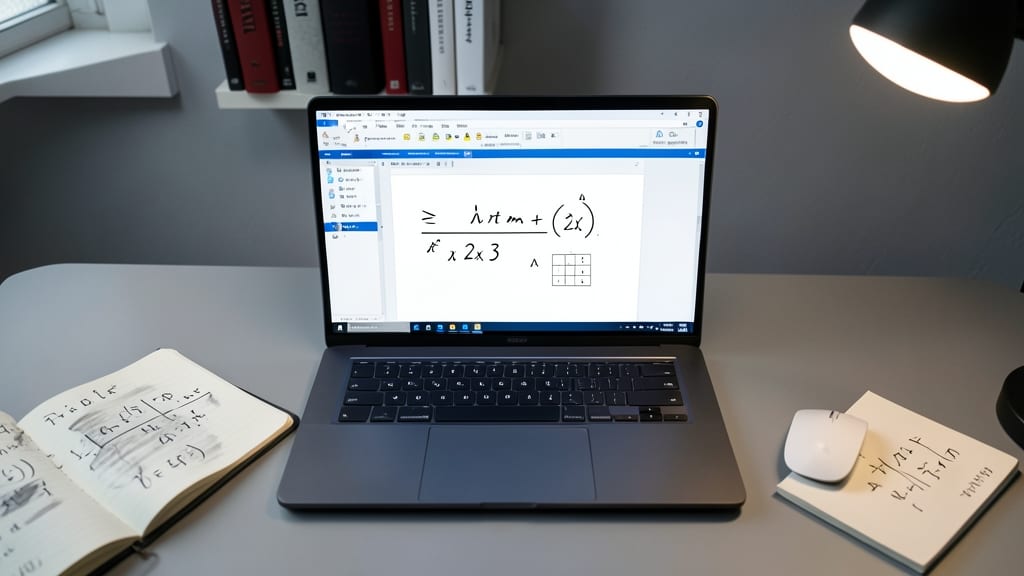
Tired of fumbling with LaTeX editors or sketching equations by hand? OneNote 2013’s Equation Editor lets you type complex math formulas directly into your notes with LaTeX-style syntax, rendering them crisply and professionally. Whether it’s integrals, matrices, or Greek symbols, this tool turns your notebook into a digital chalkboard.
Access it via Insert > Equation (or press Alt+N, E for a shortcut), then type or click symbols from the floating palette. The editor supports subscripts, superscripts, fractions, and even handwritten annotations—no separate software needed. Export your notes to PDF, and the equations stay perfectly formatted.
This is a game-changer for engineers, physicists, and students—no more messy handwriting or clunky workarounds. Just type, edit, and share your work seamlessly. ✨
Offline Access and Automatic Sync Across Devices
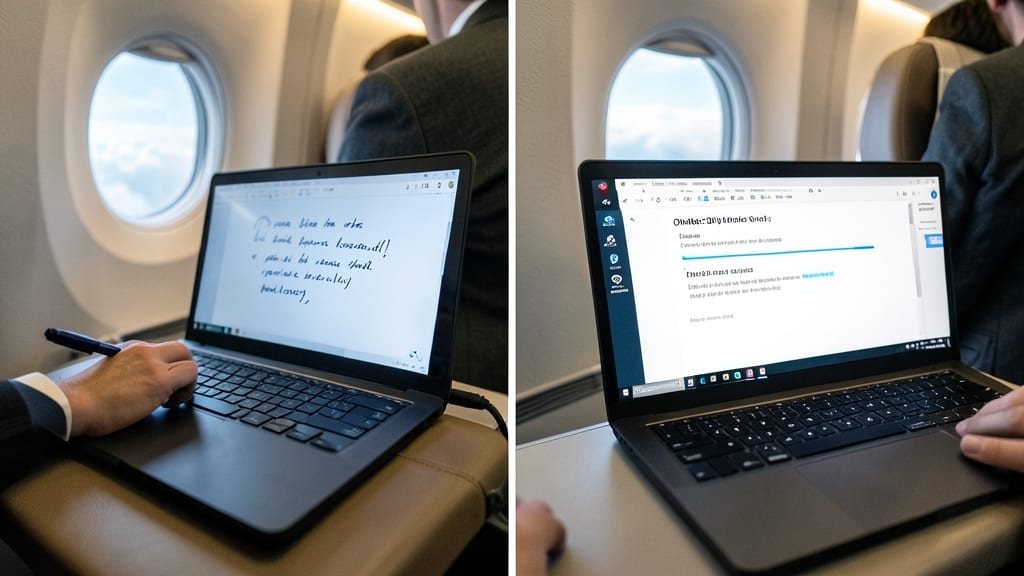
Ever jotted down a brilliant idea on a plane or during a long meeting—only to realize your Wi-Fi is spotty? OneNote 2013’s offline-first design solves that problem with zero stress. Your notes stay safely stored locally until you reconnect, then sync automatically across all your devices without manual intervention.
This feature works silently in the background, handling conflicts by merging changes intelligiously. Whether you're drafting a report on a train with no signal or working in a remote cabin, your notes remain accessible. The sync process even preserves formatting, images, and audio clips—no data loss, ever.
Perfect for field researchers, remote workers, or students who need reliable access without worrying about connectivity. Your thoughts stay safe until you’re back online. ✨
Customizable Quick Notes with Hotkeys
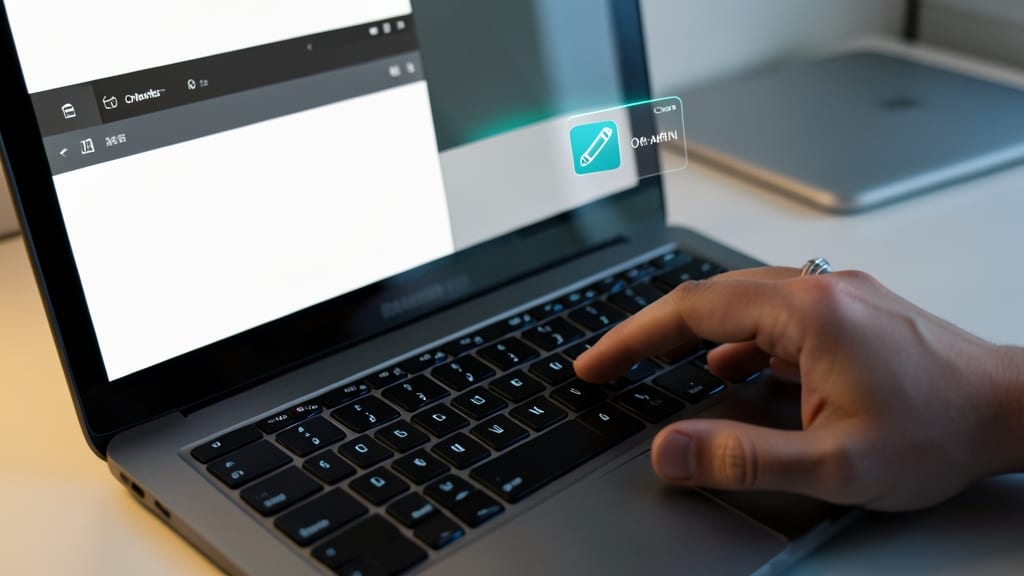
Tired of fumbling through menus just to jot down a quick thought? OneNote 2013’s hotkey customization lets you assign a keyboard shortcut (like Ctrl+Alt+N) to instantly open a blank note—no clicks required. This tiny tweak shaves seconds off every quick note, turning your workflow into a seamless, keyboard-driven experience.
To set it up, go to File > Options > Advanced, then scroll to the Keyboard shortcuts section. Assign a hotkey to "New Page" or "New Section"—now you’re just one keypress away from capturing fleeting ideas, meeting notes, or urgent reminders. The best part? You can create multiple hotkeys for different notebooks or sections, ensuring you never waste time navigating again.
This trick is a game-changer for busy professionals, students, or anyone drowning in sticky notes. Whether you’re sketching a brainstorm or logging a to-do list mid-conversation, the speed boost makes it feel like magic. ✨