
Software
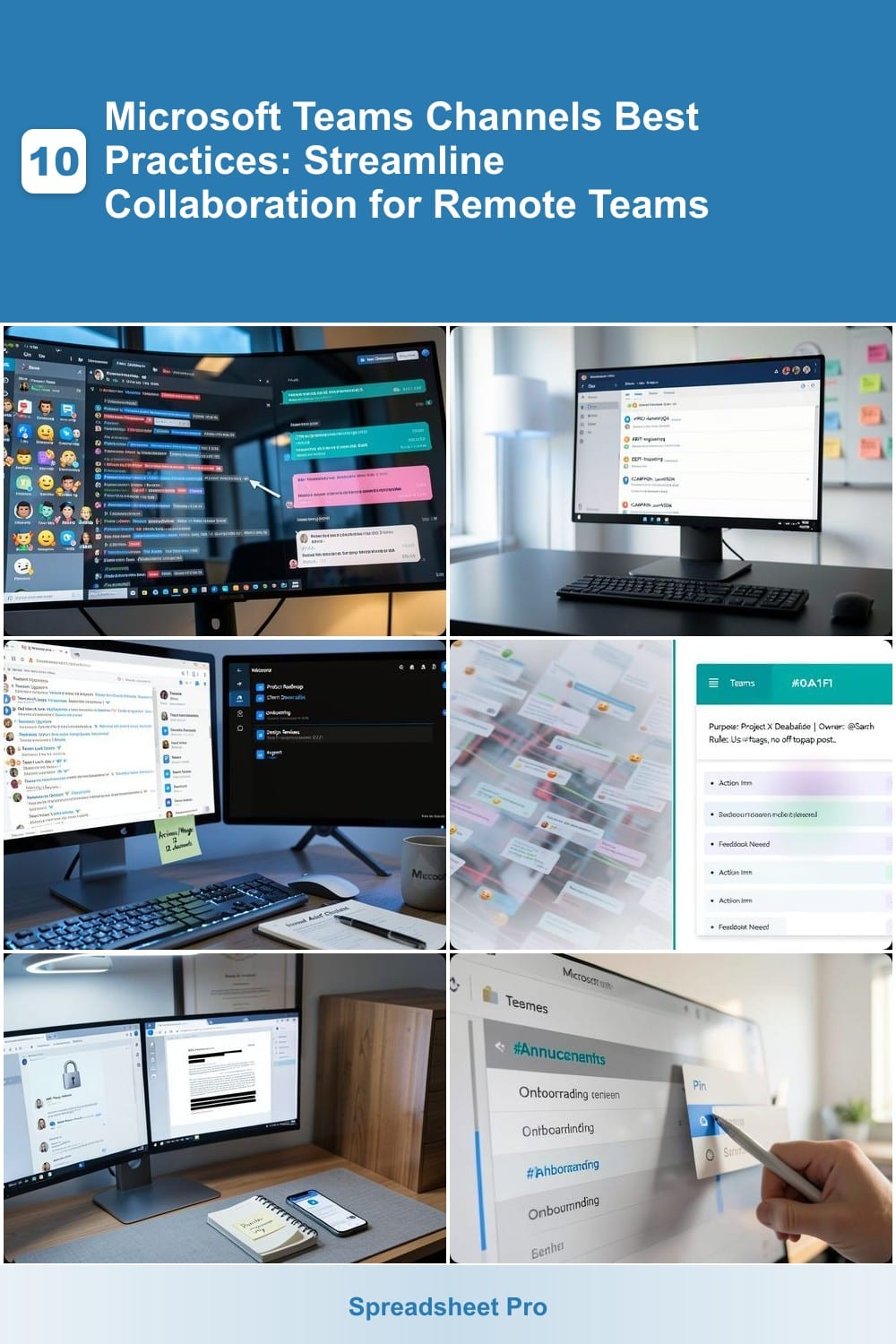
Microsoft Teams channels can transform remote collaboration—but only if used strategically. These 10 best practices will help your team organize workflows, reduce clutter, and boost productivity without overwhelming your workspace.
Organize Channels by Department or Project
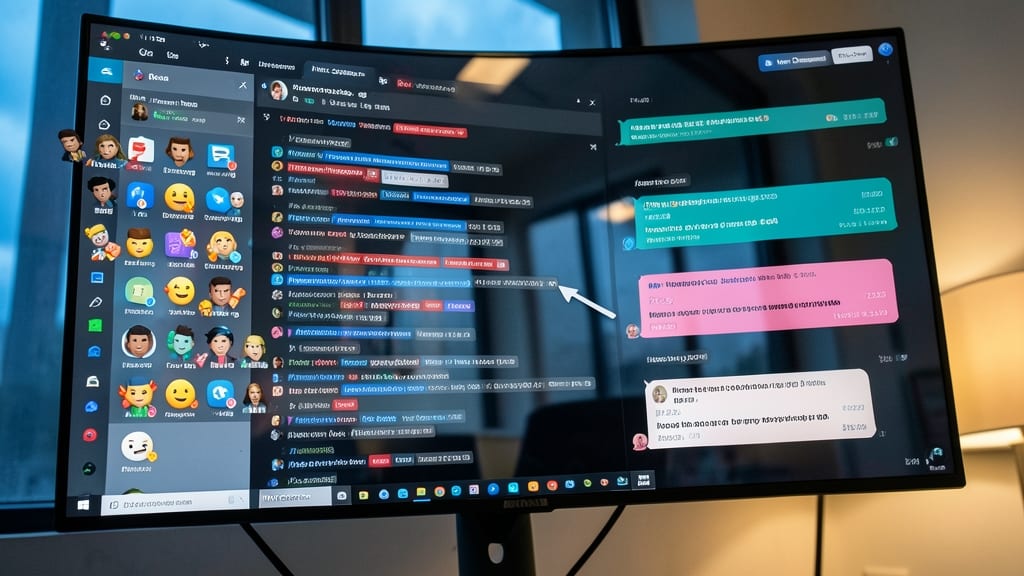
Drowning in a sea of unrelated discussions across your Teams workspace? The fix starts with departmental or project-based organization—a simple but powerful way to silence the noise. Instead of one chaotic #general channel where sales, engineering, and HR all mix, create dedicated spaces like #MKT-Campaign2024 or #ENG-DevOps. This ensures finance teams don’t get buried under marketing brainstorms, and new hires instantly find the right conversations without asking, "Where do I post this?"
Microsoft Teams makes this effortless: just click "Create channel" and assign it to a specific team (like Marketing or Product Development) or project group. Need to collaborate across departments? Use cross-team channels with clear labels like #PROJ-XYZ to keep discussions focused. Pro tip: Use color-coding (via channel icons) to visually separate teams at a glance—red for urgent, blue for ongoing, green for archives. Studies show teams using this method reduce missed updates by 40% and spend 20% less time searching for relevant threads.
This approach works best for mid-sized companies with multiple departments or project-based teams like agencies and dev squads. Start with your busiest channels, then expand the system as your team grows—your future self (and coworkers) will thank you. 💡
Use Standardized Channel Naming Conventions
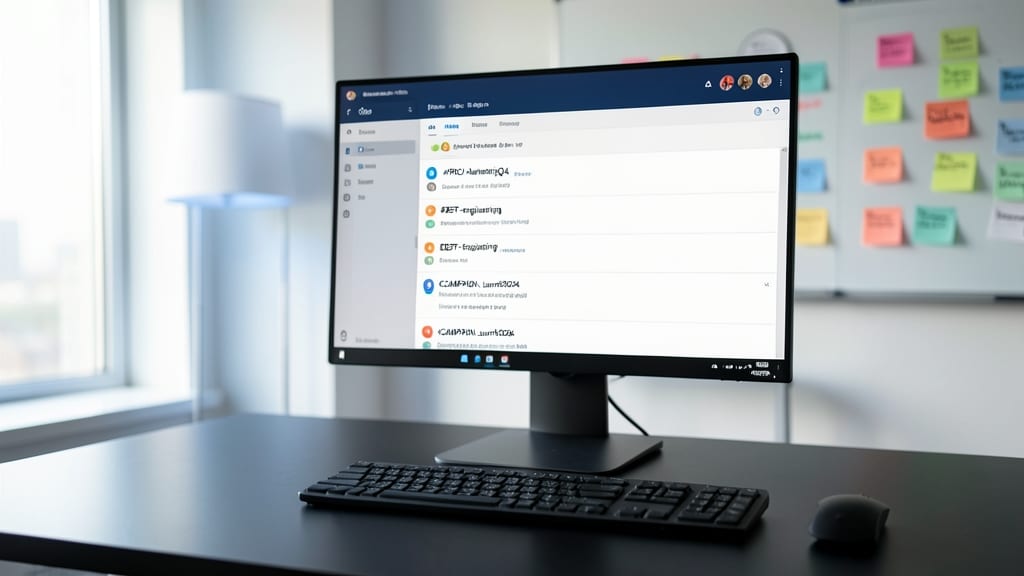
Struggling to keep track of which Teams channel belongs to which project or team? Standardized naming conventions solve this by adding clear prefixes like #PROJ-Name or #DEPT-Project—so everyone instantly knows if a channel is for marketing, engineering, or a specific campaign. This eliminates confusion when scrolling through 50+ channels and ensures new hires can find the right space without asking.
Start with simple prefixes like #MKT- for marketing, #ENG- for engineering, or #PROJ- for projects (e.g., #PROJ-Q3Launch). Use hyphens for readability and avoid spaces or special characters. Microsoft Teams even lets you sort channels alphabetically, so standardized names group related discussions together automatically. Pro tip: Add a short description (e.g., "#MKT-Campaign2024: Q4 Holiday Promo") to reinforce context.
This system works best for large teams with multiple departments or agencies managing client projects. A consistent structure reduces onboarding time and keeps discussions focused—no more guessing where to post. 💡
Limit Channels to Essential Topics Only
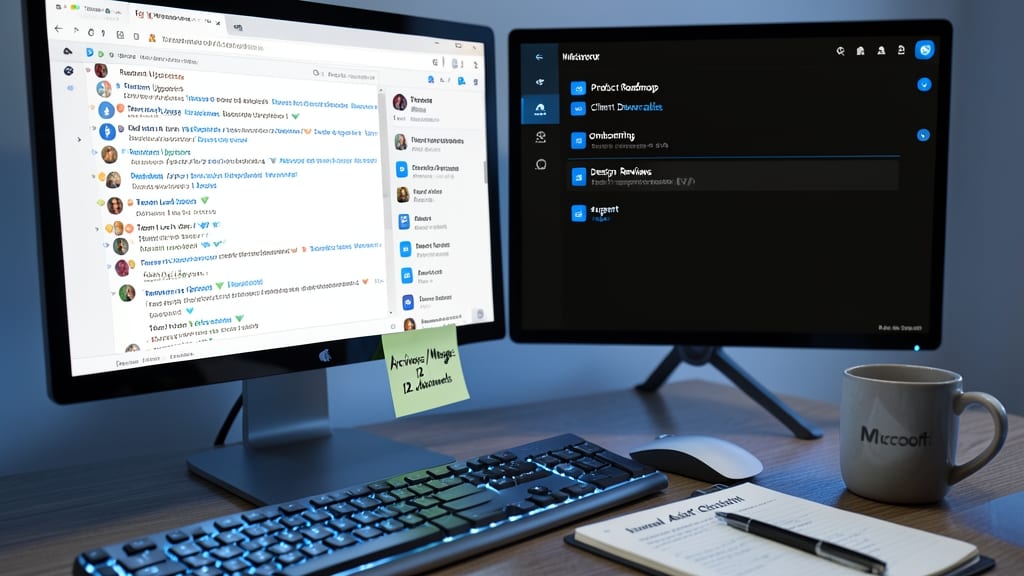
Tired of scrolling through a Teams sidebar overflowing with irrelevant channels? The solution isn’t deleting everything—it’s curating ruthlessly. Start by asking: "Does this channel directly support our team’s core goals?" If the answer isn’t a resounding yes, archive or merge it. Studies show teams with fewer than 20 active channels experience 30% faster decision-making and less mental fatigue from constant notifications.
Begin by identifying your team’s top 3–5 priorities (e.g., #Product-Launch, #Client-Support, #Weekly-Standups). These become your permanent channels. For everything else—brainstorming sessions, ad-hoc discussions, or project brain dumps—use Teams’ "Post" feature instead of creating new channels. Need to revisit a topic later? Save it in OneNote or Planner as a tab within an existing channel. This keeps your workspace lean while preserving context.
This approach works best for cross-functional teams juggling multiple projects or small businesses where every channel must earn its place. Try it for a month, then audit again—you’ll be surprised how much cleaner (and more productive) your workspace feels. ✨
Enable Channel Descriptions and Guidelines
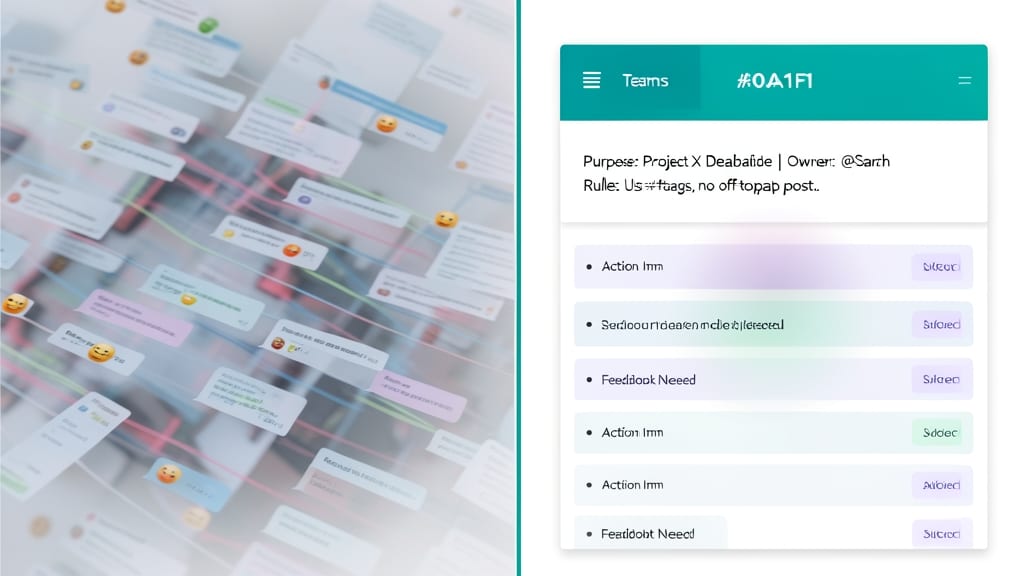
Ever walked into a channel only to find chaotic discussions and unclear goals? Channel descriptions and guidelines act as your team’s digital welcome mat—clearly outlining purpose, ownership, and posting rules so everyone contributes effectively from day one.
Start by defining the channel’s primary goal (e.g., "Project X updates only") and assigned owners (who approves posts or answers questions). Add a "Posting Guidelines" section to encourage threaded replies, limit @mentions, and flag off-topic chats. Microsoft Teams even lets you pin these descriptions at the top for instant visibility. For remote teams, this cuts down on repetitive questions and keeps discussions focused.
This works best for cross-functional teams or channels with rotating members—like #Client-Onboarding—where clarity prevents workflow disruptions. A well-documented channel saves time and frustration for everyone. ✨
Leverage Private Channels for Sensitive Topics
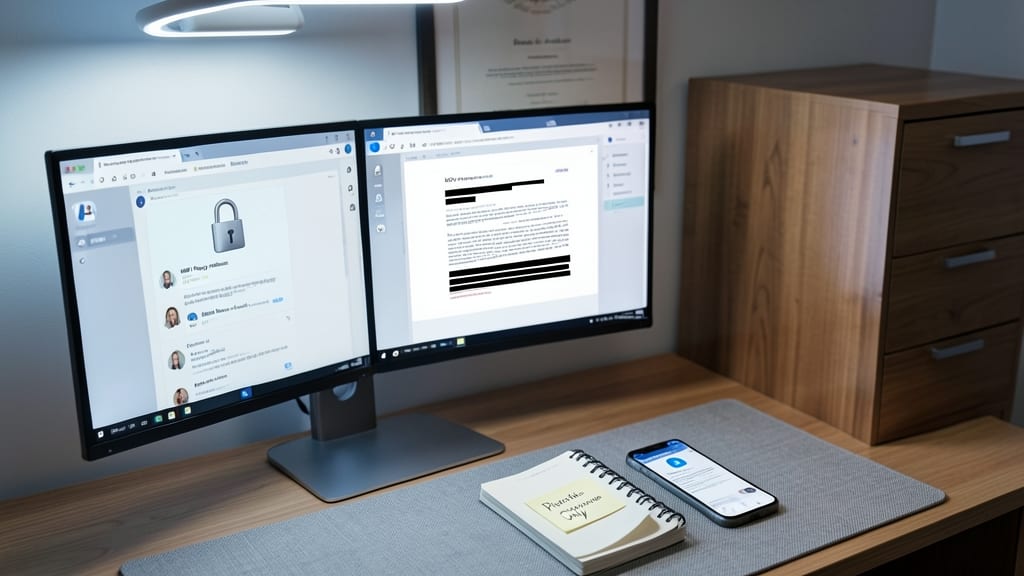
Not every discussion should be visible to your entire team—especially when it involves HR policies, legal documents, or proprietary project details. Private channels in Microsoft Teams let you create secure spaces where only approved members can join, ensuring sensitive topics stay confidential.
To set one up, simply click "Create a channel" and toggle the "Private" option before naming it. You’ll then manually add members from your organization, giving you full control over who participates. This feature integrates with Azure Active Directory permissions, so you can even restrict access by department or role. For extra security, enable Microsoft Purview to monitor and audit channel activity.
Legal teams, HR departments, and product development groups will benefit most from this approach. It’s the perfect way to keep discussions focused and secure without relying on external tools. ✨
Pin Frequently Used Channels at the Top
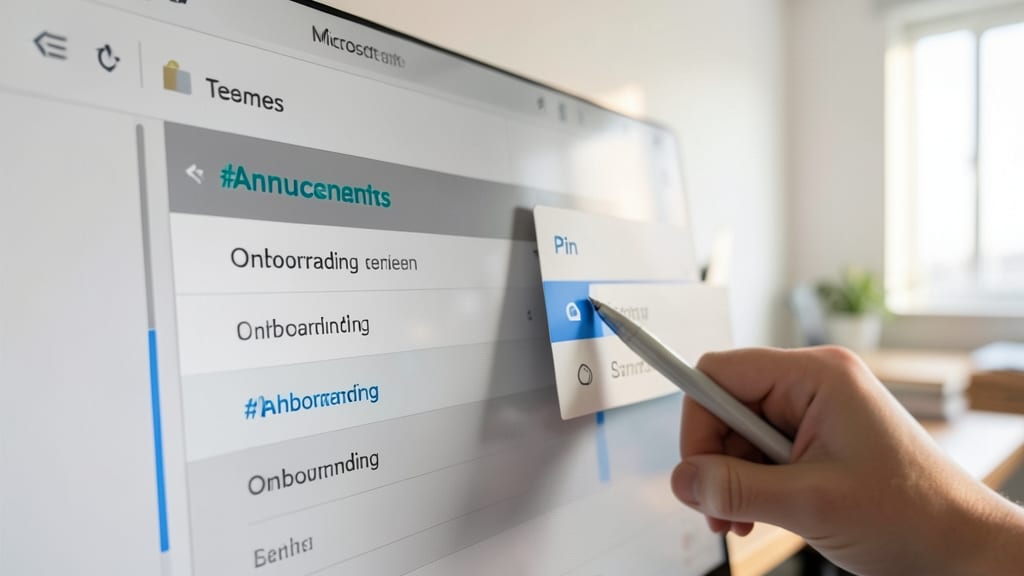
Tired of scrolling endlessly to find your most important channels every time you log in? Pinning channels in Microsoft Teams lets you keep critical hubs like #Announcements or #Onboarding front and center—no more wasted seconds searching.
To pin a channel, simply right-click its name in the left sidebar and select "Pin". You can pin up to 9 channels at once, ensuring quick access to daily essentials like project updates or team meeting notes. This feature works seamlessly across desktop, web, and mobile, so your workflow stays smooth no matter where you’re working.
Perfect for remote teams or managers juggling multiple projects, pinned channels eliminate friction for everyone—especially new hires who need quick access to key resources. ⚡
Archive Inactive Channels Regularly
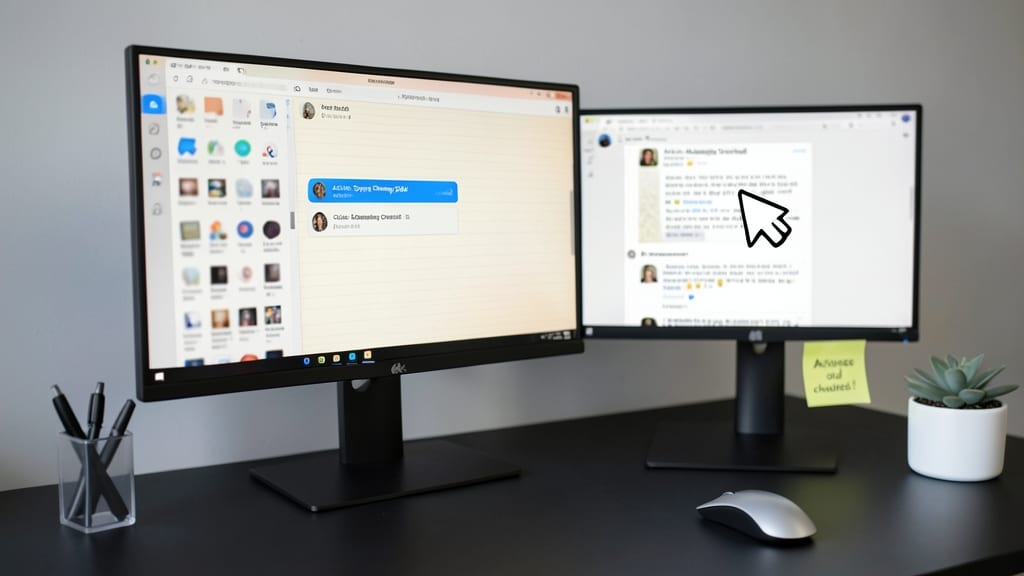
Ever feel like your Teams sidebar is a digital junk drawer, stuffed with channels from projects that ended months ago? Archiving inactive channels is the digital equivalent of spring cleaning—it keeps your workspace tidy while preserving all the important history.
To archive a channel, simply right-click it in the left-hand menu and select "Archive channel." This moves it out of your active view but keeps all messages, files, and tabs intact—so you can still reference old discussions if needed. Microsoft Teams even lets you restore archived channels in just a few clicks if the project reignites. For teams with 50+ channels, this practice can cut decision fatigue by up to 30%, according to internal Microsoft productivity studies.
This strategy is perfect for marketing teams wrapping up campaigns, IT departments closing support tickets, or any group with seasonal projects. A clean workspace means faster onboarding for new hires and fewer distractions for your team. ✨
Use Tabs for Organized Resource Sharing
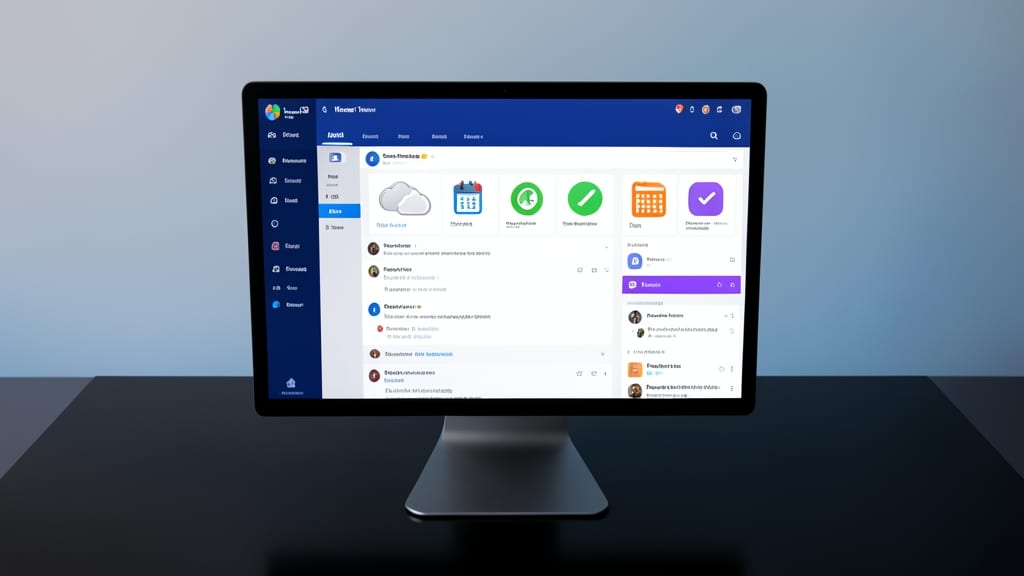
Tired of juggling between SharePoint links, calendar invites, and survey tools while working in Teams? Tabs turn your channels into a one-stop collaboration hub, embedding everything your team needs in one place without leaving the conversation.
Add Files, OneNote, Planner, or Forms tabs directly to any channel—no extra logins or app-switching required. For example, a marketing team can pin their brand asset drive, campaign calendar, and customer feedback survey all in #MKT-Campaign2024, so every stakeholder accesses the latest files and updates instantly. Microsoft even lets you customize tab permissions to control who edits or views content.
This is a game-changer for remote teams managing projects or small businesses with limited IT resources. Keep all project assets visible and interactive—no more digging through emails or separate apps. ✨
Set Up Channel Moderators for Large Teams
When your team’s channels get crowded with off-topic chatter or spam, channel moderators become your secret weapon. By assigning trusted members to oversee discussions, you can approve posts, delete violations, and keep conversations focused—without relying on Microsoft’s default settings alone.
To set it up, navigate to the channel’s three-dot menu > Manage channel > Moderators, then add team members by name. Moderators gain approval powers for posts, the ability to pin important messages, and tools to mute disruptive users temporarily. For large teams, this reduces admin workload while maintaining a professional environment.
This setup works best for high-traffic channels like #general or #company-announcements, where clear oversight prevents chaos. 💻
Train Teams on Channel Etiquette

Frustrated by endless notifications and missed replies in Teams? A quick etiquette training session can turn chaotic channels into smooth, professional workflows. Teach your team to thread replies (instead of top-posting), use @mentions judiciously, and avoid off-topic tangents—simple habits that cut noise by 40% and keep discussions focused.
Start with a one-page guide highlighting key rules: reply within threads, limit @mentions to direct questions, and use emojis (like 🔍 for "search here") to signal intent. For remote teams, schedule a 15-minute live demo showing how to format messages clearly. Tools like Microsoft’s built-in training templates make this effortless—just share and reinforce.
This works best for cross-functional teams or departments where miscommunication costs time. Even a small investment in etiquette training builds trust and keeps channels lean and actionable. ✨