
Outlook
Microsoft Outlook remains one of the most powerful email tools, yet most users only scratch the surface of its capabilities. These 10 underutilized Outlook email tips and tricks will transform your inbox workflow, save hours weekly, and unlock features you didn't know existed until now.
Quick Steps for Email Automation
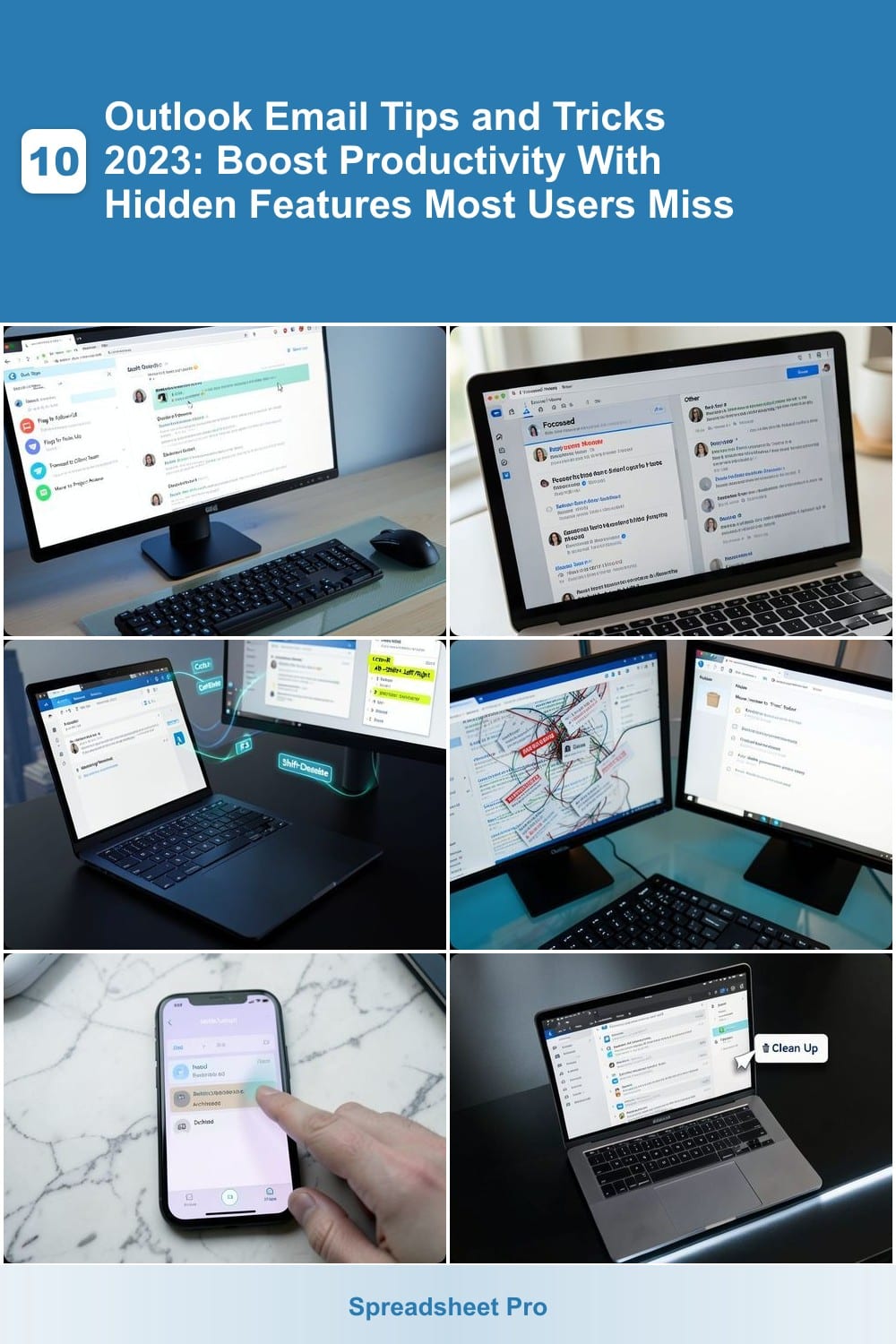
Tired of wasting time on repetitive email tasks like flagging follow-ups or forwarding client requests? Outlook’s Quick Steps lets you automate these actions with single-click buttons—turning manual work into effortless workflows in seconds.
Create custom buttons to flag emails for follow-up, forward messages to your team, or move invoices to a dedicated folder—all without opening menus. The feature works across desktop, web, and mobile, and you can even combine actions (e.g., flag + categorize + move). For example, set up a button labeled "Client Follow-Up" that instantly flags, adds a red category, and moves emails to your "Pending" folder.
Perfect for customer support teams, sales professionals, or anyone drowning in repetitive tasks. Spend less time clicking and more time focusing on what matters. ⚡
Focused Inbox for Priority Management

If your inbox feels like a never-ending stream of notifications drowning out what truly matters, Focused Inbox is your lifeline. This built-in feature automatically sorts your emails into two tabs: "Focused" (high-priority messages) and "Other" (less urgent updates), so you can tackle critical tasks without distractions.
Outlook’s AI analyzes your reading habits and engagement to prioritize emails—think replies from managers, urgent deadlines, or client follow-ups—while tucking away newsletters or promotional content. You can also train the system by marking emails as important or ignoring specific senders. Best of all, it syncs across desktop, web, and mobile, ensuring your priority list stays consistent no matter where you check your inbox.
This is a must-use for executives, sales professionals, or anyone juggling multiple priorities daily. Spend less time scrolling and more time acting on what truly moves the needle. ✨
Keyboard Shortcuts Master List
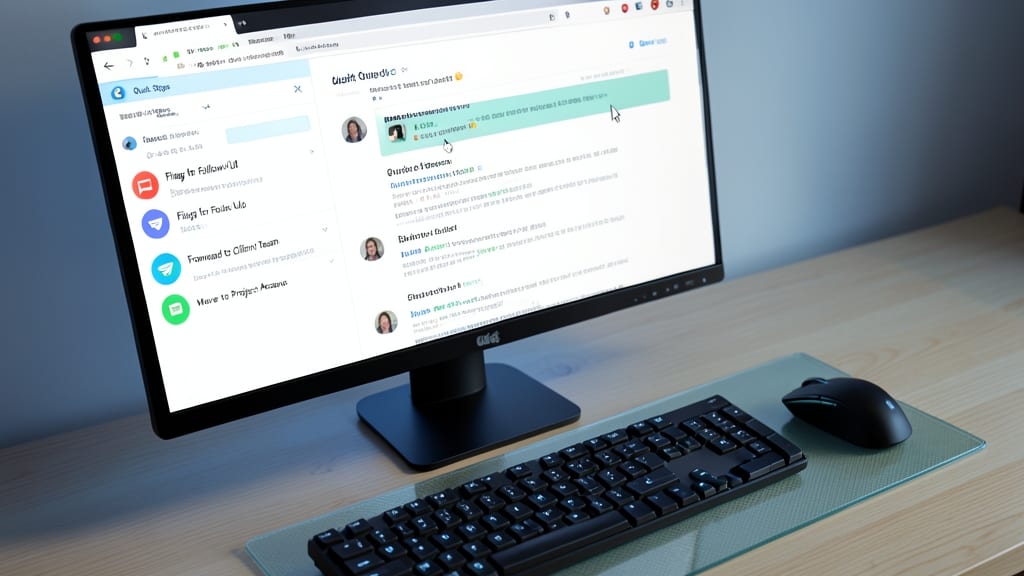
Tired of clicking through Outlook menus all day? Mastering these 20+ keyboard shortcuts can cut your email time by 40%—no mouse required. From replying instantly (Ctrl+R) to jumping between folders (Alt+Shift+Left/Right), these commands turn Outlook into a speed machine for power users.
Key shortcuts include Ctrl+Shift+I to instantly flag an email, Ctrl+Y to recall the last deleted message, and Ctrl+Shift+A to mark all messages as read. Pro tip: Customize your own shortcuts in File > Options > Customize Ribbon for frequently used actions. The Quick Access Toolbar lets you pin your favorites for one-click access.
Perfect for developers, sales teams, or anyone drowning in emails—these shortcuts reduce wrist strain while boosting efficiency. Try just three today and notice the difference. ⚡
Email Rules to Auto-Sort Messages
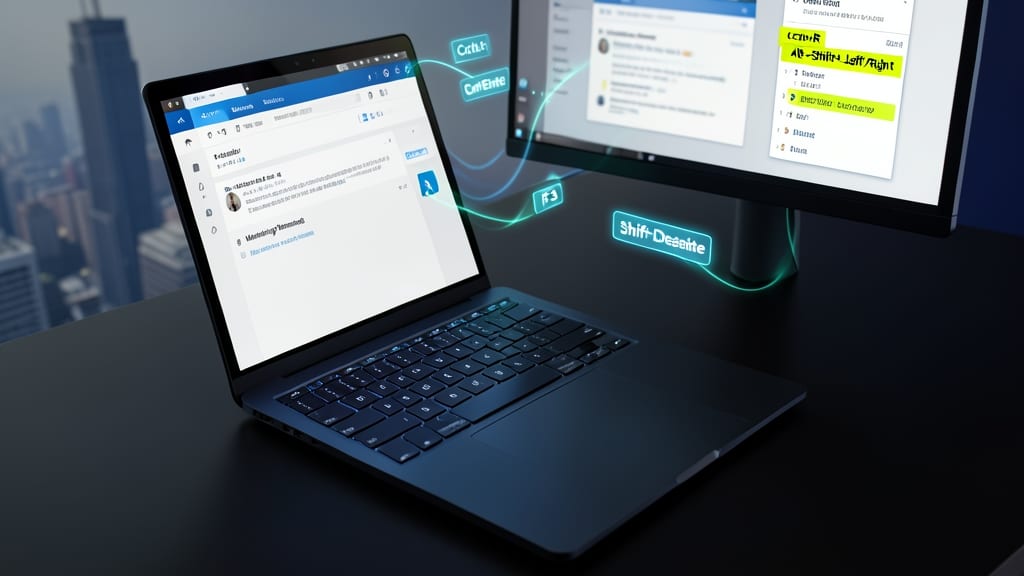
Drowning in a sea of client emails and leads? Outlook’s email rules can transform your inbox from chaotic to effortless with just a few clicks. Unlike Quick Steps or Focused Inbox, rules let you define precise conditions—like moving all invoices to a "Finance" folder or auto-deleting promotional spam—so you never waste time sorting again.
Set up rules to filter by sender, subject keywords, or attachments, then choose actions like forwarding, flagging, or even replying automatically. For example, create a rule to move emails from "support@yourcompany.com" to a dedicated folder labeled "Client Requests." Rules work across Outlook Desktop, Web, and Mobile, ensuring consistency whether you’re at your desk or on the go.
This is a must-have for sales teams, small business owners, or anyone juggling multiple email streams. Spend less time filing and more time closing deals. ⚡
Swipe Actions for Mobile Outlook
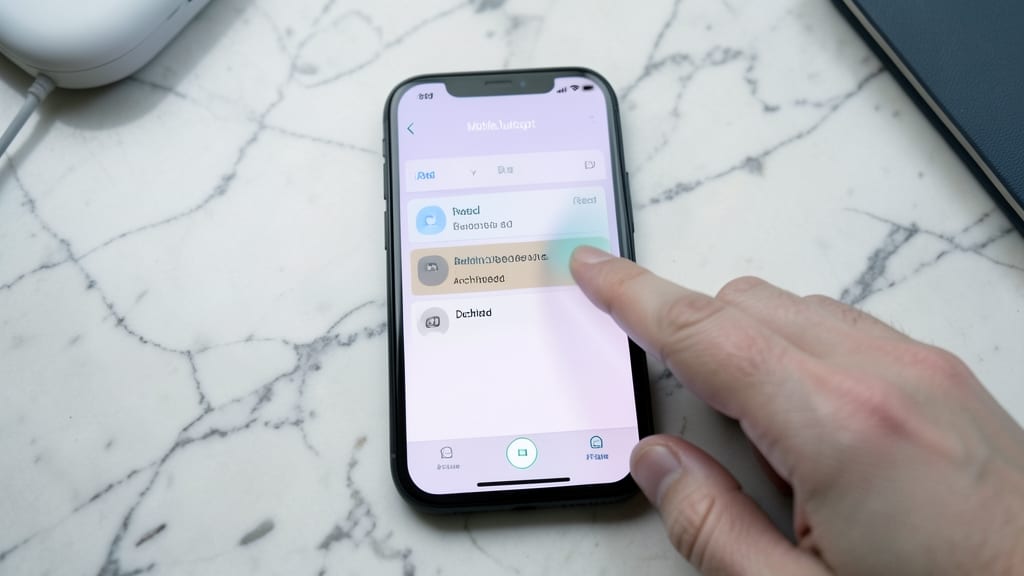
Tired of tapping through menus just to archive or delete emails on your phone? The Mobile Outlook app hides a secret weapon: swipe gestures that let you manage emails in seconds without lifting your finger. No more digging through menus—just smooth, intuitive actions that turn your phone into a productivity machine.
With a simple left swipe, you can archive emails instantly, while a right swipe lets you delete or flag them for follow-up. Need to snooze a message? Swipe down to delay notifications until later. These gestures work seamlessly across Android and iOS, and you can customize them in the app’s settings to match your workflow. Perfect for executives on the go or remote workers who need to stay on top of emails between meetings.
This trick is especially useful for busy professionals who juggle multiple tasks and can’t afford to pause mid-flow. Try it the next time you’re in transit—your inbox (and sanity) will thank you. ✨
Clean Up Conversation Threads
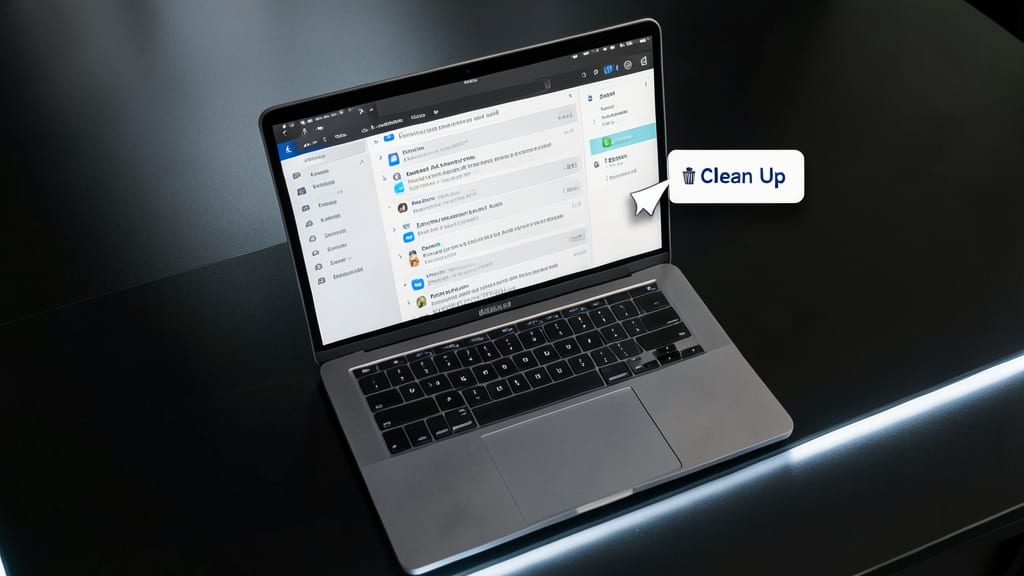
Tired of scrolling through endless back-and-forth emails in Outlook threads? The Clean Up feature instantly removes redundant messages while preserving the most recent and relevant replies—keeping your inbox tidy without losing context.
Simply right-click any thread in your inbox, select Clean Up, and Outlook will collapse all but the latest message from each sender. This works seamlessly with shared mailboxes and team discussions, making it ideal for collaborative projects where threads grow chaotic. Best of all, it’s zero-configuration—no rules or filters needed.
Project managers and team leads will love this for weekly catch-ups, while sales teams can declutter client threads without missing critical follow-ups. Try it today and reclaim hours of scrolling time! ✨
Search Operators for Advanced Filtering
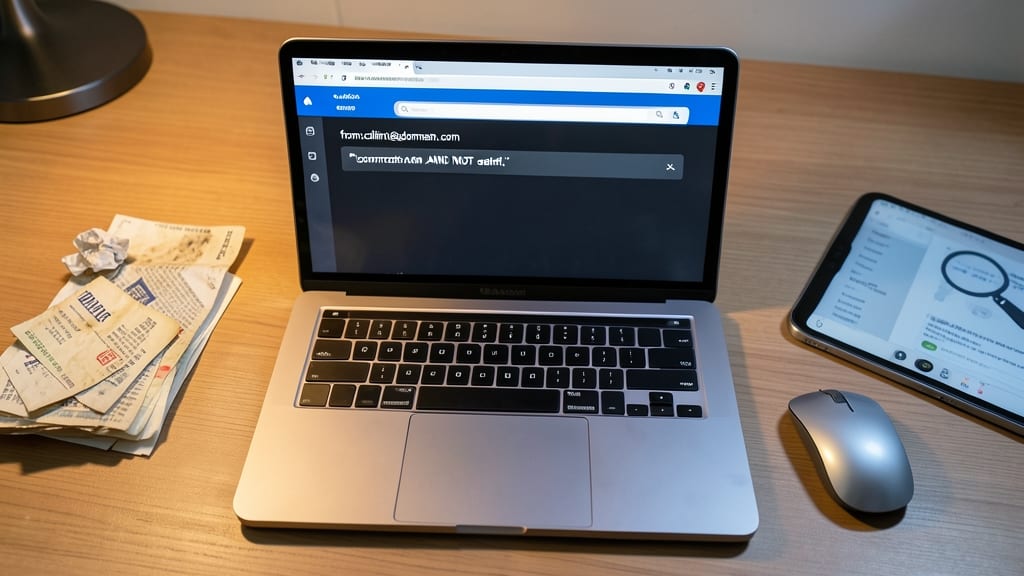
Drowning in years of emails but need that one critical message now? Outlook’s search operators let you dig through archives like a detective—using Boolean logic to pinpoint exact matches in seconds. Forget scrolling for hours: combine terms like from:client@domain.com AND "contract" NOT "draft" to zero in on what matters.
Master these operators: before:01/01/2023 (filter by date), has:attachment (find files), or subject:"invoice" (exact phrase matches). Pro tip: Use OR to broaden searches (e.g., from:john OR jane) or AND to narrow them. Works in desktop, web, and mobile versions—no plugins needed.
Legal teams, researchers, or anyone juggling decades of emails will love this precision. Try it today and reclaim hours lost to manual searches. ✨
Set Meeting Request Reminders
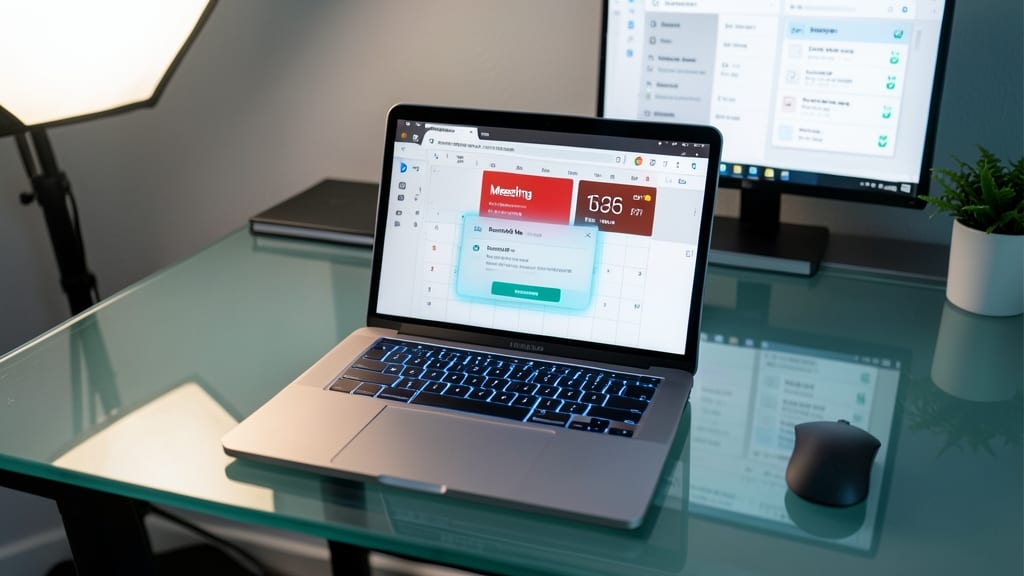
Ever missed a meeting because your calendar didn’t alert you in time? Outlook’s customizable meeting request reminders let you set multiple alerts—including 5-minute warnings for critical meetings—so you never show up late or double-book again.
When someone sends you a meeting request, click "Reminder" in the pop-up to adjust frequency (e.g., 10 minutes before, 1 day before, or on the day). You can also add reminders for recurring meetings without resetting them each time. For extra safety, enable "Show as" options to mark meetings as Busy, Tentative, or Out of Office automatically.
This is a game-changer for project managers, sales teams, and anyone juggling back-to-back meetings—because even a 5-minute buffer can save you from a rushed transition or missed deadline. ⚡
Use Focused Inbox Categories
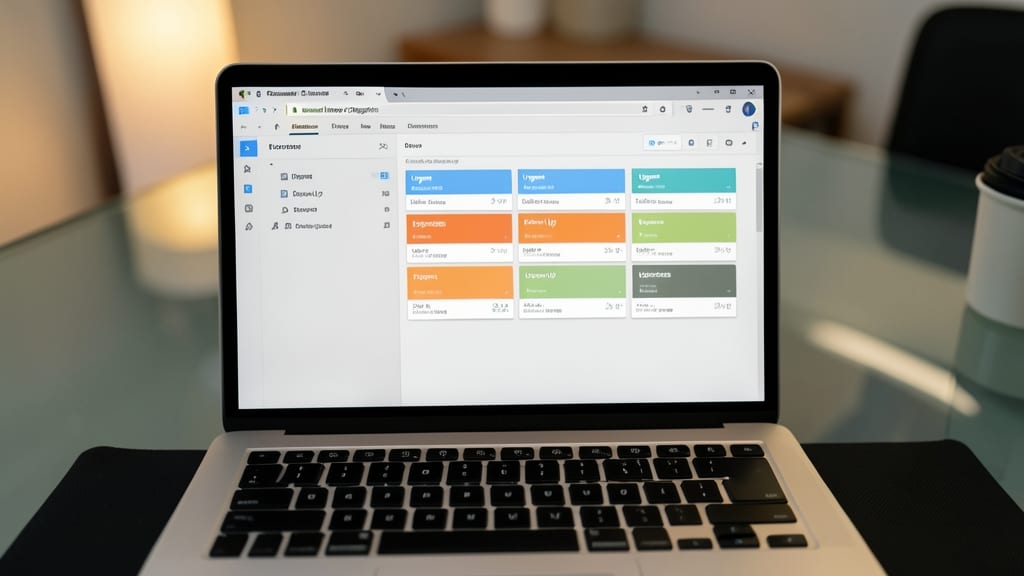
If you’re drowning in a sea of emails from different clients or projects, Focused Inbox Categories can turn chaos into clarity with just a few clicks. Unlike basic folders, these color-coded labels let you visually distinguish urgent tasks from routine updates at a glance—no more scrolling through endless threads.
Assign custom colors (like red for deadlines or blue for client work) to emails, and Outlook will automatically highlight them in your inbox. You can even sync these categories across devices, so your visual system stays consistent whether you’re at your desk or on the go. The feature works seamlessly with Focused Inbox to prioritize what matters most.
Freelancers juggling multiple projects or managers coordinating teams will love this—it’s like having a traffic light system for your inbox. ⚡
Recover Deleted Emails Quickly
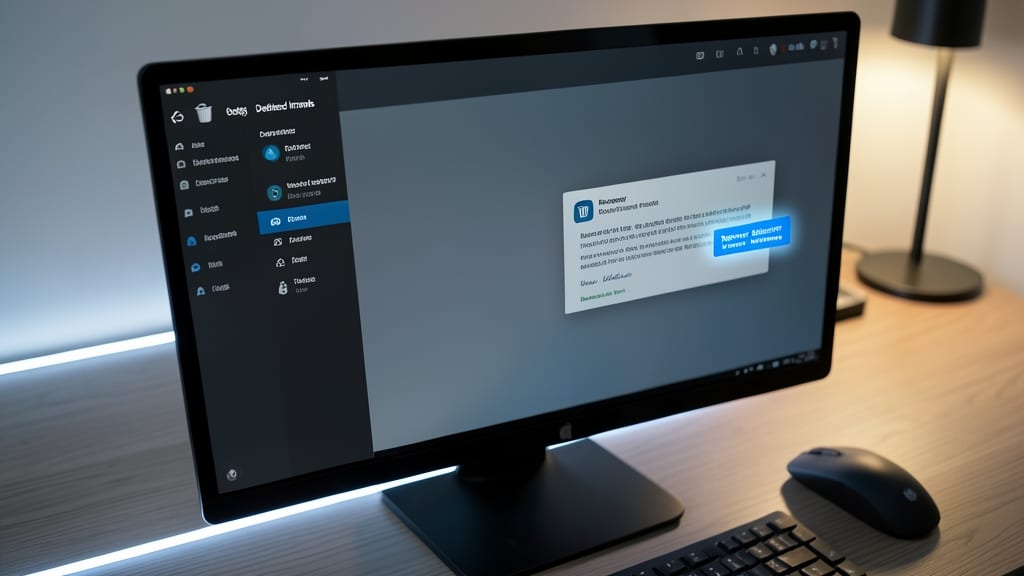
Panicking after hitting "Delete" on that important email? Outlook’s Recover Deleted Items feature is your digital lifeline—no third-party tools or IT tickets required. Simply right-click the Deleted Items folder, select Recover Deleted Items, and restore emails in seconds, even if they’ve been moved to the trash.
This works for up to 14 days (or until the folder is emptied), and you can even filter by sender or date to pinpoint exactly what you need. The best part? It’s built into every Outlook version—desktop, web, and mobile—so you’re never stuck without a backup plan.
Perfect for students, freelancers, or anyone who’s ever needed to retrieve a missed deadline reminder or client agreement. ⚡