
Tip & Trick
Remote work offers flexibility but exposes you to cyber threats. These 10 security best practices help safeguard your digital workspace, protect sensitive data, and maintain professional security standards—without slowing down productivity.
Enable Multi-Factor Authentication Everywhere
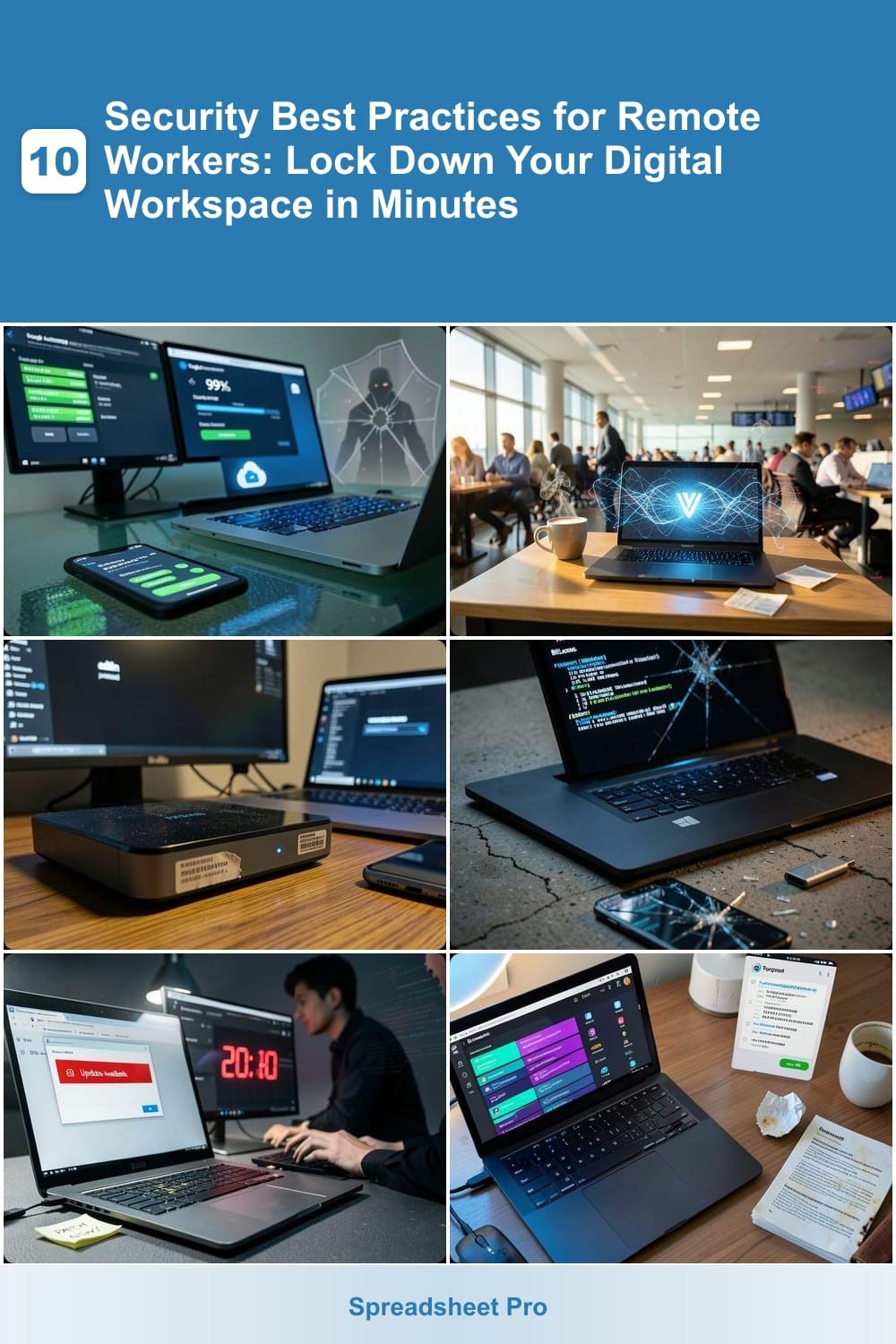
Your email, VPN, and cloud accounts are the digital keys to your work life—and hackers know it. Multi-factor authentication (MFA) adds an extra layer of protection that stops 99% of automated attacks in their tracks, often in under a minute to set up.
Start with authenticator apps like Google Authenticator or Authy for time-based codes, or use biometric verification (fingerprint/face ID) for seamless access. Most platforms support SMS codes as a backup, though they’re less secure. For critical accounts, enable hardware keys like YubiKey for near-impenetrable security. The best part? Many services now offer zero-configuration MFA via single sign-on (SSO) tools.
This is your first line of defense—remote workers, freelancers, and executives all benefit equally. Set it up today, and breathe easier knowing your accounts are locked down. ✨
Use a Dedicated Work VPN
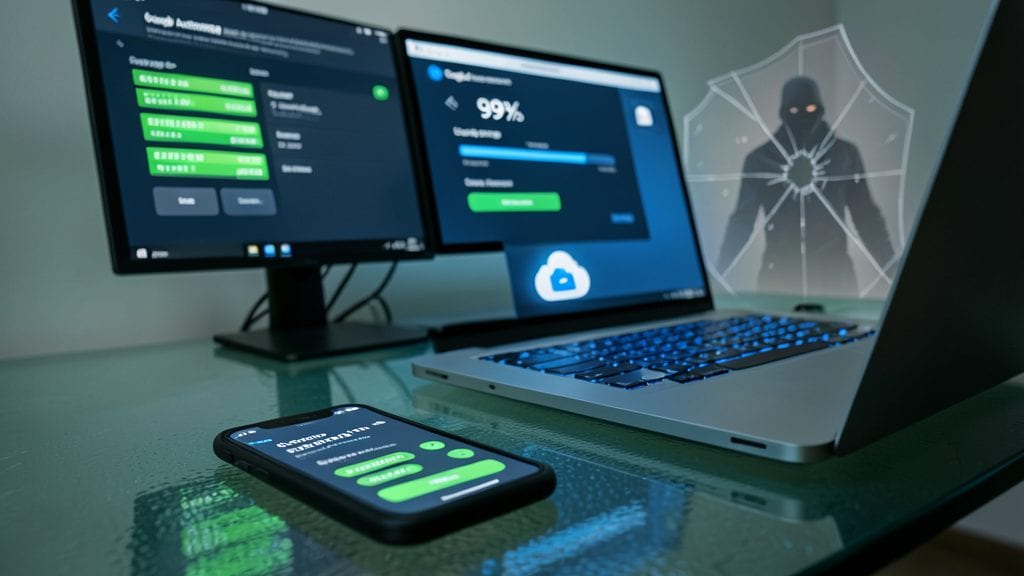
Public Wi-Fi at coffee shops or airports is convenient—but also a hacker’s playground. A dedicated work VPN acts as an invisible force field, encrypting every byte of your data as it travels between your device and company servers, blocking prying eyes and intercepting attacks before they start.
Most corporate VPNs use AES-256 encryption (military-grade security) and split tunneling, so only work traffic routes through the secure tunnel while personal browsing stays fast. Top-tier options like Cisco AnyConnect or Pulse Secure also include automatic updates to patch vulnerabilities and kill switches that sever connections if your device gets compromised.
This is non-negotiable for anyone handling client contracts, financial data, or proprietary files. Even if your IT team provides the VPN, verify it’s enabled before connecting to any unsecured network—your future self will thank you. 💻
Secure Your Home Network
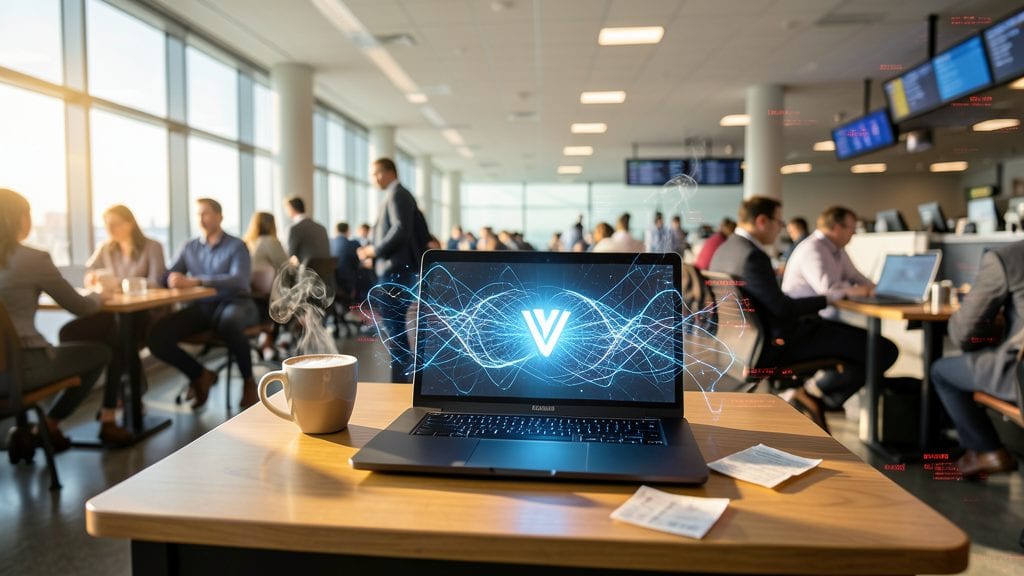
Your home network is the invisible gateway between your work devices and the internet—yet most people never change the default router password. This single oversight leaves your entire remote setup vulnerable to hackers, even if you’ve set up a VPN.
Start by replacing the default admin credentials with a strong, unique password (use your password manager to generate one). Next, disable WPS—this outdated feature is a common attack vector—and switch to WPA3 encryption instead of WPS or WPA2. These steps block brute-force attacks and ensure your traffic stays encrypted before it even hits your VPN. Most routers let you do this in under 5 minutes via the admin panel.
This is especially critical for freelancers, remote employees, and small business owners whose home networks often lack IT oversight. A secure router acts as your first line of defense, even when you’re connected to public Wi-Fi. 🔧
Implement Device Encryption
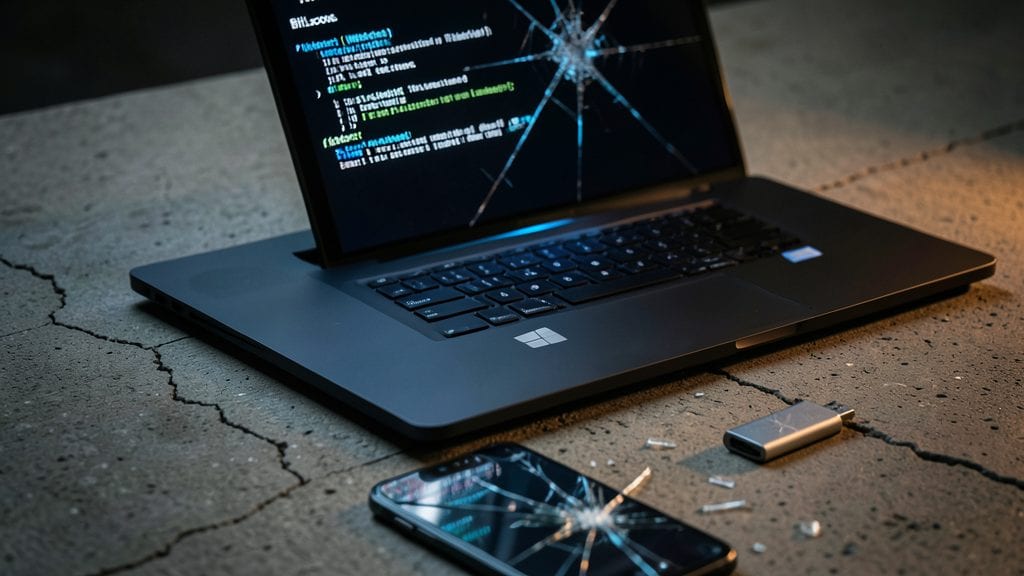
Losing your laptop isn’t just a hardware headache—it’s a potential data disaster. Full-disk encryption (like BitLocker for Windows or FileVault for Mac) turns your device into a digital vault, rendering all data unreadable without your password. This isn’t just paranoia—it’s often a compliance requirement for industries handling sensitive info.
Setting it up takes minutes: BitLocker integrates seamlessly with Windows Pro/Enterprise, while FileVault is built into macOS. Both encrypt your entire drive, including the operating system, so even if thieves bypass your login screen, they’ll hit a dead end. For extra peace of mind, enable TPM (Trusted Platform Module) on Windows devices—it adds hardware-level protection against brute-force attacks.
This is non-negotiable for contractors, healthcare workers, or finance professionals handling confidential data. Even casual users benefit: encryption deters opportunistic theft and meets basic security standards for most remote setups. 🔧
Regular Software Updates
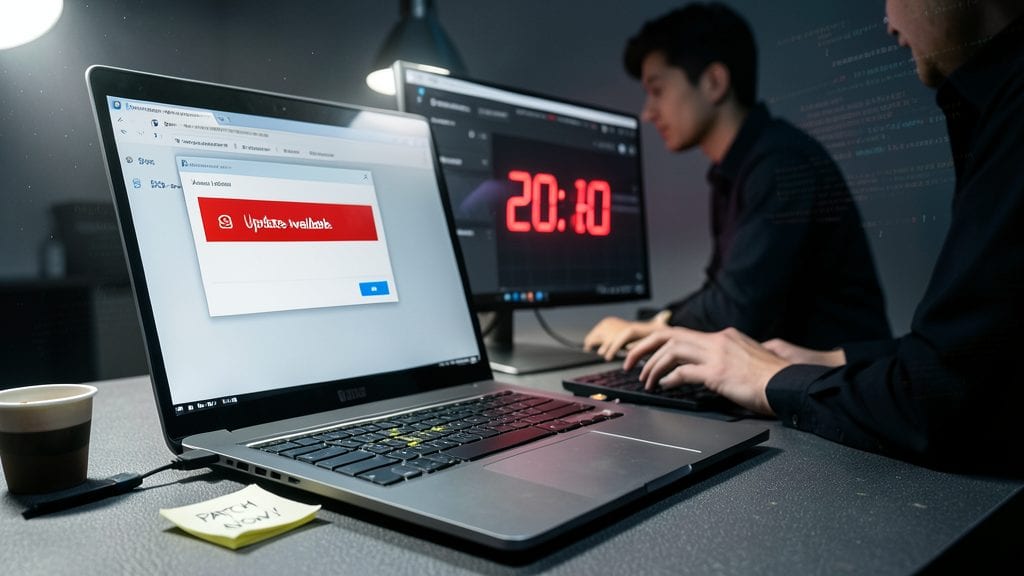
Most cyberattacks exploit unpatched software—yet many remote workers ignore update notifications. The average software vulnerability takes 20 days to be patched, leaving your system exposed during that window. Automating updates closes this gap instantly.
Enable automatic updates for your OS (Windows Update, macOS Software Update) and critical applications like browsers, email clients, and security tools. For apps that don’t support automation, set calendar reminders to check for updates weekly. Even minor updates often include security fixes for newly discovered flaws, like the Log4j vulnerability or critical Chrome zero-days that hackers weaponize within hours of disclosure.
This is especially critical for remote workers handling sensitive data—finance, healthcare, or legal professionals should prioritize updates over all other tasks. A single missed patch can turn your device into a hacker’s entry point. ⚡
Secure Password Manager
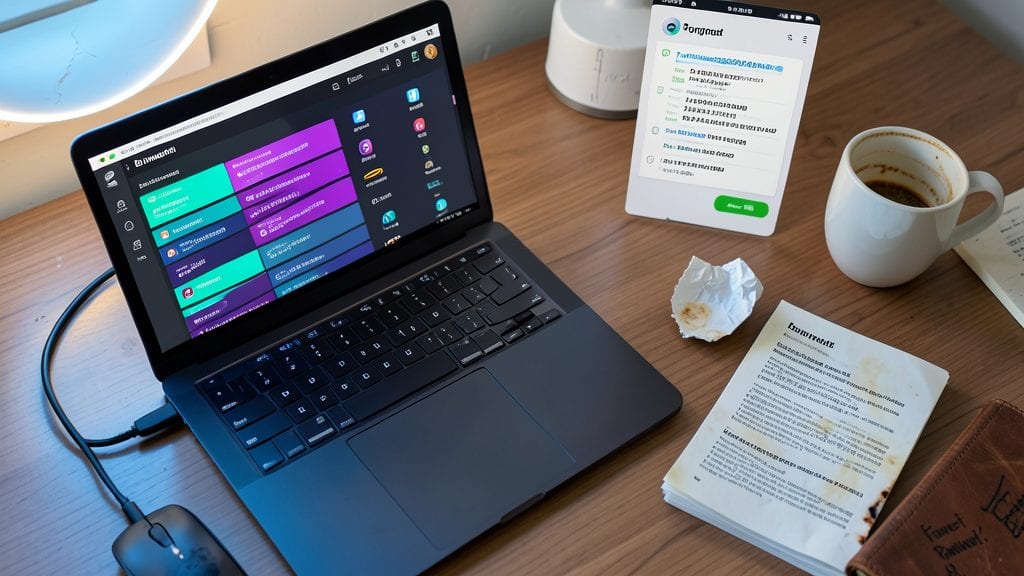
Tired of resetting passwords or worrying about reused credentials? A secure password manager eliminates these headaches by generating and storing unique, high-strength passwords for every account—no more "Password123" or sticky notes.
Top tools like Bitwarden (free and open-source) or 1Password (user-friendly) sync across devices, auto-fill logins, and even monitor the dark web for compromised credentials. With AES-256 encryption, your master password is the only key you’ll ever need, while two-factor authentication adds an extra layer of protection.
Perfect for remote workers juggling multiple accounts, this tool cuts breach risks by 90%—ideal for freelancers, teams, or anyone who’s ever forgotten a password mid-project. ✨
Physical Device Protection
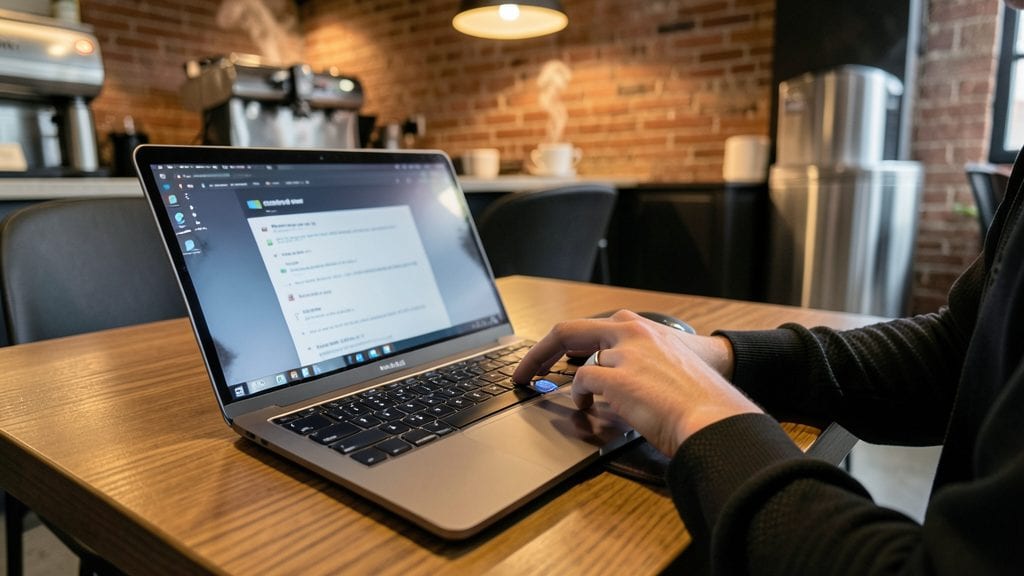
Ever walked into a coffee shop only to realize someone could read your screen from across the room? Physical device protection closes this gap with simple yet powerful tools that go beyond digital defenses.
Start with a strong screen lock—Windows Hello’s fingerprint or Face ID on Macs are faster than passwords and harder to bypass. Add a privacy screen filter (like those from 3M or Apple) to block angles up to 90 degrees, making shoulder surfing nearly impossible. For extra security, use a Kensington cable lock ($15) to physically anchor your laptop to your desk, deterring theft while you step away.
This combo is perfect for freelancers in shared spaces, finance professionals handling sensitive data, or anyone who’s ever left their laptop unattended. A few seconds of setup now can prevent hours of headaches later. 💪
Phishing Email Awareness
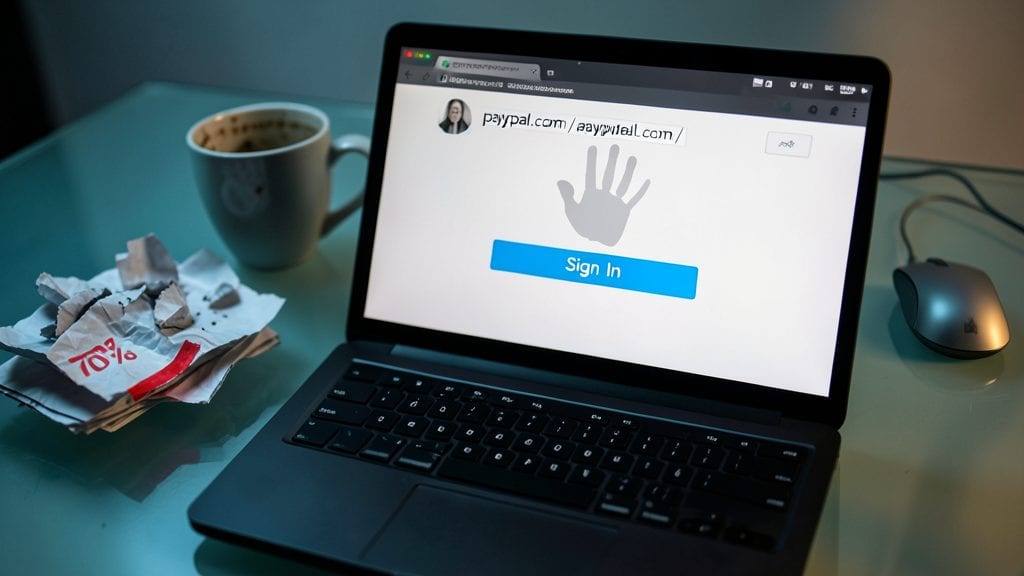
Even the most secure password or VPN can’t stop a phishing attack—because those tricks exploit human judgment, not tech flaws. A single clicked link can compromise your entire remote setup, yet 70% of breaches start with phishing emails, according to IBM’s 2023 report. The good news? Training cuts that risk dramatically.
Start with interactive phishing simulations (tools like KnowBe4 or PhishMe) that mimic real attacks, then reinforce lessons with : urgent language, mismatched email domains, or requests for login credentials. Many platforms also offer automated reporting—so you can flag scams without risking exposure. Even 30 minutes of monthly training sharpens your team’s ability to spot red flags.
This is especially critical for remote teams handling payments, HR data, or client info. Small businesses often assume they’re too small to target—but cybercriminals prioritize low-hanging fruit. 💡
Cloud Storage Security
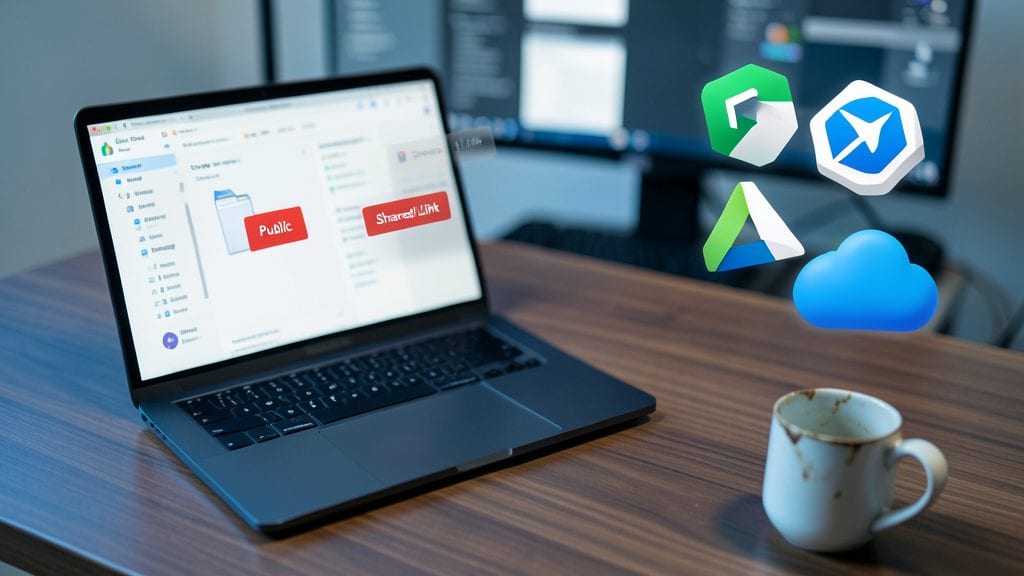
Accidental data leaks happen—often from misconfigured cloud storage. A simple shared link with the wrong permissions can expose sensitive files to anyone with the URL. Fortunately, a few clicks can lock down your Dropbox, Google Drive, or OneDrive accounts with granular controls.
Start by enabling end-to-end encryption (available in all three services) to ensure files are unreadable in transit and at rest. Then, audit sharing settings: restrict access to specific people (not "Anyone with the link"), set expiration dates for shared files, and disable version history for highly sensitive documents. Google Drive’s Vault** feature even lets you quarantine or delete leaked files instantly.
This is non-negotiable for freelancers, remote teams, or anyone handling client data. A misclick can’t be undone—but a well-configured cloud storage account can prevent it from happening in the first place. ✨
Regular Security Audits
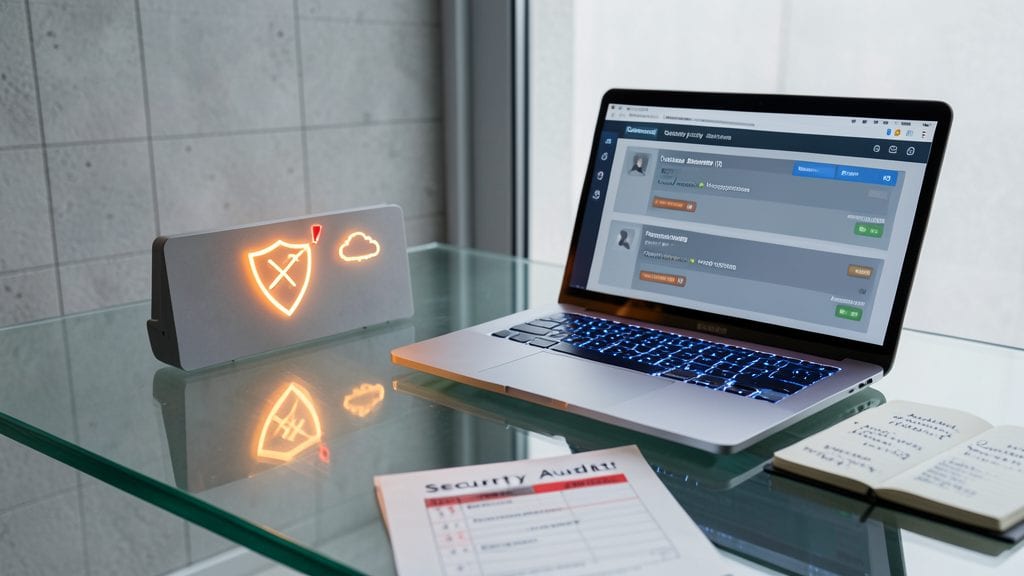
Think of security audits as your remote work’s "check engine" light—except instead of waiting for a warning, you’re catching issues before they escalate. Most breaches start with small, overlooked vulnerabilities, like outdated software permissions or misconfigured cloud access. A quarterly audit (not just annual!) systematically scans for these gaps, ensuring nothing slips through the cracks.
Tools like Microsoft Defender for Business or Tenable.io automate scans for misconfigurations, expired certificates, and unpatched systems. They’ll flag things like unnecessary admin privileges or shadow IT apps (tools your IT team didn’t approve) that could expose data. The goal? Turn passive security into a proactive shield—because fixing a vulnerability in advance is far cheaper than cleaning up after a breach.
This is the final layer for remote workers who treat security like a habit, not a chore. Whether you’re a freelancer handling client data or a corporate employee, scheduling these audits ensures your defenses stay sharp—without the stress. 💪