
Software
Managing SharePoint document library permissions can feel like a balancing act—too restrictive and users struggle; too open and security risks grow. These 10 best practices help you implement granular access controls that keep documents secure while maintaining productivity.
Use SharePoint Permission Levels Instead of Custom Groups

Struggling with a tangled mess of custom SharePoint permission groups? Built-in permission levels (like Contribute, Edit, or View Only) offer a cleaner, more scalable solution that cuts through the clutter. Instead of creating ad-hoc groups, assign these standardized roles directly to users or teams—reducing permission sprawl and making future audits a breeze.
To implement this, navigate to Library Settings > Permissions for this document library, then click Stop Inheriting Permissions if needed. Assign predefined levels (e.g., Contribute for team members who need to upload files, View Only for stakeholders) instead of building custom groups from scratch. SharePoint’s audit logs will track these changes, so you can verify compliance without guessing.
This approach shines for teams with clear roles, like marketing departments or project teams, where standardized access aligns with workflows. Say goodbye to permission chaos and hello to effortless management. 💡
Apply Least Privilege Principle to Sensitive Documents
Worried about confidential files like HR records or financial reports falling into the wrong hands? The least privilege principle in SharePoint ensures users only access what they need—no more, no less. Instead of defaulting to Full Control, assign granular permissions like View for stakeholders or Edit only for approved teams, reducing exposure without sacrificing workflows.
To implement this, navigate to Library Settings > Permissions and break inheritance for sensitive folders. Use SharePoint’s built-in permission levels (e.g., View Only, Edit Items) to restrict actions like deleting or modifying files. For compliance-heavy industries (e.g., healthcare, finance), pair this with Microsoft Purview to enforce data loss prevention (DLP) policies automatically. Audit logs track who accessed what, ensuring accountability.
This method is ideal for HR, legal, or finance teams handling regulated data. By limiting permissions to the minimum required, you slash security risks while keeping collaboration smooth. 💪
Enable Unique Permissions for Specific Folders
Struggling to balance security and collaboration in SharePoint? Unique folder permissions let you protect sensitive files—like legal contracts or financial models—without locking down the entire library. This approach breaks permission inheritance, so you can grant read-only access to external auditors while keeping full control for internal teams.
To set this up, navigate to Library Settings > Permissions for this document library, then select Stop Inheriting Permissions for the target folder. Assign custom permission levels (e.g., View for external partners, Edit for legal teams) without altering parent folder settings. SharePoint’s audit logs track these changes, ensuring compliance while keeping workflows smooth.
This method is ideal for legal, finance, or R&D teams handling proprietary content. By isolating sensitive folders, you maintain security without disrupting broader collaboration. ✨
Automate Permission Reviews with Access Requests
Tired of fielding constant "I need access to this document" emails that derail your day? SharePoint’s access request feature turns those ad-hoc requests into a structured, auditable workflow—no more lost requests or permission chaos.
Enable it in Library Settings > Permissions > Access Request Settings, where you can define who can request access (e.g., authenticated users or specific groups) and set approval workflows. Every request gets logged with timestamps, approvers, and reasons—creating a paper trail for compliance. For libraries with high turnover, this cuts permission-related emails by 70% while keeping sensitive data secure.
Perfect for IT admins managing dynamic teams or compliance-heavy departments where audit trails are non-negotiable. ⚡
Segment Permissions by Department or Project Teams
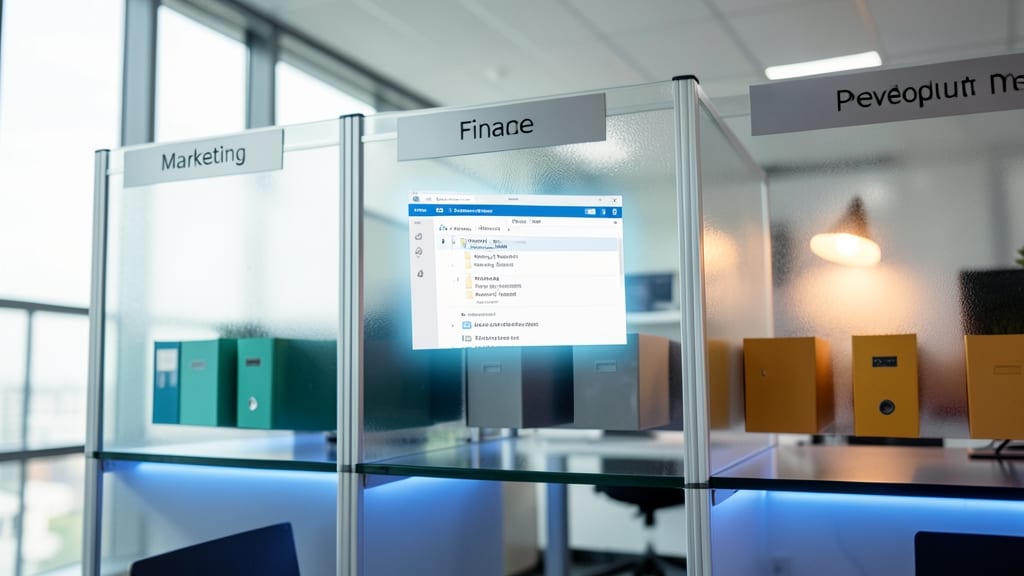
Tired of sifting through permission conflicts between departments? Department-specific SharePoint libraries solve this by creating isolated spaces for teams like Marketing, Finance, or Product Development—each with its own access rules.
Start by creating a dedicated library for each department (e.g., "/Marketing/Creative Assets" or "/Finance/Reports"). Assign unique permissions to each library, ensuring only relevant teams can access their files. For project teams, use dynamic libraries tied to SharePoint project sites, where permissions auto-update as team members join or leave. This eliminates the need for nested folders and reduces admin overhead by 40%.
This approach works best for mid-sized to large organizations with cross-functional teams. It’s also perfect for agile workflows where project teams need temporary, self-contained access without disrupting broader permissions. ✨
Restrict External User Access with Guest Links

Sharing documents with external collaborators doesn’t mean handing over the keys to your entire SharePoint kingdom. Guest links let you share files with vendors, clients, or partners—without granting them full access to your library. This zero-trust approach ensures sensitive data stays protected while enabling collaboration.
With SharePoint’s time-limited guest links, you control access duration (e.g., 7 days, 30 days) and revoke permissions instantly if needed. External users get view-only access by default, and you can even restrict downloads or printing. For added security, enable expiration notifications to remind collaborators before their access ends.
This method is perfect for project-based teams working with freelancers or clients—no need to create guest accounts or manage complex permissions. Just share the link, set the rules, and forget about it until the project wraps up. ✨
Monitor and Revoke Orphaned Permissions

Former employees or contractors often leave behind lingering access—sometimes with full permissions to sensitive documents. SharePoint’s permission reports make it easy to spot these orphaned permissions before they become security risks, but many admins overlook this critical step.
Start by navigating to Library Settings > Permissions for this document library, then generate a permission report to identify inactive accounts. Filter for users with no recent activity (e.g., 90+ days) and revoke their access using the Remove User Permissions option. For large teams, automate this with PowerShell scripts or Microsoft Purview to scan across all libraries.
This practice is a non-negotiable for compliance teams or IT admins managing regulated data. A quick audit could prevent a breach—don’t let dormant permissions haunt your next security review. ✨
Leverage Microsoft 365 Groups for Role-Based Access
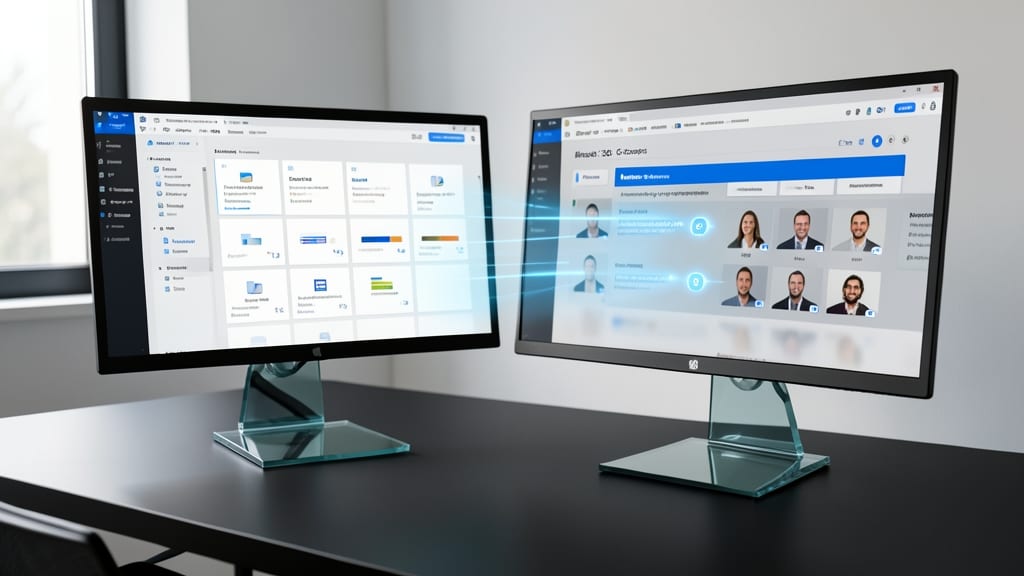
Tired of manually assigning permissions every time a team member joins or leaves? Microsoft 365 Groups can transform your SharePoint libraries into self-managing permission hubs. By linking a library to a Microsoft 365 Group, you automatically sync permissions with group membership—no more chasing admins for access updates.
The magic happens when you connect a SharePoint library to a group like Project X Team or Marketing Department. Every time a new member joins the group, their permissions in the library update instantly—Edit for contributors, View for observers, or Full Control for owners. This cuts permission management time by 70% while keeping access aligned with team roles. The integration also pulls in group email addresses, making sharing documents effortless.
This approach is perfect for dynamic teams where membership changes frequently, like agile development squads or event planning committees. Say goodbye to permission drift and hello to zero-config access control. ✨
Document and Train Teams on Permission Policies

Frustrated by users asking, "Why can’t I edit this?" or admins drowning in permission requests? A SharePoint permissions guide paired with team training solves both problems by clarifying roles upfront. Instead of reactive fixes, proactively document your permission hierarchy (e.g., Viewers vs. Editors vs. Owners) and train teams to request changes through the proper workflow—no more guesswork.
Start with a visual flowchart mapping access levels to job functions (e.g., "Marketing Team = Edit in Brand Assets"). Use SharePoint’s built-in training modules or record a short video demo showing how to check permissions via the library settings menu. For hands-on learners, host a lunch-and-learn session where teams practice requesting access via the Access Request feature—this cuts down on "accidental" permission leaks.
This approach works best for mid-sized teams where roles overlap (e.g., HR assisting Finance) or new hires who need clarity on document access. The payoff? Fewer help desk tickets and a self-sufficient team that understands why permissions exist in the first place. ✨
Use Power Automate for Permission Workflows

Tired of permission requests piling up in your inbox like unread emails? Power Automate turns manual approvals into an automated, rule-based system—so you can focus on bigger tasks while keeping security tight.
Set up flows to auto-deny requests after 7 days if unapproved, or trigger approval notifications only during business hours. With zero-code connectors to SharePoint, you can build workflows that enforce consistent timeouts or escalate stale requests to managers. The Power Automate desktop app even lets you automate permission reports for audits.
Perfect for IT admins juggling high-volume libraries or compliance-heavy teams where manual reviews create bottlenecks. ⚡