
Software
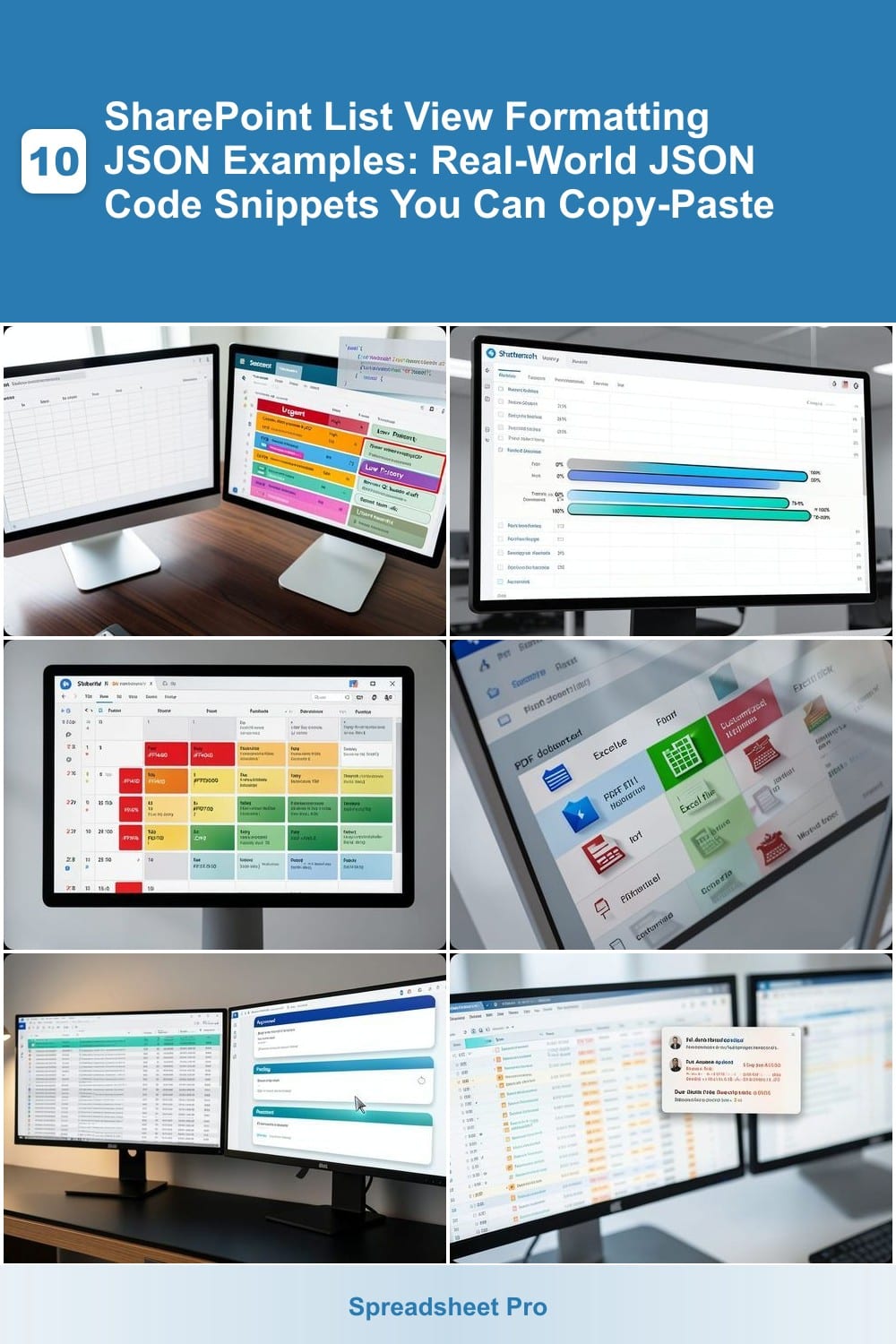
Transforming SharePoint lists into visually compelling tools doesn’t require coding expertise—just the right JSON formatting. These 10 real-world examples cover everything from conditional formatting to column customization, with ready-to-use snippets that adapt to your workflow needs.
Conditional Formatting for Task Priorities
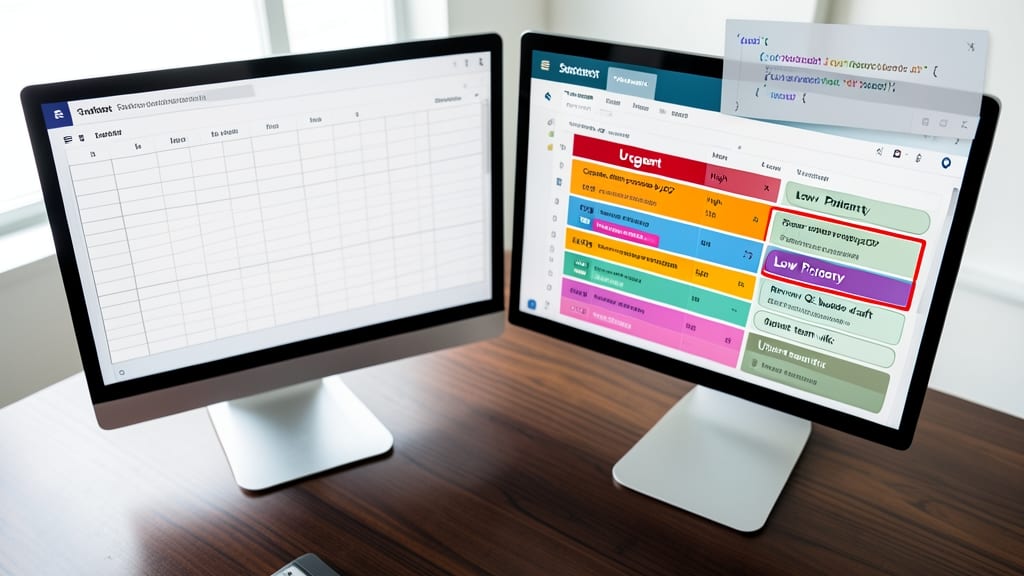
Struggling to keep track of which tasks demand immediate action versus those that can wait? This conditional formatting for task priorities JSON snippet automatically highlights urgent tasks in bold red and low-priority items in calming green, using dynamic status field values—no manual updates required.
The snippet targets a \"Priority\" column and applies Microsoft Fluent UI-compliant colors (#FF0000 for urgent, #008000 for low-priority) while keeping neutral items in a default gray. It works seamlessly with SharePoint Online and modern SharePoint Server environments, adapting instantly when statuses change. The visual hierarchy ensures your team focuses on what truly matters without extra clicks.
Perfect for project managers, team leads, or anyone juggling multiple deadlines, this formatting turns chaotic task lists into a clear, actionable dashboard in seconds. 💪
Progress Bar for Percentage Completion
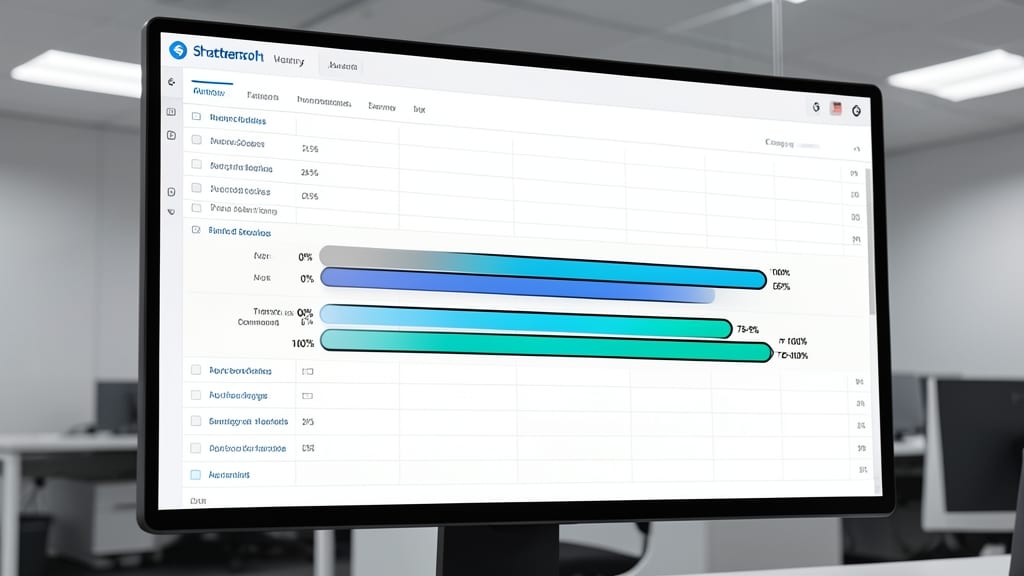
Need a way to show task progress at a glance without digging into details? This progress bar for percentage completion JSON snippet transforms your SharePoint lists into visual dashboards, where 0-100% completion is displayed as a sleek, interactive bar—ideal for team dashboards where quick status updates keep everyone aligned.
The snippet dynamically pulls data from a percentage completion column and renders it as a blue progress bar with a numeric label (e.g., "75% Complete"). It supports responsive scaling to fit any list width and includes hover tooltips showing exact values. Best of all, it works in SharePoint Online and modern SharePoint Server environments with zero configuration hassle.
Perfect for project managers, Agile teams, or support coordinators tracking workflows, this formatting turns abstract percentages into instantly scannable visual cues. No more guessing—just clear, actionable progress at a glance. ✨
Date-Based Color Coding for Events
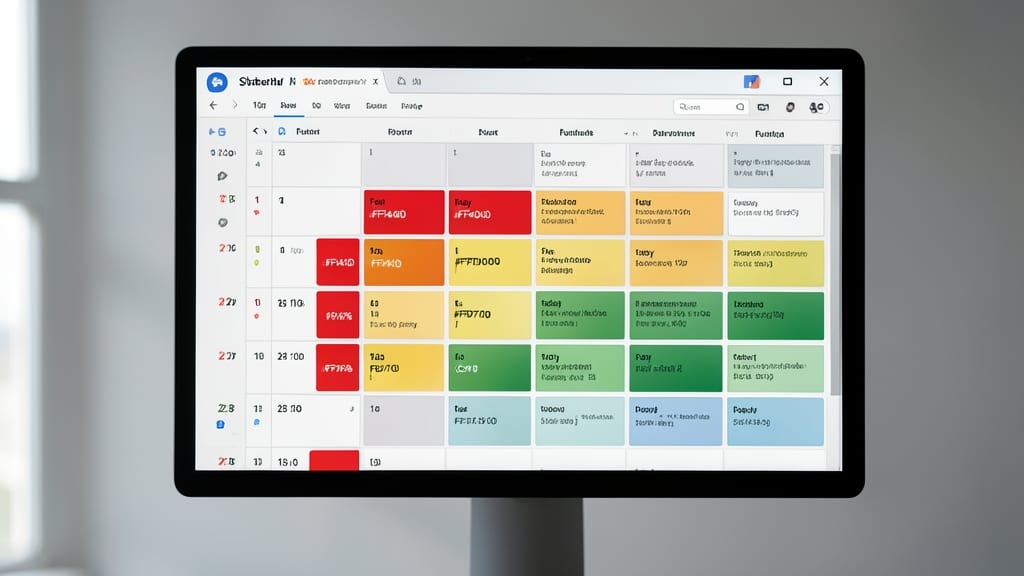
Ever struggled to spot overdue events buried in a sea of dates? This date-based color-coding JSON snippet automatically applies visual cues—red for past events, yellow for today, and green for future dates—so your SharePoint calendar stays instantly scannable.
The magic happens with a simple conditional rule tied to your date field, using SharePoint’s built-in $Today and date comparison operators. No manual updates needed—just apply the JSON, and your events self-organize. It’s perfect for HR teams tracking training deadlines or event planners managing multi-day conferences.
Ideal for anyone managing time-sensitive workflows, this snippet cuts through the noise with zero extra clicks. ✨
Custom Icons for Document Types
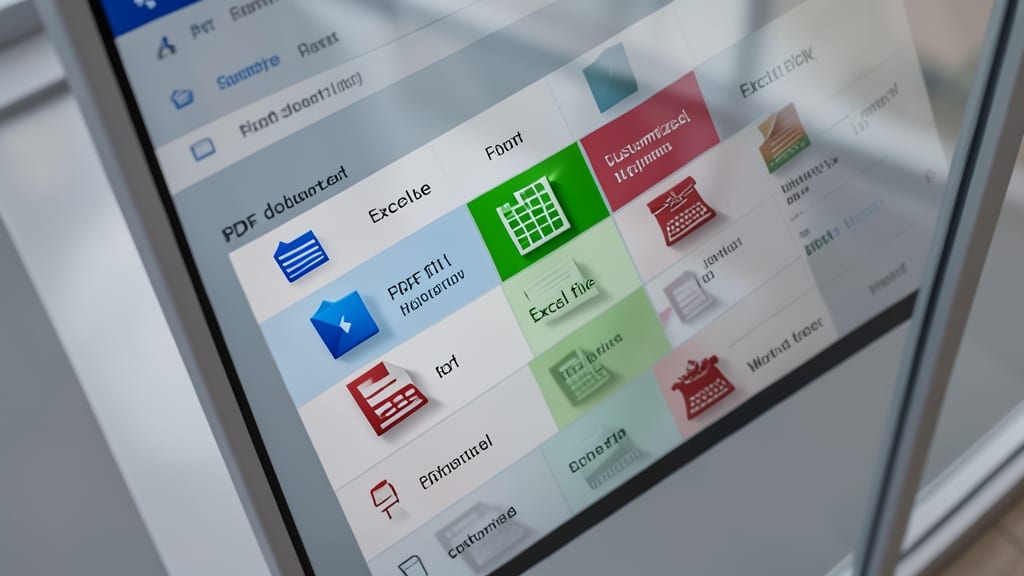
Tired of squinting at SharePoint lists where every document looks like a generic paperclip? Custom icons for document types instantly transform your lists into a visual filing system—no more guessing whether that link points to a PDF or an Excel file.
With just a few lines of JSON, you can replace default icons with file-type-specific symbols (like the blue "W" for Word or the green "X" for Excel) that match your brand’s color scheme. This works seamlessly with SharePoint Online and modern libraries, making it perfect for knowledge bases where users need to spot document categories at a glance.
Ideal for client portals or internal wikis, this formatting ensures even non-technical users can navigate your SharePoint lists with confidence. ✨
Grouped and Collapsible Sections
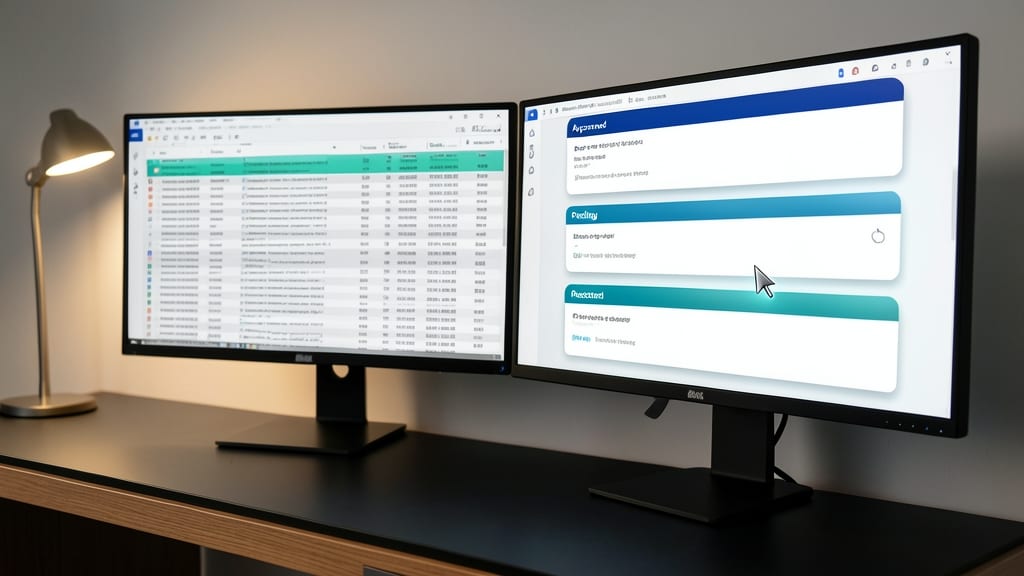
Tired of scrolling through endless SharePoint lists where critical items get lost in the noise? Grouped and collapsible sections transform clutter into organized workflows by categorizing items (like 'Approved,' 'Pending,' or 'Rejected') with expandable headers—no coding required.
This JSON snippet uses dynamic grouping based on a status column, letting you collapse non-urgent sections (e.g., 'Rejected' tickets) with a single click. The plus/minus icons provide instant visual cues, while the underlying JSON structure supports nested categories for complex approval chains. Best of all, it works seamlessly in SharePoint Online and modern SharePoint Server environments.
Perfect for HR teams managing onboarding documents, customer support tracking escalations, or project managers reviewing design submissions. With just a few lines of JSON, you’ll turn chaotic lists into a streamlined, actionable dashboard. ✨
Dynamic Tooltips for Hover Details

When your SharePoint list is packed with data but screen real estate is tight, dynamic tooltips save the day by revealing hidden details on hover—without cluttering your view.
This JSON snippet lets you display assignee names, due dates, or custom metadata in a clean, semi-transparent popup when users hover over a row. Perfect for project trackers or support teams, it keeps your list scannable while ensuring critical info is never out of reach. The tooltip appears instantly, reducing clicks and improving workflow efficiency.
Ideal for task management lists or client portals, this feature works seamlessly in SharePoint Online and modern SharePoint Server. Try it to turn dense lists into intuitive, user-friendly tools. ✨
Priority Badges with Numbers

Tired of sifting through endless tasks without clear urgency cues? Priority Badges with Numbers transforms your SharePoint lists by adding 1–5 numbered badges—like a rating system—to instantly communicate task importance at a glance.
This JSON snippet dynamically applies badges based on a priority column, using red for 1 (critical), orange for 2–3, and gray for 4–5 (lowest). The badges appear in the top-right corner of each row, ensuring no task slips through the cracks. Best of all, it integrates seamlessly with existing workflows, requiring zero changes to your data structure.
Perfect for project managers, support teams, or anyone juggling multiple priorities—this visual hierarchy eliminates guesswork and speeds up decision-making. 💻
Custom Sorting by Multiple Columns
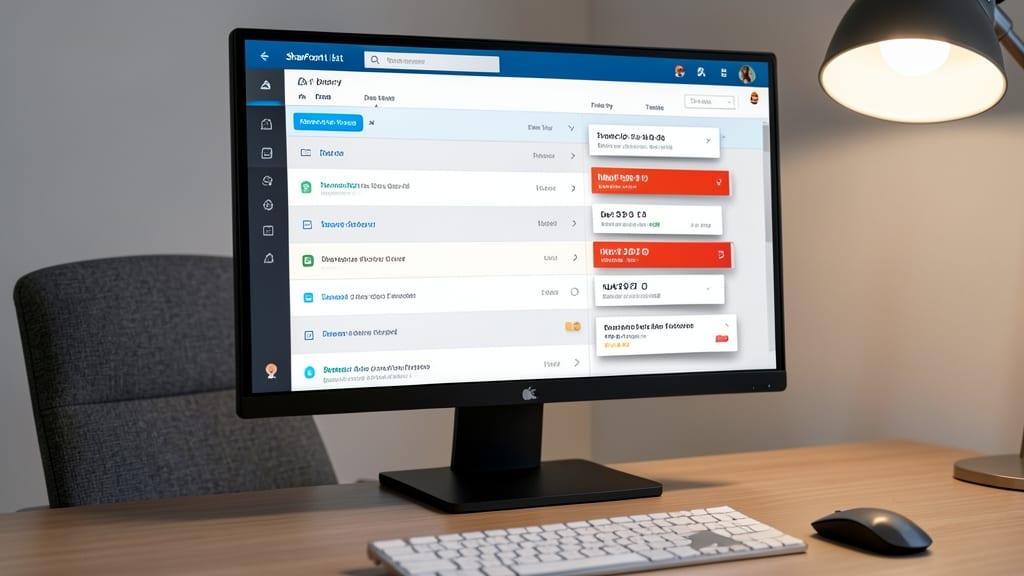
When your SharePoint list is drowning in tasks with overlapping deadlines, multi-column sorting becomes a lifesaver. Unlike basic sorting, this JSON trick lets you prioritize by both priority level and due date—so high-priority tasks and urgent deadlines appear first, no matter which column you click.
The magic happens with a simple JSON snippet that targets two columns simultaneously. For example, you could sort by Priority (descending) and Due Date (ascending), ensuring critical tasks with tight deadlines bubble to the top. The result? A single-click solution for project managers juggling sprints, client deliverables, and internal deadlines—all without manual filtering.
Perfect for Agile teams, marketing coordinators, or any role where deadlines and priorities collide daily. ⚡
Conditional Formatting for Status Flags
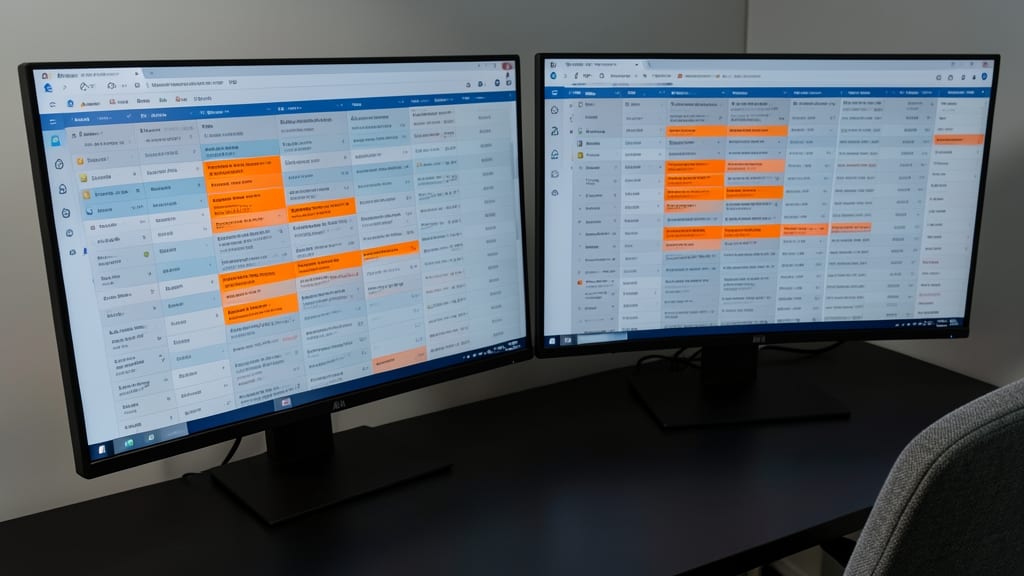
Struggling to spot critical customer issues buried in a sea of support tickets? Conditional formatting for status flags instantly draws attention to flagged items with a bold orange highlight—no more scanning through endless rows to find what needs immediate action.
This JSON snippet targets a "Flagged" status column and applies a distinct background color (like #FF9900) to flagged items while keeping unflagged rows neutral. You can even add a red exclamation icon in the status column for extra visibility. The formatting works dynamically, so new flagged items update automatically without manual tweaks.
Perfect for customer support teams, IT help desks, or any workflow where urgent items demand immediate focus. Just copy-paste the JSON, and your critical items will stand out like a neon sign. ✨
Responsive Design for Mobile Views

Field teams and remote workers no longer need to squint at cramped SharePoint lists on their phones. This responsive design JSON snippet transforms your list into a mobile-friendly layout with stacked columns and touch-optimized buttons, ensuring every tap lands where it should.
Key features include adaptive column widths that stack vertically on small screens, minimum 48px touch targets for buttons and links, and high-contrast text for readability. The JSON automatically detects screen size and adjusts layouts—no extra plugins required. For example, a task list with priority badges and status flags will reflow into a clean, single-column view with enlarged action buttons.
Perfect for service technicians, sales teams, or anyone accessing SharePoint on the go, this formatting ensures productivity doesn’t drop when you’re away from your desk. ⚡