
Tip & Trick
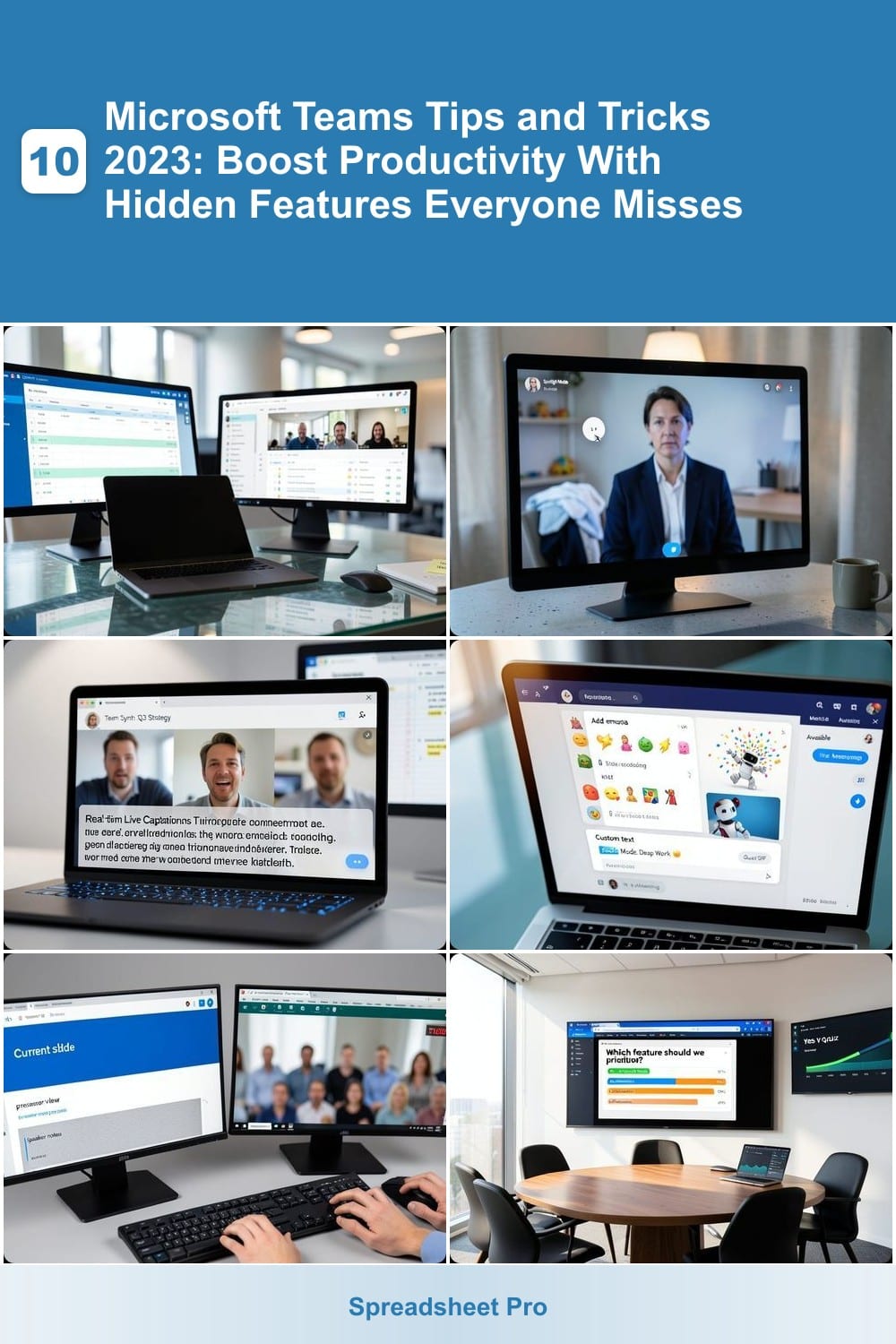
Microsoft Teams is a powerhouse for collaboration, but most users only scratch the surface. These 10 lesser-known 2023 features will transform how you work—from automating repetitive tasks to securing your meetings like a pro.
Automate Meeting Scheduling With Templates
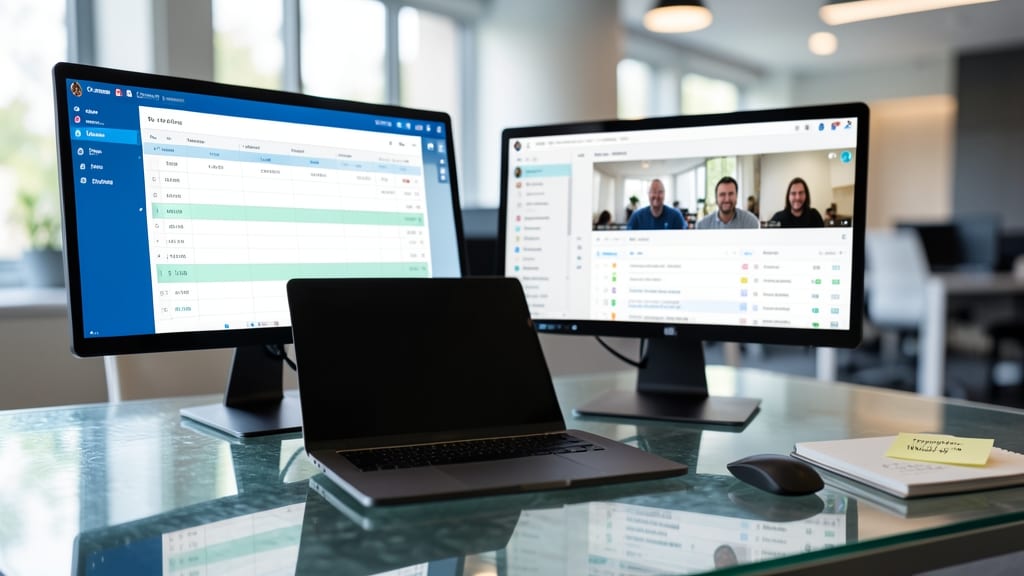
Say goodbye to manually scheduling the same meetings week after week. Microsoft Teams now lets you create reusable meeting templates—complete with pre-set agendas, recurring schedules, and even default attendees—so you can focus on the discussion, not the setup.
To get started, open the Calendar tab in Teams, create a new meeting, then click Save as template. Name it (e.g., "Daily Standup" or "Client Check-in") and customize the duration, attendees, and agenda in one place. When it’s time to schedule, simply select your template from the dropdown—Teams handles the rest, including recurring invites and calendar sync. Perfect for teams with predictable rhythms like standups, client reviews, or team syncs.
This is a game-changer for managers, project leads, or anyone juggling repetitive meetings. Spend less time scheduling and more time leading—your calendar (and sanity) will thank you. ⚡
Use Spotlight Mode for Focused Video Calls
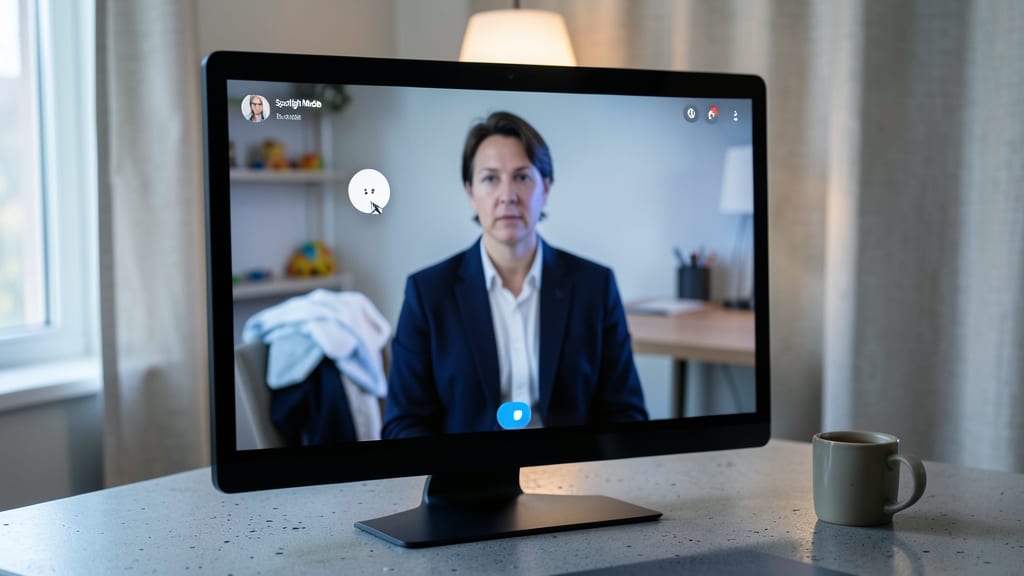
Struggling with background noise or messy home offices during video calls? Spotlight Mode in Microsoft Teams lets you blur out distractions and focus only on the active speaker—keeping meetings professional and on track.
To enable it, start or join a meeting, then click the three-dot menu in the meeting controls and select Spotlight Mode. The feature uses AI to automatically detect who’s speaking, blurring other participants while keeping the active speaker in sharp focus. Perfect for hybrid teams where some attendees are in noisy offices while others work from home.
This is a lifesaver for trainers, managers, or anyone leading meetings where background distractions might derail the conversation. Give it a try next time you’re in a busy virtual workspace—your audience will appreciate the clarity! 💡
Enable Live Captions for Real-Time Transcripts
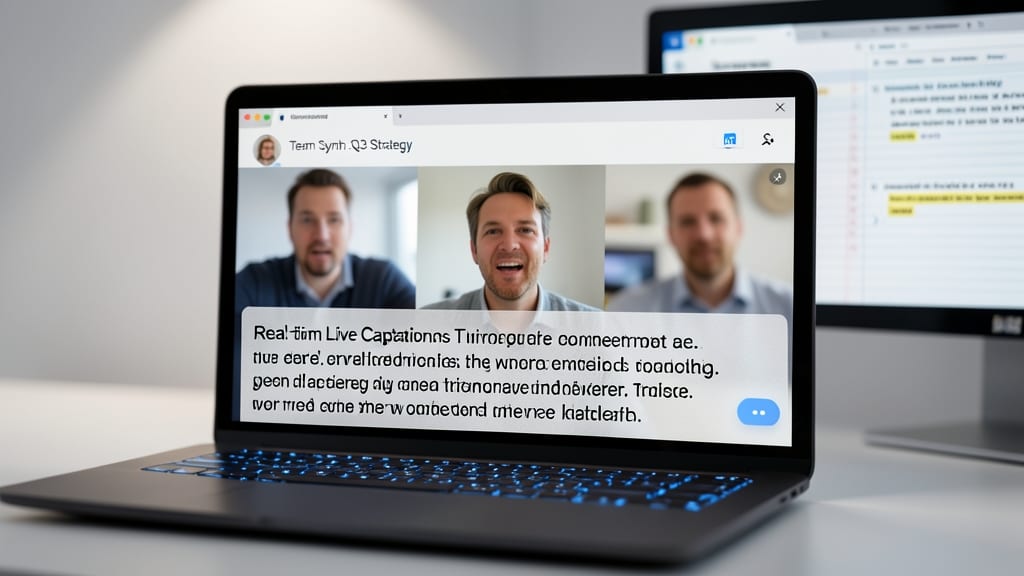
Struggling to follow fast-paced meetings or ensure everyone stays on the same page? Live Captions in Microsoft Teams generates real-time text transcripts during calls, turning spoken words into searchable text instantly—no extra tools required.
To enable it, join a meeting, click the three dots in the meeting controls, then select Turn on live captions. The captions appear at the bottom of your screen, supporting over 40 languages and even adjusting for background noise. It’s perfect for non-native speakers, hard-of-hearing participants, or anyone juggling tasks while listening.
This feature is a game-changer for inclusive workplaces or teams with global members. Try it next time you’re in a brainstorming session—your notes will thank you later. ✨
Customize Status Messages With Emojis and GIFs
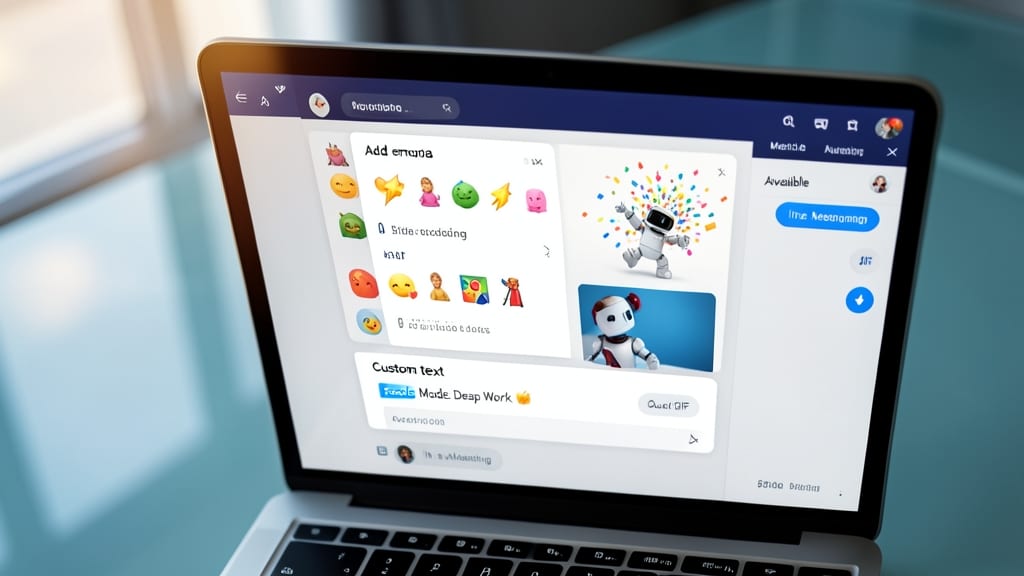
Tired of the same old "Available" or "In a Meeting" status? Microsoft Teams lets you spice up your presence with emojis, GIFs, or custom text—perfect for teams that thrive on personality and context without full sentences.
Simply click your status dropdown, choose "Add emoji" or "Add GIF" (with options like 🎉 for celebrations or 🚧 for "working on something big"), or type a short, witty message like "AFK – back at 3." Teams also supports custom images for teams with branded statuses. Pro tip: Use 🌙 for night shifts or 🏃 for "out for a walk" to set expectations instantly.
This is a game-changer for remote teams, creative agencies, or anyone who wants to humanize their digital presence—no extra apps needed. Just a click to show your mood or context. ✨
Use PowerPoint Live in Teams Meetings
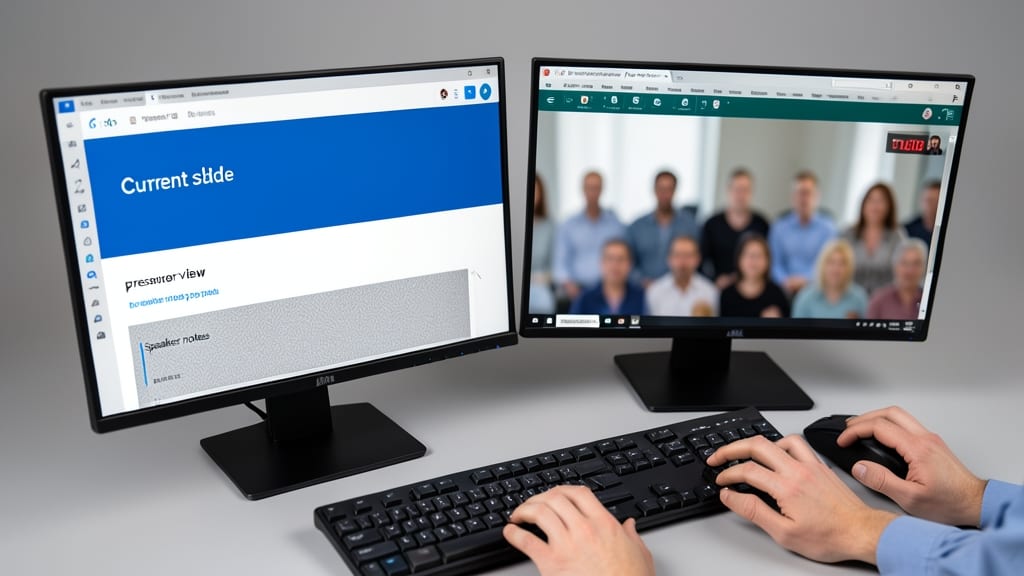
Tired of fumbling between screens during presentations? PowerPoint Live in Teams lets you share your deck directly from PowerPoint while keeping your notes, timer, and audience view all in one place—no extra tabs needed.
With presenter view, you’ll see your speaker notes and next slide while attendees only see your slides. Add real-time annotations (like drawing or highlighting) and use the laser pointer to guide attention. The integration even supports PowerPoint Morph transitions for smoother visuals. Perfect for trainers, sales teams, or remote workshops where clarity matters.
This feature works seamlessly with PowerPoint 2016 or later, so if you’re already using Office 365, you’re just a click away from a polished, distraction-free presentation. ✨
Create Polls and Quizzes Mid-Meeting
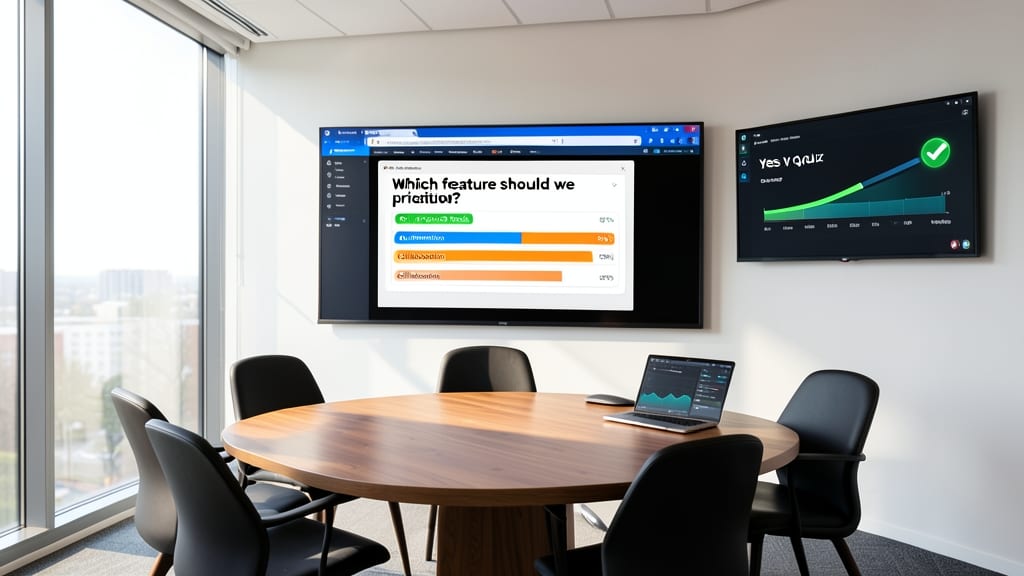
Turn passive meetings into interactive brainstorming sessions with real-time polls and quizzes—no extra tools required. Teams’ built-in polling feature lets you ask questions mid-call, display results instantly, and even turn discussions into data-driven decisions.
Create multiple-choice, yes/no, or ranking polls in seconds, then share results with everyone or just the organizer. Use it for quick decision-making (e.g., "Which project should we prioritize?") or training assessments (e.g., "What’s the correct security protocol?"). The feature works on desktop and mobile, and you can even save poll templates for repeat use.
Perfect for trainers, managers, and brainstorming teams—this trick turns meetings from one-way lectures into collaborative, engaging experiences. ✨
Set Up Focus Mode for Deep Work
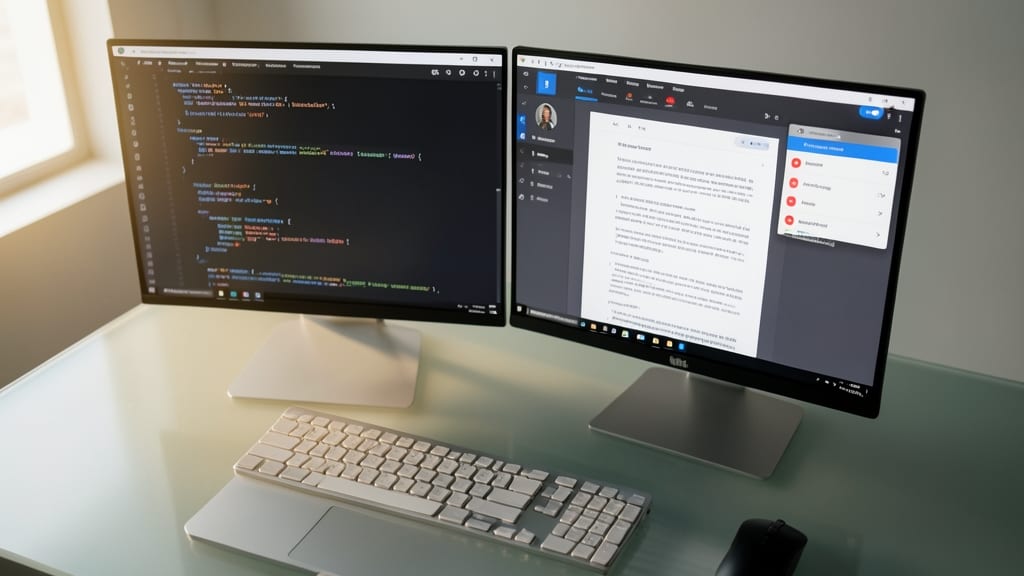
Drowning in notifications while trying to write code or draft that report? Focus Mode in Microsoft Teams silences the chaos by hiding non-essential chats and meetings—leaving only your active conversations visible.
To enable it, click your profile icon, select Focus Mode, then choose which chats to keep visible. The feature works across desktop and mobile, and you can set a timer to auto-exit after 30, 60, or 90 minutes. Perfect for developers debugging or writers crafting their next masterpiece without interruptions.
Ideal for anyone juggling multiple tasks, this zero-config distraction blocker turns Teams into a productivity powerhouse. ✨
Use the 'Together Mode' for Virtual Team Building
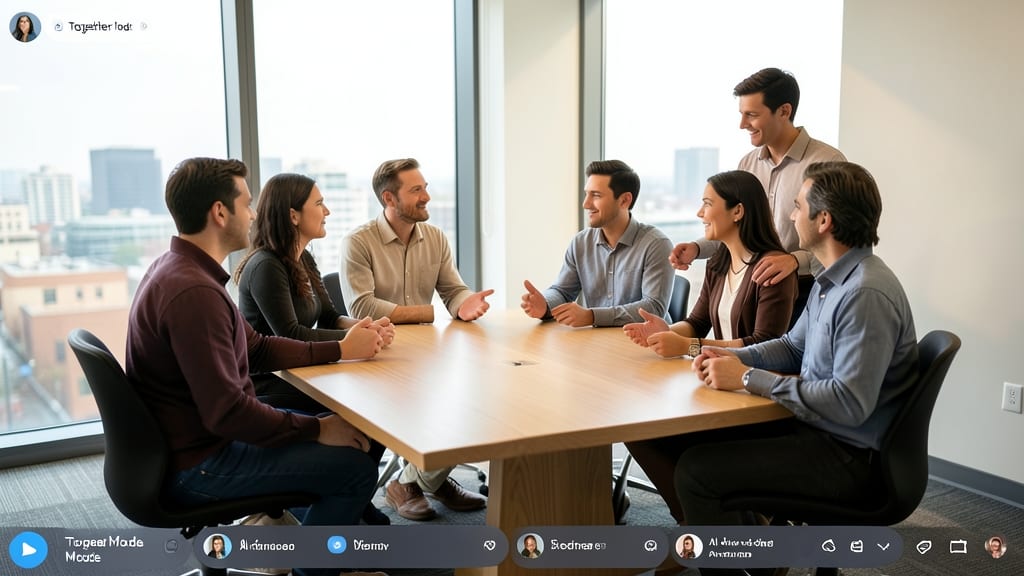
Miss the watercooler chats and casual team huddles? Together Mode in Microsoft Teams recreates the feel of an in-person workspace by placing participants in a virtual room—no more staring at a grid of video tiles. This feature uses AI to arrange attendees in a shared space, complete with customizable backgrounds like offices, cafes, or even a beach (yes, really).
To enable it, simply start a meeting, click the three-dot menu, and select Together Mode. You’ll instantly see team members as avatars seated around a virtual table, with subtle animations like nodding or waving to simulate natural interaction. It’s perfect for icebreakers, brainstorming sessions, or even virtual coffee breaks—any scenario where connection feels more important than content.
Remote teams, onboarding new hires, or managers leading hybrid teams will find this the easiest way to recreate office camaraderie. Give it a try during your next casual check-in—your team’s morale might just get a boost. ✨
Schedule Private One-on-One Calls Easily
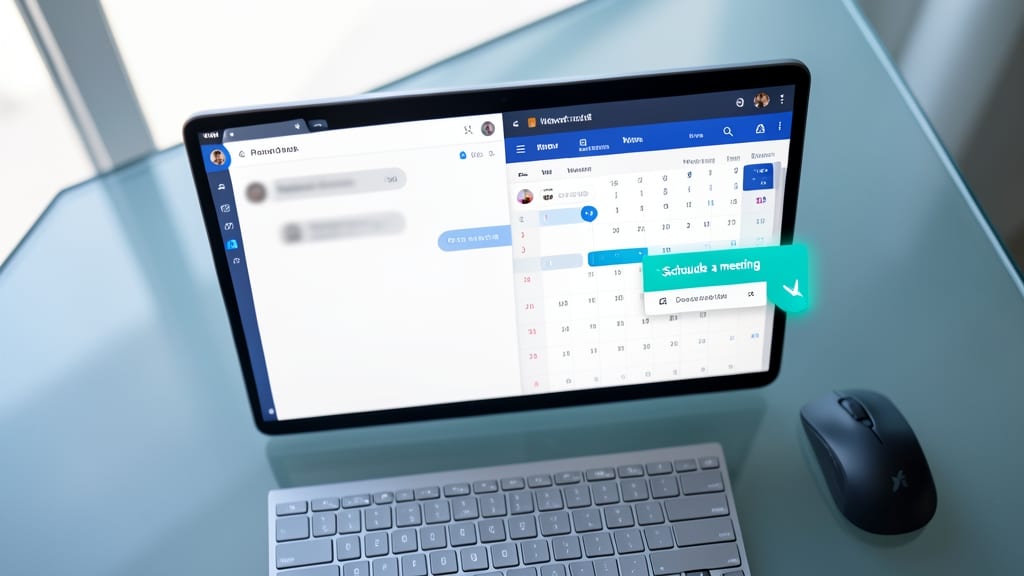
Tired of bouncing between Teams chats and your calendar just to schedule a quick one-on-one? Microsoft Teams now lets you book private meetings directly from chat threads—no tab-switching required. Simply right-click any message in a private or group chat and select "Schedule a meeting", then customize time, duration, and attendees in seconds.
This feature integrates seamlessly with your Outlook calendar, ensuring availability syncs automatically. You can even set recurring 1:1s with team members or direct reports, perfect for managers juggling frequent check-ins. The best part? No extra plugins or complicated workflows—just a built-in shortcut that saves minutes every time. ⚡
Ideal for HR professionals, team leads, or anyone coordinating regular personal meetings, this trick cuts down on back-and-forth emails and keeps your schedule organized—all without leaving the conversation. 💻
Secure Meetings With Passwords and Lobby Controls
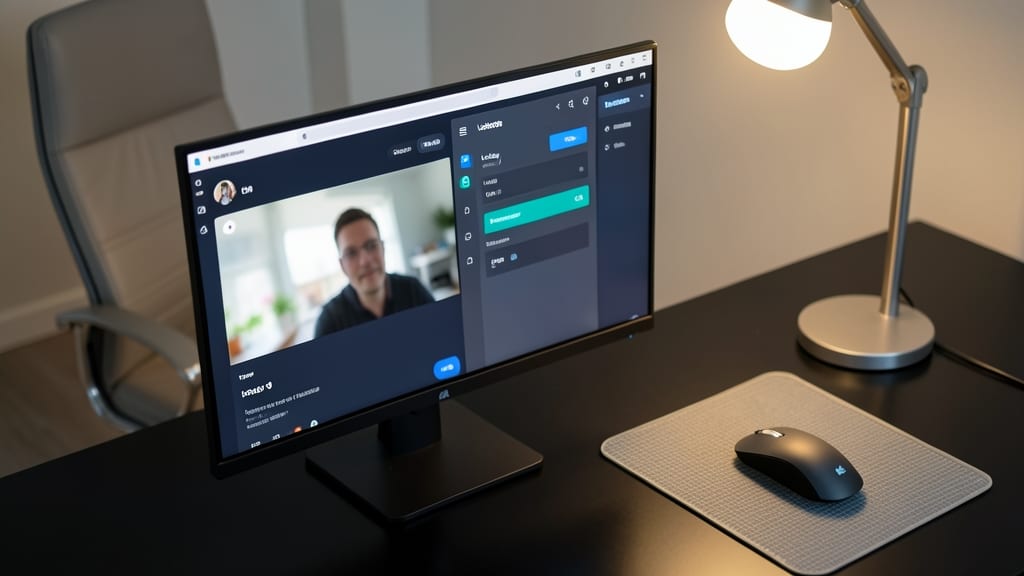
Public-facing teams or sensitive discussions deserve more than basic meeting links. Microsoft Teams lets you lock meetings with passwords or use the lobby feature to manually approve attendees—perfect for client calls, HR meetings, or confidential brainstorming sessions.
To enable these, open your meeting settings in Teams and toggle "Require a password" or "Enable lobby" before sharing the invite. Passwords create a six-digit code only attendees know, while the lobby lets you screen participants before they join—ideal for avoiding zoom-bombing or unauthorized access. Both options work seamlessly on desktop and mobile.
This is especially useful for legal teams, sales demos, or executive strategy sessions where security matters. Try it for your next high-stakes call—your data (and peace of mind) will thank you. ✨